Leaderboard




Popular Content
Showing content with the highest reputation on 12/25/24 in all areas
-
This is the longest goodbye ever. Take a hint from the Irish and wrap up your exit already.3 points
-
why you young whippersnapper! get off my lawn! [old man shakes fist at clouds]2 points
-
I wish that they would. I've found myself bumping against the limit on occasion as we have a lot of devices in our household and I've shared externally with a few family members. It definitely causes headaches when we do hit the limit. The monthly subscription is hard to justify for those of us that are just barely on the edge of the normal limit. I'd happily pay the cost of another license just to have more device slots for when they're actually needed. Yes buying a separate license is still technically an option, but running two emby instances just to have more device slots is unnecessary administrative overhead and comes with it's own set of issues/technical hurdles. I hope that the emby team reconsiders offering the lifetime device extension at some point again. All of that being said, I don't think that getting unreasonably angry over the matter, calling the emby team greedy, or making unnecessary rants about switching to Jellyfin (which IMO is still considerably inferior to emby) helps one bit.2 points
-
You paid for a lifetime license but you did not buy the software. You bought the right to use the program but Emby owns it. I, too, have a lifetime license even though I do not use much of the features opened up by lifetime. I do not have a lot of available money but i felt buying lifetime was a good way to make a donation. Emby is, for me, the best software I have ever put money into and the value i have received more than offsets the small amount of a lifetime license.2 points
-
Metadata is the backbone of any Emby server. Accurate metadata not only helps you organize your media but also enhances the browsing experience by providing details such as posters, cast information, and plot summaries. In our next how to guide, we’ll explore how to get the best metadata for your media library in Emby and customize metadata to suit your preferences. Why Metadata Matters Metadata turns a bland file list into an engaging media library. Instead of scrolling through filenames, you can browse visually stunning posters, read synopses, and see ratings or actors at a glance. This makes it easier to find what you want to watch and enjoy your media library to its fullest. Step 1: Setting Up Metadata Agents Metadata agents in Emby are responsible for fetching the information about your media. To configure them: Navigate to Metadata Settings: Go to your Emby Server dashboard. Click on Library, then select the library you want to configure. Choose Metadata Providers: Select metadata providers like TheMovieDB (for movies), TheTVDB (for TV shows), or MusicBrainz (for music). Drag and drop the providers to prioritize which one Emby should use first. Enable Automatic Updates: Make sure "Download metadata from the internet" is checked. This ensures Emby fetches metadata when new content is added. Language Preferences: Specify the language for metadata and artwork to match your preference. Step 2: Organizing Media for Better Metadata Matching Metadata accuracy heavily depends on how well your media files are named and organized. Follow these tips: Use Proper File Naming Conventions: Movies: MovieName (Year).ext (e.g., Inception (2010).mkv) TV Shows: ShowName/Season XX/ShowName - SXXEYY.ext (e.g., Breaking Bad/Season 01/Breaking Bad - S01E01.mkv) Organize Media into Folders: Separate movies, TV shows, and music into different folders. Group collections (e.g., trilogies) into subfolders for easier management. Avoid Extra Characters: Remove unnecessary text like resolution (e.g., [1080p]) or release group names. Step 3: Fixing Mismatched or Missing Metadata Even with proper organization, mismatches can happen. Here’s how to resolve them: Manually Edit Metadata: Open the Emby web app and locate the mismatched media. Click the three-dot menu next to the item, then select Edit Metadata. Correct the title or year and let Emby re-fetch the metadata. Use the Identify Tool: On the Edit Metadata page, use the Identify option to manually search for the correct entry in the provider’s database. Replace Incorrect Posters or Images: From the Edit Metadata page, go to the Images tab. Browse and select new images from the metadata providers or upload your own. Step 4: Customizing Metadata If you’re a power user, customizing metadata allows you to make your library uniquely yours. Enable NFO File Saving: In the Metadata settings, enable saving metadata as NFO files. These are XML files stored alongside your media, allowing you to edit them directly. Create Custom Metadata: Open the NFO file with a text editor. Add or modify tags such as <title>, <plot>, or <cast> to change how the media appears in Emby. Bulk Metadata Management: Use tools like Media Companion or TinyMediaManager to batch edit metadata and export it to NFO files for use with Emby. Step 5: Optimizing Metadata for Large Libraries If you’ve got a large collection, metadata fetching can strain your server. Optimize the process with these tips: Schedule Metadata Updates: In the Library settings, schedule metadata scans during off-peak hours to reduce server load. Use Local Metadata: Preload metadata by saving it as NFO files or by downloading artwork to local folders. Getting the best metadata in Emby doesn’t have to be complicated. By setting up metadata agents, organizing your media files properly, and learning to fix common issues, you can transform your library into a stunning, easy-to-navigate collection. For power users, customizing metadata opens up even more possibilities, making your Emby experience truly unique. Start fine-tuning your metadata today and enjoy a richer, more immersive Emby server experience today! View the full article2 points
-
It is indeed a Christmas miracle! Whatever Christmas magic has happened then many thanks!!! For those of unsure or having issues….”play the lottery”. Appreciate the effort taken to get this sorted! Cheers!2 points
-
TheTVDB now supports more alternative orders than just Aired/Absolute/DVD. Can Emby query these additional orders and add them as options? Two examples of shows I've seen this used are Re:Zero which has a "Director's Cut" display order and Money Heist which has a "Netflix" order. https://thetvdb.com/series/re-zero-starting-life-in-another-world https://thetvdb.com/series/la-casa-de-papel1 point
-
I've been dying to know if this has garnered enough interest to be worked on. I found Emby (MediaBrowser 3 at the time) and its bookshelf plugin while I was searching for something that was like Plex for comics. Plex doesn't do this (and probably never will), Kodi doesn't have what I'm looking for either, and ComicRack seems to be dead at the moment. Unfortunately the bookshelf plugin doesn't work the way I had hoped. I was dissappointed to see it only offer a download to the file to which I can open it to the program of my choosing. Even browsing through the books I only had the option of going through folder-like directories and couldn't browse by author like the people section in the other media types. I would love for it to be fully integrated into Emby where I can open and read a comic right on my phone and tablet or even my web browser as I could with my movies and tv shows. Also, I hope to god somone is working on the "Games launching in android" feature you mentioned on your up-for-grabs blog post. That would be awesome!1 point
-
Hi Anyone ever had the idea of making an emby app for virtual reality? Only a simple app with a virtual screen (maybe cinema environment). There isnt a good solution for enjoing media in VR yet, so that might bring many new users to emby. Plex tried sth similar about a year ago, because many people requested it but the app was in a very bad shape at release and failed. Btw have someone already tried sth in that direction?1 point
-
I would like to request a sleep timer function for the Emby app. For example, when a song is playing, it should be possible to quickly and easily set a sleep timer to shut off the song after a desired interval. Options could include 5, 10, 15, 20, 30, 45, 60, 120 minutes. If it had this, I would be happy to purchase Premiere.1 point
-
UPDATE Hello everybody! The release of our new Window & Xbox apps in December 2024 was overshadowed by the unexpected rejection of the HEVC Playback capability by the MS Store for Xbox (only - the Windows app was unaffected). As a temporary remedy for Xbox users, we had established the Emby Xbox Holiday Bonanza. which allowed to register for a private version of the app with HEVC playback enabled: The "Emby Plus" app. Today (March 25, 2025) we are glad to announce the following changes: The Emby Xbox Holiday Bonanza program is closed The Emby Plus app is discontinued Starting from version 2.222.0, HEVC playback is included and enabled in the regular app releases What does this mean for current users of the Emby Plus app? There is no action required Emby Plus users will automatically be updated to 2.222.0 (or later) There is no drawback in any direction Version from 2.222.0 on provide the exact same capabilities like the Emby Plus app had offered before already We apologize for all the inconvenience, questions, support interactions and uncertainties this has caused for our users. The Emby Team This topic is locked now. Please create new topics in case of any questions. --------------------------------------------------------------------- Original Message Xbox Users! Santa Softworkz has worked relentlessly to bring you a happy holiday with Emby and the Xbox. There are rules, though: Don't talk about it Don't speculate Don't ask questions about it If you don't follow, then there's no happy ending for you. Watch out for the "Santa Softworkz Holiday Lottery"1 point
-
Metadata is the backbone of any Emby server. Accurate metadata not only helps you organize your media but also enhances the browsing experience by providing details such as posters, cast information, and plot summaries. In our next how to guide, we’ll explore how to get the best metadata for your media library in Emby and customize metadata to suit your preferences. Why Metadata Matters Metadata turns a bland file list into an engaging media library. Instead of scrolling through filenames, you can browse visually stunning posters, read synopses, and see ratings or actors at a glance. This makes it easier to find what you want to watch and enjoy your media library to its fullest. Step 1: Setting Up Metadata Agents Metadata agents in Emby are responsible for fetching the information about your media. To configure them: Navigate to Metadata Settings: Go to your Emby Server dashboard. Click on Library, then select the library you want to configure. Choose Metadata Providers: Select metadata providers like TheMovieDB (for movies), TheTVDB (for TV shows), or MusicBrainz (for music). Drag and drop the providers to prioritize which one Emby should use first. Enable Automatic Updates: Make sure "Download metadata from the internet" is checked. This ensures Emby fetches metadata when new content is added. Language Preferences: Specify the language for metadata and artwork to match your preference. Step 2: Organizing Media for Better Metadata Matching Metadata accuracy heavily depends on how well your media files are named and organized. Follow these tips: Use Proper File Naming Conventions: Movies: MovieName (Year).ext (e.g., Inception (2010).mkv) TV Shows: ShowName/Season XX/ShowName - SXXEYY.ext (e.g., Breaking Bad/Season 01/Breaking Bad - S01E01.mkv) Organize Media into Folders: Separate movies, TV shows, and music into different folders. Group collections (e.g., trilogies) into subfolders for easier management. Avoid Extra Characters: Remove unnecessary text like resolution (e.g., [1080p]) or release group names. Step 3: Fixing Mismatched or Missing Metadata Even with proper organization, mismatches can happen. Here’s how to resolve them: Manually Edit Metadata: Open the Emby web app and locate the mismatched media. Click the three-dot menu next to the item, then select Edit Metadata. Correct the title or year and let Emby re-fetch the metadata. Use the Identify Tool: On the Edit Metadata page, use the Identify option to manually search for the correct entry in the provider’s database. Replace Incorrect Posters or Images: From the Edit Metadata page, go to the Images tab. Browse and select new images from the metadata providers or upload your own. Step 4: Customizing Metadata If you’re a power user, customizing metadata allows you to make your library uniquely yours. Enable NFO File Saving: In the Metadata settings, enable saving metadata as NFO files. These are XML files stored alongside your media, allowing you to edit them directly. Create Custom Metadata: Open the NFO file with a text editor. Add or modify tags such as <title>, <plot>, or <cast> to change how the media appears in Emby. Bulk Metadata Management: Use tools like Media Companion or TinyMediaManager to batch edit metadata and export it to NFO files for use with Emby. Step 5: Optimizing Metadata for Large Libraries If you’ve got a large collection, metadata fetching can strain your server. Optimize the process with these tips: Schedule Metadata Updates: In the Library settings, schedule metadata scans during off-peak hours to reduce server load. Use Local Metadata: Preload metadata by saving it as NFO files or by downloading artwork to local folders. Getting the best metadata in Emby doesn’t have to be complicated. By setting up metadata agents, organizing your media files properly, and learning to fix common issues, you can transform your library into a stunning, easy-to-navigate collection. For power users, customizing metadata opens up even more possibilities, making your Emby experience truly unique. Start fine-tuning your metadata today and enjoy a richer, more immersive Emby server experience today!1 point
-
EMBY HOW TO BLOGS We will be releasing a variety of how to blogs over the next few weeks during the holidays. A lot of people will be home and have some time to "tinker" with their home servers and these little entries will be a great starting point to working more closely with your server. For more in depth knowledge that these blogs do not cover, or any questions that may pop up, please reach out to any of the staff members on the forums in the appropriate channels and we will be glad to assist you. What Is Emby Connect? Emby Connect is a cloud-based service that simplifies remote access by linking your Emby account to your home server. Instead of manually entering your server's IP address, Emby Connect lets you log in using your Emby account and automatically connects you to your server. This allows for a easy interface to share with your family members who may not even know what an IP address is! It is important to note, though, that Emby Connect is entirely optional. It is not required for remote access as you can always use the address of your server and the local credentials you setup. Setting Up Emby Connect Here’s how to configure Emby Connect for seamless remote access: 1. Link Your Emby Server to Your Account Log in to your Emby Server: Open your browser and navigate to the Emby Server dashboard (e.g., http://localhost:8096). Go to the Users section: On the sidebar, select Users. Link to Emby Connect: Find your user account and click the More button (three dots). Then, choose Connect to Emby Connect. Sign in to Emby Connect: Enter your Emby Connect account credentials. If you don’t have an account, create one at emby.media/connect. 2. Enable Remote Access Navigate to Settings: From the sidebar, select Settings > Network. Verify Remote Access: Ensure the box labeled Allow remote connections to this Emby Server is checked. Test your connection: Use a device outside your home network to log into your Emby account via the Emby app or web interface. Your library should appear automatically if configured correctly. Tip: Emby Connect still requires port forwarding or UPnP, as discussed next. Setting Up Manual Port Forwarding If Emby Connect doesn’t meet your needs or you prefer direct control, you can manually configure port forwarding on your home router. This ensures your server is accessible from outside your local network. What Is Port Forwarding? Port forwarding allows specific incoming traffic (ie, requests to your Emby Server) to bypass your router’s firewall and reach your server directly. It’s a secure and efficient way to enable remote connections. How to Set Up Port Forwarding Step 1: Access Your Router Settings Find your router’s IP address. Commonly, it’s 192.168.1.1 or 192.168.0.1. You can confirm this by typing ipconfig (Windows) or ifconfig (macOS/Linux) into the command line. Open a web browser and enter the IP address to log into your router. Log in using your router’s username and password (check the router’s manual or sticker if you’re unsure). Step 2: Set Up Port Forwarding Locate the Port Forwarding section: It may be under labels like NAT, Virtual Server, or Advanced Settings. Create a new rule: Service Name: Enter a descriptive name like "Emby Server." Internal IP Address: Enter the local IP address of your Emby Server (find this in Emby > Settings > Network > LAN IP). Internal Port: Use 8096 for HTTP or 8920 for HTTPS (if you have SSL configured). External Port: Match this to the internal port (8096 or 8920). Protocol: Choose TCP or TCP/UDP. Save the rule: Apply the changes and restart your router if necessary. Step 3: Test Remote Access Open a browser and enter your external IP address and port (e.g., http://<Your_External_IP>:8096). If configured correctly, you’ll see your Emby login page. Best Practices for Security While remote access is convenient, it’s important to secure your Emby Server: Use a strong password for your Emby account. Enable HTTPS: Configure an SSL certificate to encrypt your traffic (via Let's Encrypt or another provider). There are a lot of posts on the forums on how to set this up and a lot of different options in which to do so. Restrict access: Use the IP whitelist/blacklist feature in Emby’s Network settings to limit who can connect. Common Issues and Troubleshooting Can’t access the server remotely? Verify the external IP address matches your public IP (use whatismyip.com). Check for typos in your port forwarding rule. Confirm your firewall isn’t blocking the connection. Dynamic IP issues? If your ISP frequently changes your public IP, consider setting up Dynamic DNS (DDNS) to link a domain name (e.g., emby.myserver.net) to your IP. Conclusion Setting up remote connections in Emby is straightforward with options like Emby Connect and manual port forwarding. Whether you prefer the simplicity of Emby Connect or the control of direct address access, you can enjoy your media library wherever you go. Happy streaming!1 point
-
The actors' filmographies have disappeared. There used to be a list of works they appeared in when you clicked on a person, but these have disappeared.
 1 point
 -
So I haven't looked at my movies tab in a while, so I don't know when this started happening, but I'm now seeing lots of movie extras showing up as movies in the default Kodi movies tab (default estuary skin). Oddly it's not all extras though. Seems to be extras from my more recently added movies so I don't know if something changed on the emby side when adding movies with extras. Emby 4.8.10, Kodi 21.1, E4K 11.1.10 and 11.1.13, Add-on mode. I've done a factory reset in E4K and it doesn't fix the problem. I've limited it to just importing the default Emby Movies library. Looking at the logs it doesn't look like extras are being added the same way as movies. For the movie I see -12-25 14:31:31.383 T:1467196 debug <general>: EMBY.core.movies: Process item: A Movie 2024-12-25 14:31:31.386 T:1467196 debug <general>: EMBY.core.common: Use items chapterimages False 2024-12-25 14:31:31.388 T:1467196 info <general>: Skipped 1 duplicate messages.. 2024-12-25 14:31:31.388 T:1467196 debug <general>: EMBY.core.movies: ADD [167 / 166 / 141] 560672: A Movie For an extra from that movie I see 2024-12-25 14:31:31.026 T:1467196 debug <general>: EMBY.core.videos: Process item: An Extra 2024-12-25 14:31:31.026 T:1467196 debug <general>: EMBY.core.common: Use items chapterimages False 2024-12-25 14:31:31.026 T:1467196 debug <general>: EMBY.core.videos: ADD 560673: An Extra Extras don't get the [x,y,z] Also the extras do show up as extras if you go to the movie in Kodi. (Click the movie, a choose version comes up, go to extras tab).1 point
-
@bobaldisit sounds like you did not link the user on your server with Emby Connect by following this guide: Emby Connect1 point
-
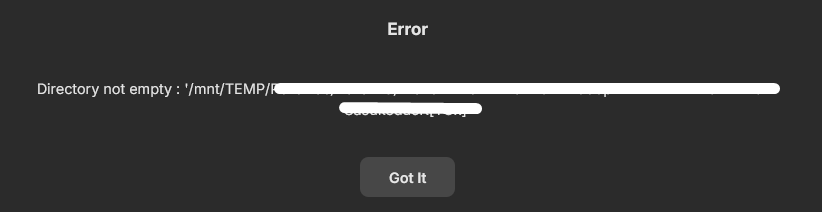
I have changed my server's OS and, after reinstalling eveything from scratch (Emby inclusive) I found the following error when trying to delete contents: After testing with all sorts of permissions in my Ubuntu server I thought that maybe the problem was in the samba configuration, as I was copying the files from Windows and... bingo! I share in case someone else has the same problem, as I searched the forum and found nothing about this specific scenario. I was using the following entry in my /etc/samba/smb.conf file: [Films] path = /mnt/TEMP/Films/ valid users = geekom, emby read only = no The problem got solved after adding this force directory mode = 0775 force create mode = 0775 So my final configuration is this: [Films] path = /mnt/TEMP/Films/ valid users = geekom, emby read only = no force directory mode = 0775 force create mode = 0775 As I only store media files in that mouting point, I do not believe that setting 775 permissions will be a security problem. Hopefully, this information will be of use for other users in my situation. Merry Christmas!
 1 point
 -
I'm not sure if this exit is more like Russia exiting Afghanistan or more like the USA exiting Vietnam. Either way it is both screwed up and slow. And to add: Both "invading" country's see the departure as a loss. And that part is a bit different here.1 point
-
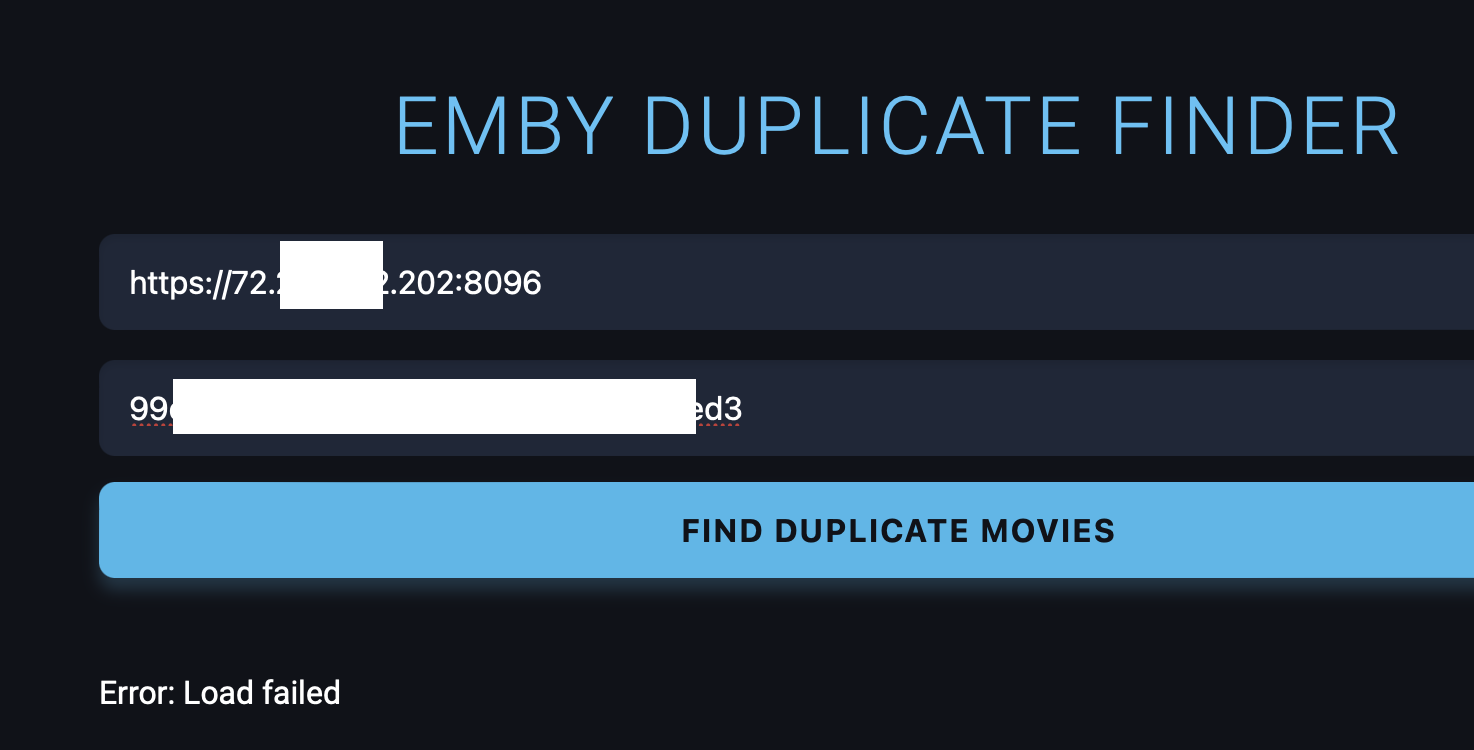
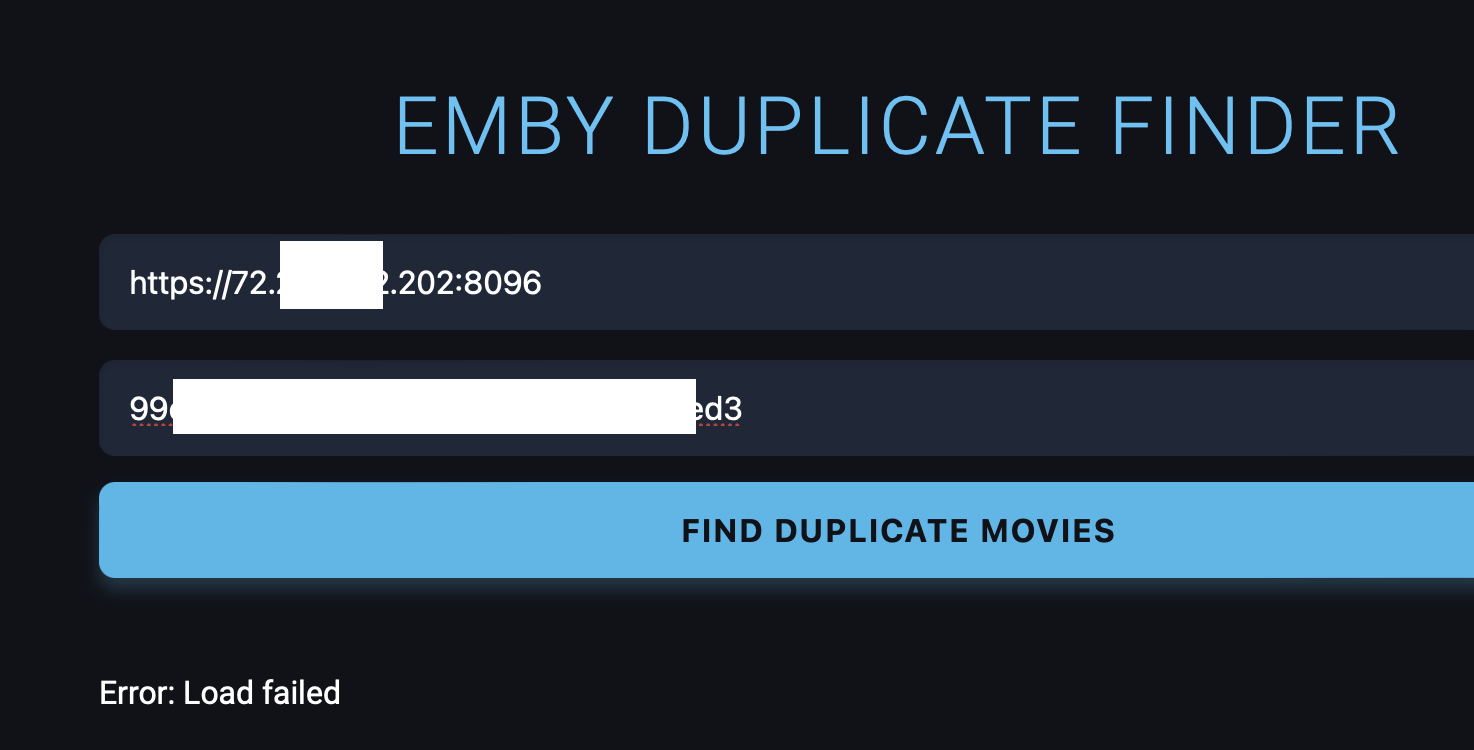
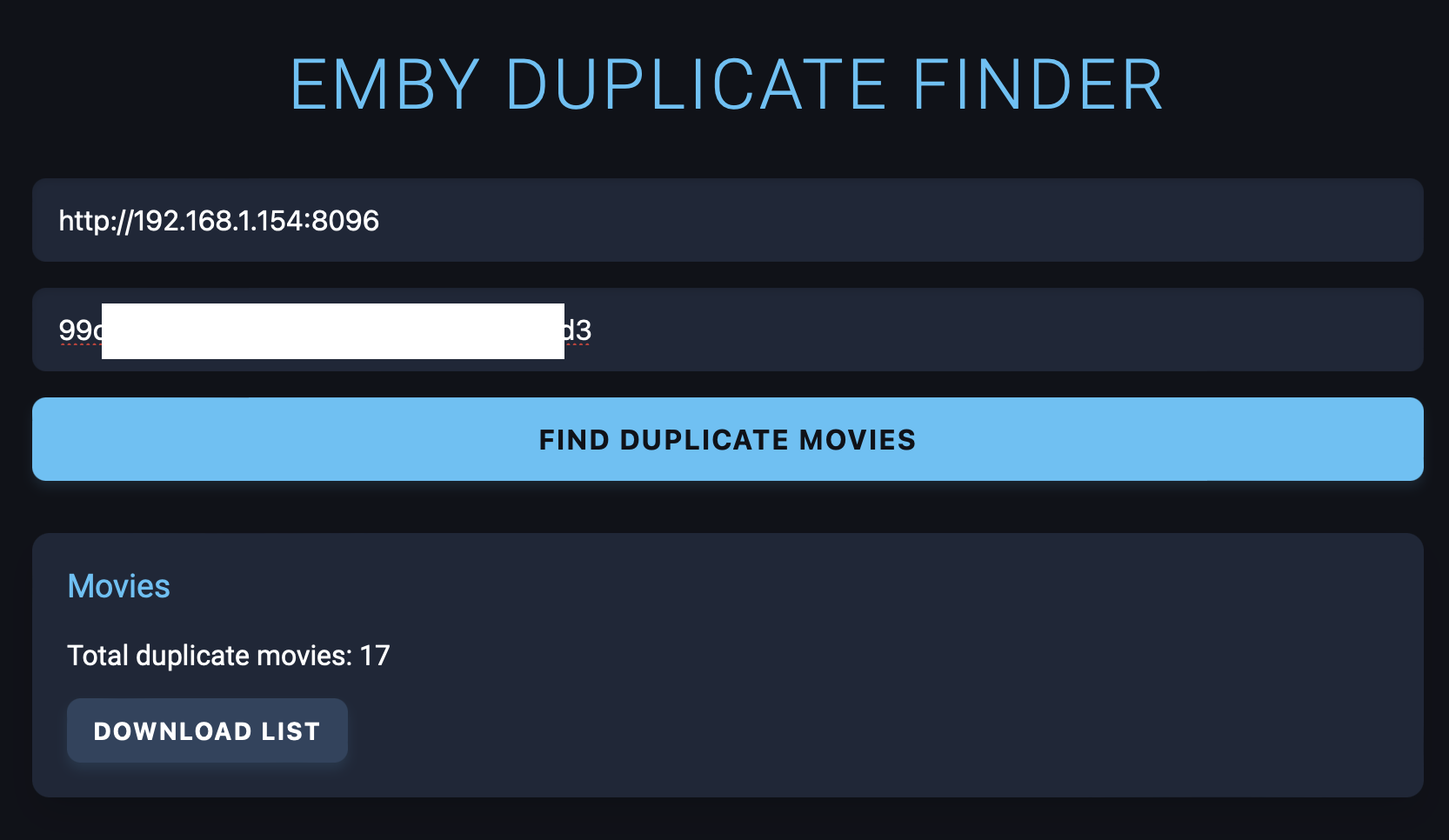
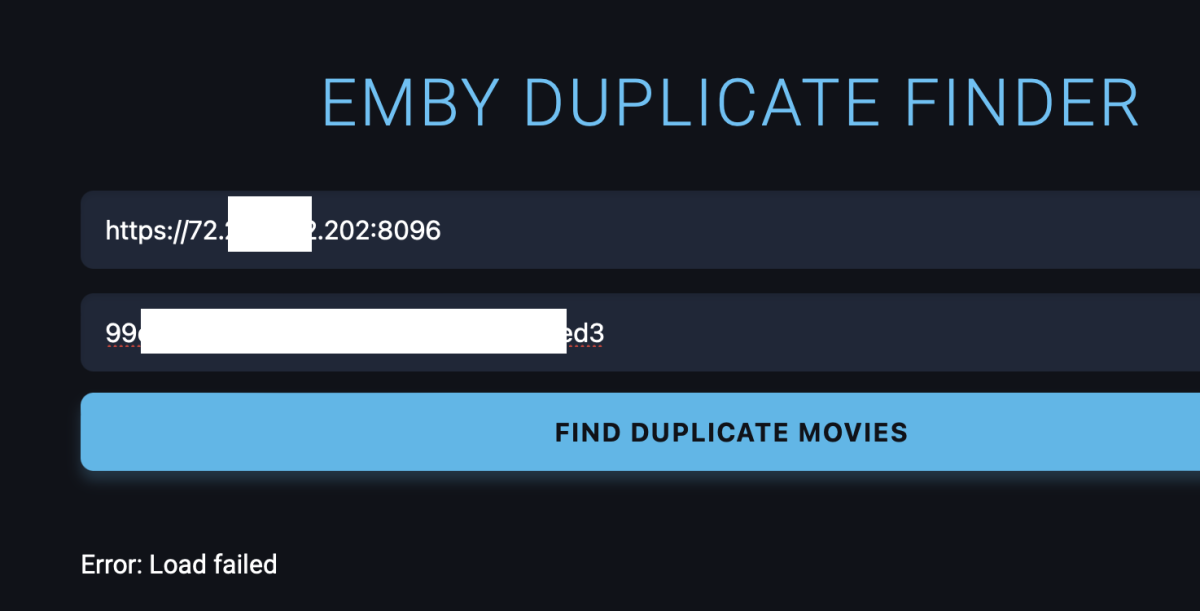
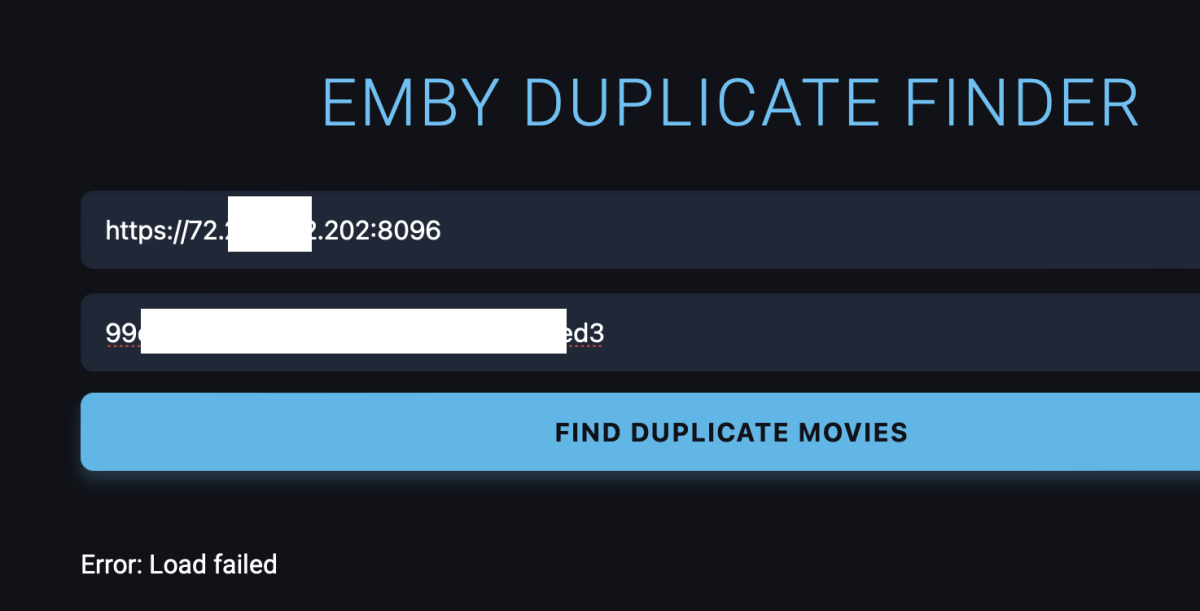
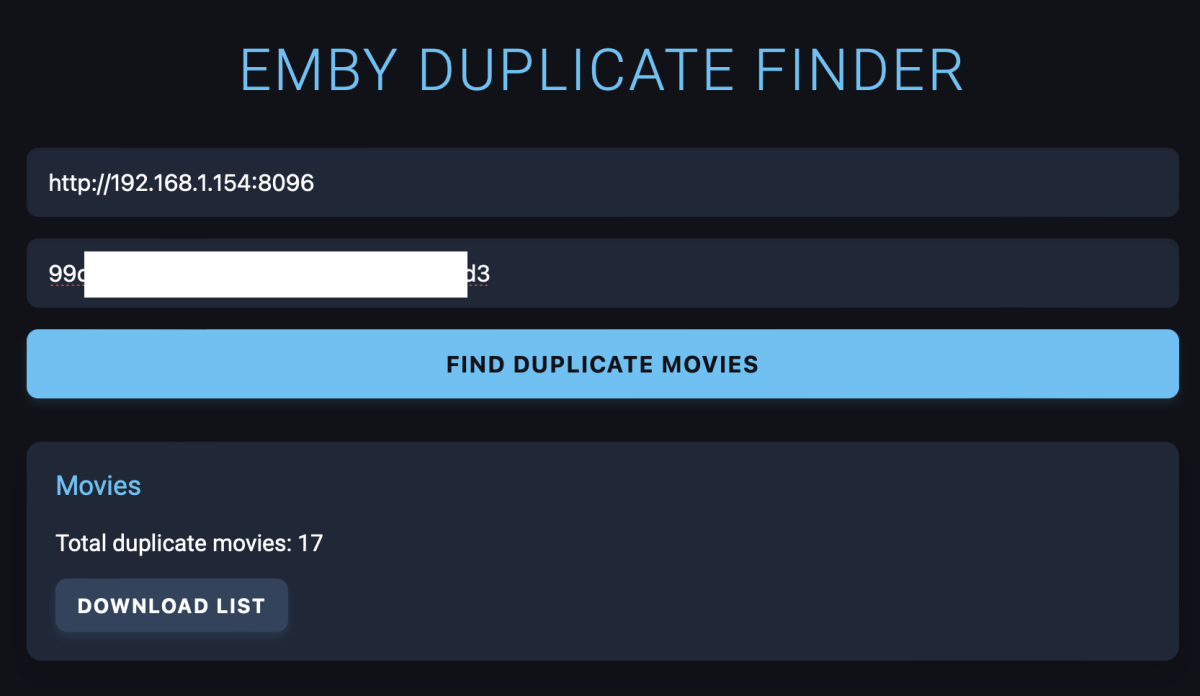
I was pointed to this solution for another problem, but I am also having issues getting it to run. I am using Safari (Version 17.6 (19618.3.11.11.5)), on an M1 MacBook Pro (MacOS: 14.6.1 (23G93)). Emby (4.8.10.0) is running on a Synology NAS DS 718+ (DSM 7.2.2-72806 Update 2), directly connected to the router I am connecting to via WiFi. Using the online version first, I found my API key under Emby Settings:Advanced>API Keys, then double-clicked to copy it, then pasted it into the Dup-Finder field. I first used the WAN IP address (from Emby Settings>Dashboard), since others mentioned having problems using a local IP address. I tried it directly (SS 1), but got the error: "URL is not valid or contains user credentials". I also tried it using the displayed template (SS 2) and got a different error (SS 3): "Load Failed". I tried with HTTP and HTTPS and got the same errors. I also tried with the In-home (LAN) address from the dashboard, and with both HTTP & HTTPS, but got the same errors again. I tried downloading the Dup-Finder through the provided link. It downloaded to my laptop, so I created a folder on my NAS & uploaded the files. I can't seem to find a way to run it directly from the NAS. Double-clicking the index.html file just downloads it back to my laptop. However, when I just ran it from the downloaded folder on my laptop, it was able to run (SS 4) (yay!!). BTW, the format that worked was simply HTTP://my local address:Port -- http://192.168.1.154:8096 The file I was able to download showed that the duplicate movies were all different versions of the same story: Live vs. animated, original vs. remake, etc. It did not seem to find any mis-identified moves (which was the original problem that brought me here), but that may just mean I have already sorted out all the ones that were mis-identified. I wrote this as I was working through the problem with various iterations. Even though I answered my own question, I will post it anyway, since the details of my meanderings may be helpful to other users. Thank you for the tool. It will likely prove helpful going forward.

 1 point
 -
But maybe a simple photo viewer is sufficient for some users. I know I don't view my photos very often and when I do Emby does just fine. For anyone that needs more sophistication, they are, of course, free to use any other app to suit that purpose.1 point
-
Just make the limit concurrent and problem solved. Or, concurrent unique IP addresses. That way if 5 people are in the same house they count as 1. Basically, there are options. I too am keeping an eye on Jellyfin and will consider moving over if I come across this limit. I only have about 5 or 6 users, but they use a plethora or devices.1 point
-
The Shield works quite well for small libraries and simple codecs but it has neve been very good if the libraries are big or the codecs are more complex or if transcoding is required. I had my server on a Shield (I have a pretty large library) and I kept having problems like you describe and i finally had to abandon the Shield as a server and switch to a real computer. The Shield is a quite good playback device but it really sucks as a server. I do not recommend using the Shield as a server. But that does not really help you. For that, I would look at the files involved and, maybe, rip them at a lower bitrate and/or be sure their frame rate is less than 60. (I think higher framerates force transcoding.)1 point
-
I wish people would stop saying this, Just what part of the ' GNU General Public License' has Jellyfin violated? emby uses ffmpeg is that stolen? Not! And I agree with most of what Gilgamesh_48 has said and will never go back to Plex (corporate B.S.) and Jellyfin is just a wanna-be!1 point
-
There's no more need for this. We're well on track now and got assured our case to be reviewed again in January.1 point
-
@oceanclub @hemandk @aVe2000 @453411 @bandit8623 @PIkeoftheLake @JuiceyD @Alymere @DeadlyOne Now that H.264 is fixed, just as a reminder: Don't forget to play the lottery!1 point
-
I can see how it’s a pain and yes you have paid for it, maybe Emby could add some flexibility in the device limits to go over once in a while for a week or buy an extra 5 devices for a small fee over holidays similar to buying mobile data. Please don’t call emby money grabbers that’s not a fair go.1 point
-
All good have a good holiday you’ve deserved it.1 point
-
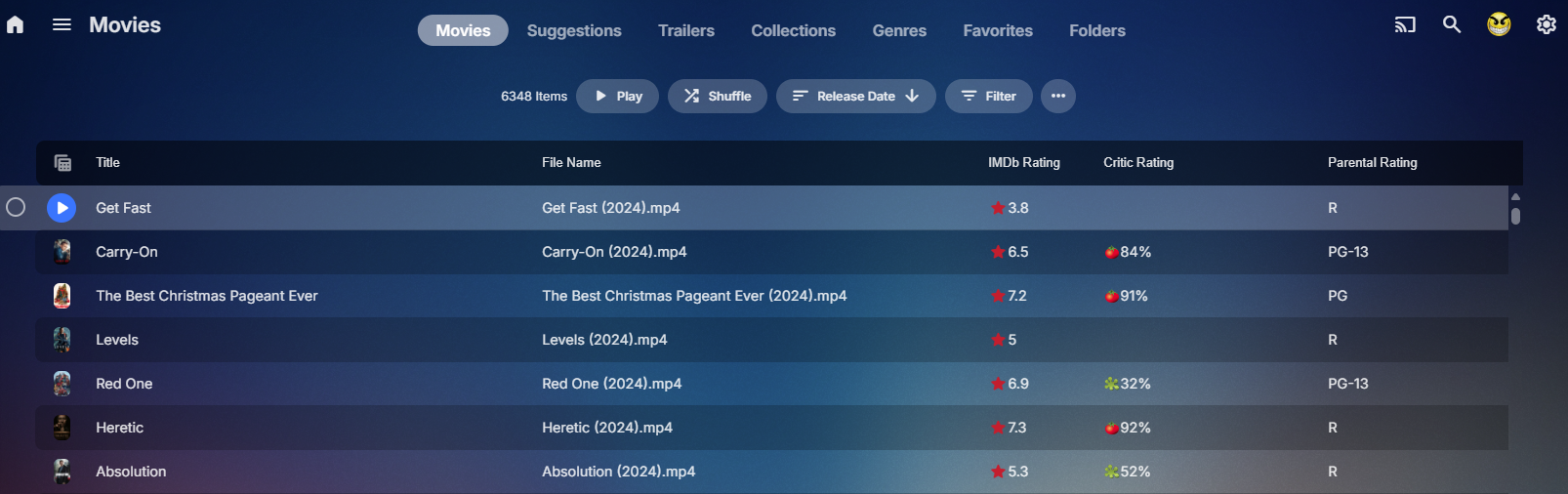
No not that I know of. The most you can do is change to table view, enable filename column and compare title to filename. Otherwise, a database guru would have to come up with a query to compare them.
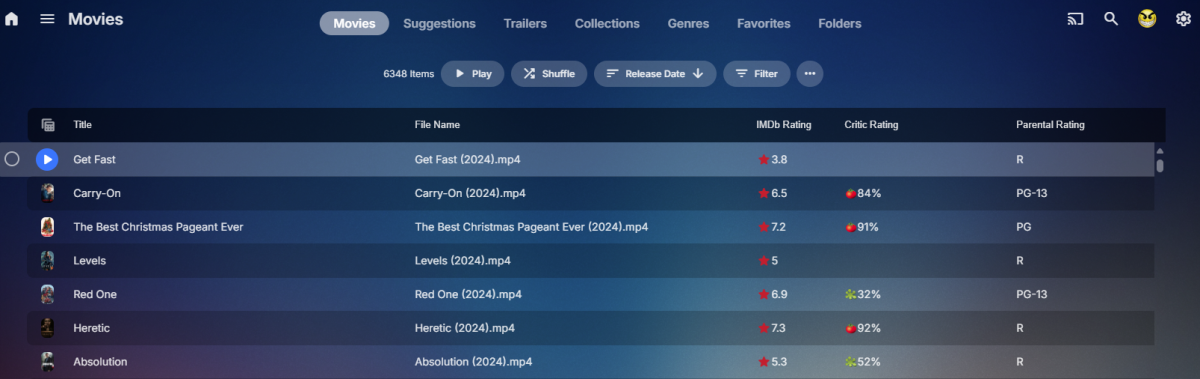 1 point
 -
Forget about it. I see the error. Will be fixed in the next update. Thanks1 point
-
It is clear that you do NOT know much about what actually happened but Emby closed their code and then Jellyfin effectively stole the last public domain code they had available and then went on to produce a much less stable media manager that was clearly inferior and remains so to this day. I do wonder why anyone would prefer Jellyfin over Emby except for the fact that it is, I think still public domain. I use a number of public domain programs but I do not think Public domain makes them better, just different. Also Emby does NOT force any monthly charges as the free version works quite well and for those that need more functionality there is a lifetime license available. Also you can limit the need for expanded device limits by running two, three or more servers with a separate premier license for the servers that need additional device slots. But again Emby did NOT fork from Jellyfin but Jellyfin was the one that took the code and ran with it. They are just a bunch of unscrupulous hackers that are too lazy to develop from scratch.1 point
-
Draw #2 is complete All participants have been notified by email. If you took part and don't see an e-mail, please make sure to check your spam folder.1 point
-
Thanks a lot for confirming!1 point
-
Hehe, #1 was the first one I had created and how I thought it should be. The second one was done to make it somewhat less aggressive. The 3rd one resulted from the request to create something more like Netflix. The intention for #1 was in fact to be somewhat similar to the well-known THX trailer. I also wanted to produce a 5.1 version where the ding--ding-ding--ding--ding is rotating (FR-RR-RL-FL-ALL) around in the room. We'll see, maybe it can be optionally added in a future update.1 point
-
> Handbrake did something funny with your framerate. The Roku can only direct play lower than 60FPS. The Roku refuses to play the item causing a direct play error. OK, I recreated the video files with Handbrake and selected the consistent frame rate option. It now plays correctly on the Roku. Thanks for your great help.1 point
-
Keep complaining in the forums. This had been discussed internally and postponed to revisit based on user feedback1 point
-
Hi, yes we are working on this. Thanks.1 point
-
Hi, we’ll take a look at this. Thanks for reporting.1 point
-
If emby would do that, my repo would go out of business All my hard work on creating the scripts to maintain and update it, would've been for nothing, so pretty please Luke don't1 point
-
Hi, I don't have an update yet, but this is still in our plans.1 point
-
I have a fairly large movie collection (5k+) starting with films from the 1920's and in the absence of "smart" playlists how about a filter by decade option? Filtering by year works, but if I want to watch something from say the 1950's I have to start navigating from the 1930's and work my up to the 1950's which is quite a few number of pages. Another option might be to have Years running vertically much like the alphabet when viewing by title.1 point
-
Hi there, yes it's something that we're interested in for future updates. thanks for the feedback.1 point
-
"When have they changed the terms for the license you've paid for? What terms have changed?"0 points
-
You all are crazy. Emby forked from jellyfin so they could profit. It's totally fine i'll just move away nbd. The experience with all the neckbeards on these forums are enough tbh0 points