Leaderboard




Popular Content
Showing content with the highest reputation on 12/21/24 in all areas
-
Long Promised — Long Awaited — Finally Here! We are excited to announce the first release of our all-new range of Emby apps, starting today with Windows and Xbox. With a fully redeveloped native foundation, this update delivers improvements across the board: from remote control and gamepad support to background downloading (Windows), as well as refresh and HDR mode switching, and most importantly, enhanced video playback. The new app also comes with a name change from Emby Theater to simply Emby. The name is the only simplification though: On Windows it supersedes and replaces both current apps, "Emby Theater Desktop" and "Emby Theater" from the Windows store, combining the best of both in a single app. It provides enhanced video playback driven by MPV player under the hood, like and even better than "Emby Theater Desktop", and the Download features which were previously available in the Windows store app only. A primary design goal has been to ensure that users of either previous app encounter no drawbacks when moving to the new version. Video Playback (Windows) Video options in the previous ET Desktop app were not always straightforward. The new Emby app adopts a fundamentally different approach to video playback configuration, which accommodates to a range from least to most knowledgeable users by boiling quality options down to three simple and easy understandable presets alongside a custom mode which allows to control all the underlying options in detail. The main presets are: High Quality A no-compromise choice for the best possible quality, regardless of resource usage. Recommended for powerful PCs with high-end GPUs. Video decoding and filtering occur in software for optimal quality, and output scaling uses custom GPU shaders. Balanced The default and recommended choice for most users. Similar to ET Desktop and a standalone MPV player with default settings. Efficiency Mode MPV player is generally focused on quality rather than power saving, and even with the Balanced preset, you can get short of energy rather quickly when running on batteries. This mode is not built-in or available in the regular MPV player. All video operations are fully performed in hardware while scaling at the video output (no shaders/gpu kernels) gets disabled. Too simplistic for you? Enter the Customize mode where you can control all options in detail to find your perfect setup. Video Playback (Xbox) In the new Xbox app, we have a new playback implementation which is based on ffmpeg and takes place of the HTML video playbaback which which had limited codec and format support. By combining ffmpeg decoding with elements from Windows Media capabilities, it combines the best of both worlds: The rich format and codec support from ffmpeg and the built-in hardware acceleration of the Xbox for playing 4k and HDR videos in the best possible way Automatic Refresh and HDR Mode Switching (Windows & Xbox) Refresh rate switching is now as simple as enabling or disabling a single option. The new app can track its window position across multiple monitors and adapt the refresh rate accordingly. On both Windows and Xbox, it can also automatically toggle HDR mode based on the video content and the capabilities of your monitor and graphics hardware. Download Feature (Windows) With the download feature, you can transfer media from your Emby Server to your client device in a suitable format and size, so you can enjoy your media when you're on the road or without an online connection and even automatically synchronize items based on the watched status. The new Windows app implements this with a completely different approach. Instead of periodically polling and running in the background, it uses Windows Push Notifications for server-side activation and the Windows BITS (Background Intelligent Transfer) service for downloads. As a result, the app runs only briefly whenever the server notifies it about newly available items or when BITS reports a completed download. If you don't use this feature, nothing runs in the background at all. Enhanced Support for Remote Control and Gamepad Input (Windows & Xbox) Remote Control support has been extended to cover almost all functions defined in the Windows Media Center remote button schema. For game controllers, mapping has also been expanded to assign functions to all available controls. New options pages provide a reference for button assignments and allow you to test inputs to ensure everything works as intended. Windows Theme (Windows) As a visual highlight, the Windows app features a new and exclusive Windows theme with Mica material background (Win 11) and seamless integration with your Windows desktop appearance, matching theme colors and dark/light switching accordingly. High Contrast Themes (Windows) As part of the Windows theme, the new Emby app also supports the Windows High Contrast settings. Fonts adjust in size and weight for better visibility, and fewer — but thicker—lines are drawn to enhance readability for those who need it.2 points
-
If true then it's once another case of RTFM!2 points
-
I tagged 11.1.10 now as stable. Still holding back next beta as I chase a serious http communication bug. It affects http communication in chunked transfer mode (not very common) and only in very special cases (even less common). However this bug affects all versions since 9.X or even earlier and will be fixed in next beta. Special thanks to user @reggifor countless tests and still ongoing.2 points
-
Dear Emby Team, First and foremost, thank you for building and continuously enhancing this platform. We are naturally drawn to the incredible features and stability it provides compared to other applications. Back in 2019, there was mention of a potential book-reading feature being considered for Emby in the not-too-distant future. Many in the community have been eagerly anticipating this addition. We humbly request the team to revisit this feature, as it would greatly complement the platform's capabilities. We understand that development takes time and resources, but this is just a gentle reminder that we, as a community, are still waiting for this to happen. Thank you!2 points
-
I'm a plex life time member, but I have been using Emby for over six years continuously, but there is a feature which I have always thought is missing in Emby which I would like and encourage the developer to consider including especially in this dispensation where families can social or commingle due to COVID 19. Today, I received a notification from Plex about it new feature titled Watch together you can read about it here https://support.plex.tv/articles/watch-together/ The feature allows friends and families at distance to watch same movies together instantly, you simply invite all your buddy, once they signed to the system which can be seeing in the server then play and pause as needed, this I think is cool feature should be added to emby. Let's here your though if Emby developer should consider adding this feature to our beloved Emby Media https://www.bing.com/news/search?q=Plex+Watch+Together&qpvt=plex+watch+together&FORM=EWRE1 point
-
Dear fellow Developers, the PluginUI Demo Example in the Emby SDK is demonstrating the wide range of featuires from the Emby PluginUI, but a number of essential things were missing, like how to use buttons and perform actions on button click events, as well as how to create and use dialogs and wizard UI. I'm glad to tell that these gaps have been filled. The demo plugin content is split into two tabbed views with two menu items in the navigation bar, and two new tab pages have been added for buttons, links, progress and status indication, updating the UI view from the server side and the other page is demonstrating multiple kinds of dialogs and a three-page wizard. Here's a short video (no audio): 20241204-1209-59.8630269.mp4 The sample plugin code will be included in the next beta SDK, which means everything after 4.9.0.32.1 point
-
Given the vast list of wonderful improvements that have accumulated in the 4.9 beta and the modest tweaks reported in the release notes for the latest 4.9.0.33 beta, here is a fervent plea that the Emby devs push this latest v4.9 as a stable release now, for benefit of the vast majority of Emby users who don't install beta versions.1 point
-
EMBY HOW TO BLOGS We will be releasing a variety of how to blogs over the next few weeks during the holidays. A lot of people will be home and have some time to "tinker" with their home servers and these little entries will be a great starting point to working more closely with your server. For more in depth knowledge that these blogs do not cover, or any questions that may pop up, please reach out to any of the staff members on the forums in the appropriate channels and we will be glad to assist you. What Is Emby Connect? Emby Connect is a cloud-based service that simplifies remote access by linking your Emby account to your home server. Instead of manually entering your server's IP address, Emby Connect lets you log in using your Emby account and automatically connects you to your server. This allows for a easy interface to share with your family members who may not even know what an IP address is! It is important to note, though, that Emby Connect is entirely optional. It is not required for remote access as you can always use the address of your server and the local credentials you setup. Setting Up Emby Connect Here’s how to configure Emby Connect for seamless remote access: 1. Link Your Emby Server to Your Account Log in to your Emby Server: Open your browser and navigate to the Emby Server dashboard (e.g., http://localhost:8096). Go to the Users section: On the sidebar, select Users. Link to Emby Connect: Find your user account and click the More button (three dots). Then, choose Connect to Emby Connect. Sign in to Emby Connect: Enter your Emby Connect account credentials. If you don’t have an account, create one at emby.media/connect. 2. Enable Remote Access Navigate to Settings: From the sidebar, select Settings > Network. Verify Remote Access: Ensure the box labeled Allow remote connections to this Emby Server is checked. Test your connection: Use a device outside your home network to log into your Emby account via the Emby app or web interface. Your library should appear automatically if configured correctly. Tip: Emby Connect still requires port forwarding or UPnP, as discussed next. Setting Up Manual Port Forwarding If Emby Connect doesn’t meet your needs or you prefer direct control, you can manually configure port forwarding on your home router. This ensures your server is accessible from outside your local network. What Is Port Forwarding? Port forwarding allows specific incoming traffic (ie, requests to your Emby Server) to bypass your router’s firewall and reach your server directly. It’s a secure and efficient way to enable remote connections. How to Set Up Port Forwarding Step 1: Access Your Router Settings Find your router’s IP address. Commonly, it’s 192.168.1.1 or 192.168.0.1. You can confirm this by typing ipconfig (Windows) or ifconfig (macOS/Linux) into the command line. Open a web browser and enter the IP address to log into your router. Log in using your router’s username and password (check the router’s manual or sticker if you’re unsure). Step 2: Set Up Port Forwarding Locate the Port Forwarding section: It may be under labels like NAT, Virtual Server, or Advanced Settings. Create a new rule: Service Name: Enter a descriptive name like "Emby Server." Internal IP Address: Enter the local IP address of your Emby Server (find this in Emby > Settings > Network > LAN IP). Internal Port: Use 8096 for HTTP or 8920 for HTTPS (if you have SSL configured). External Port: Match this to the internal port (8096 or 8920). Protocol: Choose TCP or TCP/UDP. Save the rule: Apply the changes and restart your router if necessary. Step 3: Test Remote Access Open a browser and enter your external IP address and port (e.g., http://<Your_External_IP>:8096). If configured correctly, you’ll see your Emby login page. Best Practices for Security While remote access is convenient, it’s important to secure your Emby Server: Use a strong password for your Emby account. Enable HTTPS: Configure an SSL certificate to encrypt your traffic (via Let's Encrypt or another provider). There are a lot of posts on the forums on how to set this up and a lot of different options in which to do so. Restrict access: Use the IP whitelist/blacklist feature in Emby’s Network settings to limit who can connect. Common Issues and Troubleshooting Can’t access the server remotely? Verify the external IP address matches your public IP (use whatismyip.com). Check for typos in your port forwarding rule. Confirm your firewall isn’t blocking the connection. Dynamic IP issues? If your ISP frequently changes your public IP, consider setting up Dynamic DNS (DDNS) to link a domain name (e.g., emby.myserver.net) to your IP. Conclusion Setting up remote connections in Emby is straightforward with options like Emby Connect and manual port forwarding. Whether you prefer the simplicity of Emby Connect or the control of direct address access, you can enjoy your media library wherever you go. Happy streaming!1 point
-
Why would they release it as a “stable” version when is not “stable”? The beta still has issues that need to be worked out1 point
-
This is fantastic. What a Christmas present! Thank you1 point
-
Coming from VideoStation, a big disappointment is that Emby does not remember already used tags. So if I have a library with 100 movies with tag: horror, I have to type in the whole word "horror" every time I want to add the tag. There is no list of previously used tags I can simply click and choose from. That slows down the process significantly, especially with multiple tags in a movie, and also is a risk of messing up the tags with typos.1 point
-
That's very good news. Thank you for your quick feedback1 point
-
That fixed it1 point
-
OK we'll take a look at it. Thanks for reporting.1 point
-
rbj, Possible some help? echo timeout /t 5 > 1.strm echo G:\Library01\USA\Family Trip (2017) - 1080P.mkv >> 1.strm For longer strm names you need quotes: echo timeout /t 5 > "Family Trip (2017) - 1080P.strm" echo G:\Library01\USA\Family Trip (2017) - 1080P.mkv >> "Family Trip (2017) - 1080P.strm" Timeout should work for Windows or use wait for Linux. I have no idea if this would keep Emby from listing a second version, but if so, then you still have the problem of Emby won't probably list the strm at all in a new linked library. Back to square one. === In the GUI, how would the user designate a strm link as virtual and stop multiple versions from appearing in searches? Would it be a checkbox? Should Emby have a search for duplicates page with the ability to check some or all and switch searchability off? Would this page be similar to find duplicate file apps? Tricky to design something user friendly.1 point
-
I think you need to create another admin account first, and sign in with the new admin account. Before deleting the old admin. Otherwise you would be left with out an admin. And you could not do anything with Emby.1 point
-
Hi vis, It's been done many times this way - my scripts for things like recommendations and plugins such as Top Picks all do it this way - but using strm files has a major disadvantage - files are shown as duplicated in emby. What we need (and I'm hoping the smart views implements this) is a way to show a 'pointer' to a file - but not actually have it as a record in emby. This THEN opens up the possibilities no end - effectively allowing virtual libraries or smart views. We don;t know the detail behind 4.9 - but i'm hoping it allows this....1 point
-
Of interest: I tried to find browser compatibility and found another streaming pointer file from DASH and a test page: https://reference.dashif.org/dash.js/latest/samples/dash-if-reference-player/index.html It works for Chrome and Firefox. === Organizing multiple links to content with either strm or mpd files would probably be a nice extra for a plug-in. Great idea! I think the linked pointer files would be more efficient than adding select filters in the main dbase, per media, to organize. Wouldn't all the custom select commands bloat the dbase and take longer to process than having the link info in each pointer file? How would the plug-in be user friendly? Or just run the script, create link files that work and then move them into whatever new library filled with pointer files. Just organize your library in file manager. Why even bother with a plug-in? What does everyone think? Am I missing something?1 point
-
1 point
-
Found it, thanks for the help Luke... Merry Christmas and Happy New Year...1 point
-
@AbobaderCould you oblige please.1 point
-
Thank you!!! That reporting tool is amazing! It took probably less than one minute to get a report in Excel clearly showing what needs to be upgraded. You really saved the day for me. Happy Holidays!1 point
-
We would need a lot more info to help.1 point
-
Not to just post a moan, loving the new app (apart from the back key closing), especially the windows theme, it's snappy and is working well for me so far good work!1 point
-
Well I had a full home theater before but I had to make compromise being in a couple and all. Have you actually removed and re-plugged all cables after switching to 5.1 on the gadget? Yes I did restart it I don't have a TV. I use a videoprojector who doesn't support e-arc. Now I am just hoping than someday Sonos will support AAC, Nvidia will support e-arc or Emby will transcode AAC to another format. Thanks for the support.1 point
-
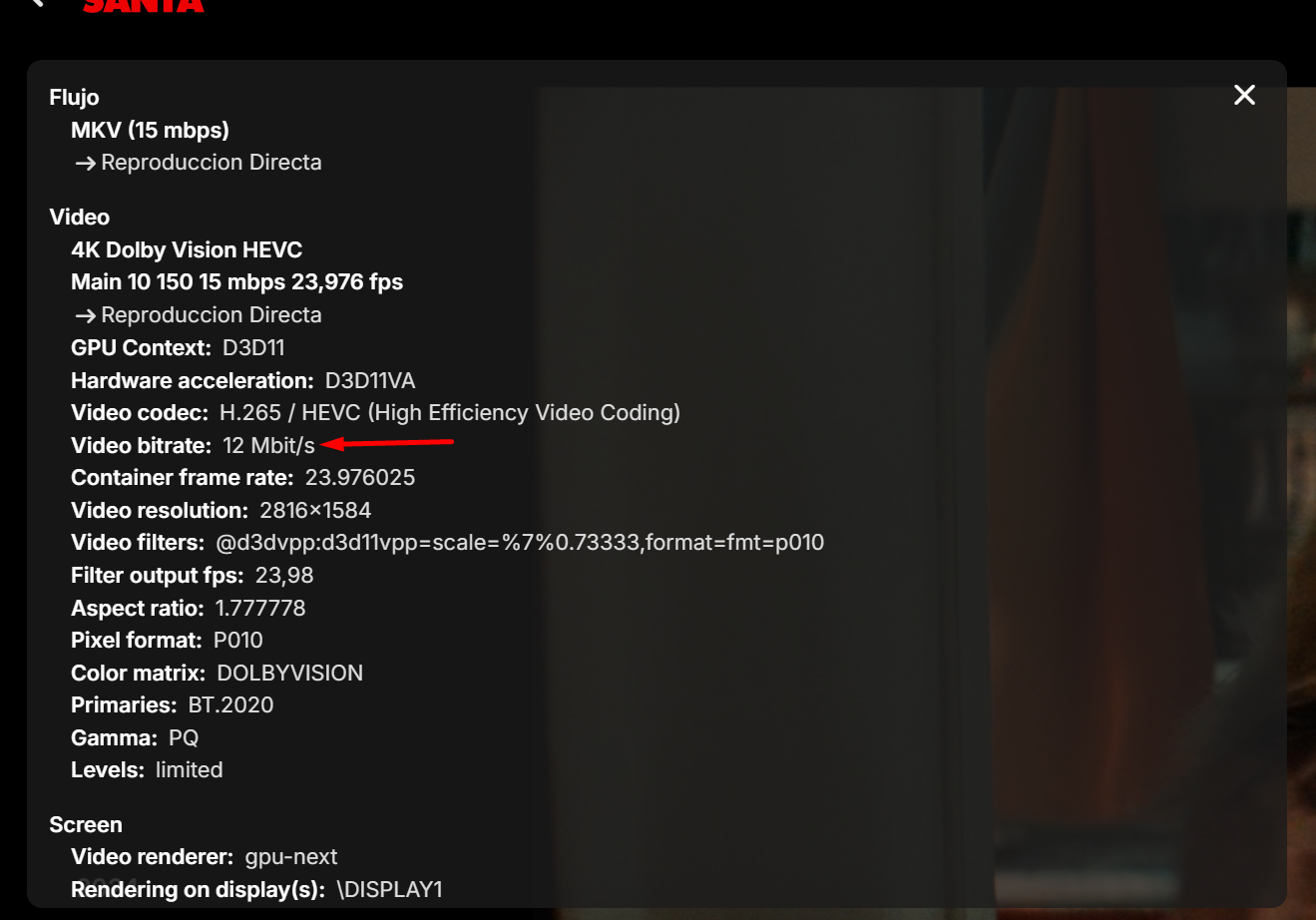
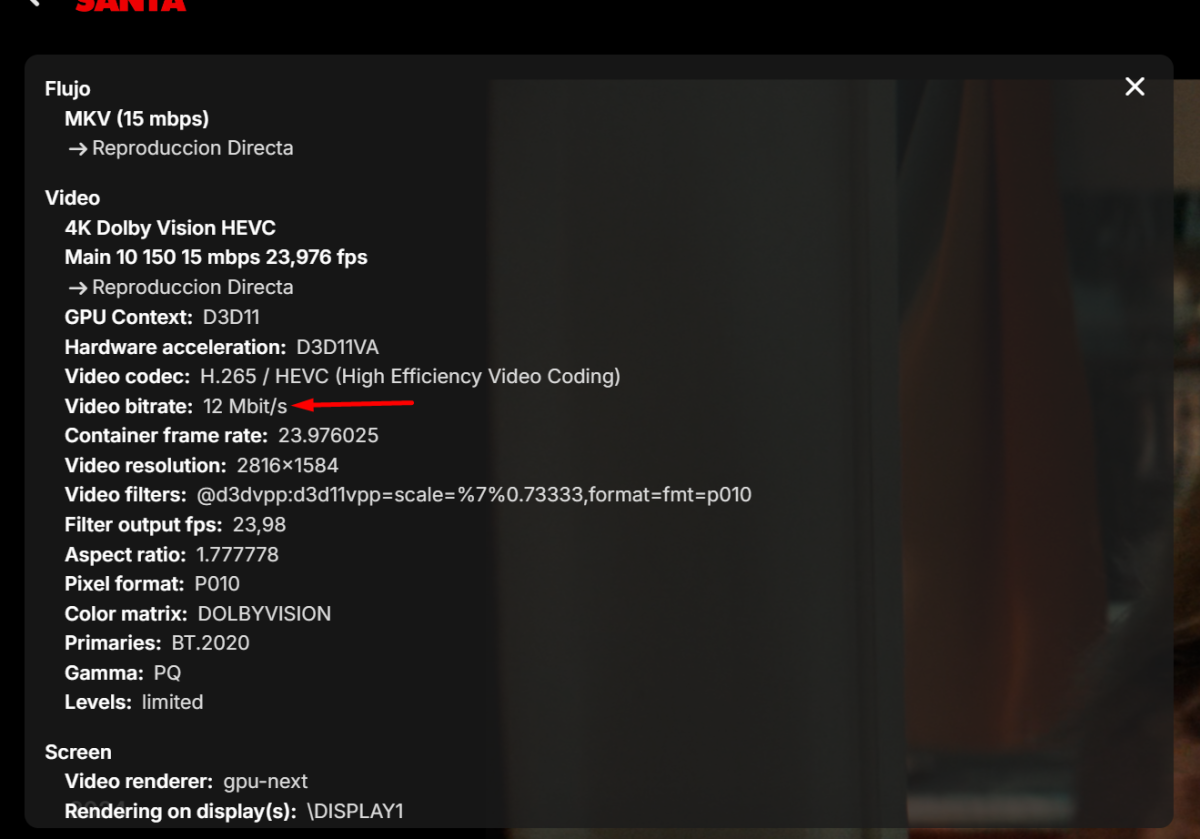
Wonderful update of the Windows App, perfect aesthetic display without any bugs (both the Android and TV versions have bugs in the interface) one thing that I loved (which the others should implement, Android, TV, etc.) is the super complete "Statistics for nerds" and the real-time video bitrate..!! Thank you very much
 1 point
 -
I hate myself, good call. I just attach the file. @softworkz : You were right too. I assume Dolby Atmos was needeed, it is not. mpv-20241221T180116956.txt1 point
-
@sa2000You're correct. You enter the timeframe the user is allowed to use the system.1 point
-
Just search in that file for '16' and replace that number with whatever you want. Just make sure there's only one '16' in the file. Or find 'Limit:16' and replace the 16 with... Remember to save it and restart the server.1 point
-
It would be more helpful to see each episode listed individually instead of 1-5 merged. Not a show stopper. Just an observation as I look the the differences.1 point
-
Of course it's better, but it has to go through beta testing. The hw overlay is essentially just a part of the subtitle filtering feature - but it is part of that and the whole feature complex needs to go through beta testing like everything else. All this has been ready for going into beta two years ago already. The first two episodes of the "Emby Show" are all about these features and were produced to accompany the introduction into beta. And then it didn't happen.1 point
-
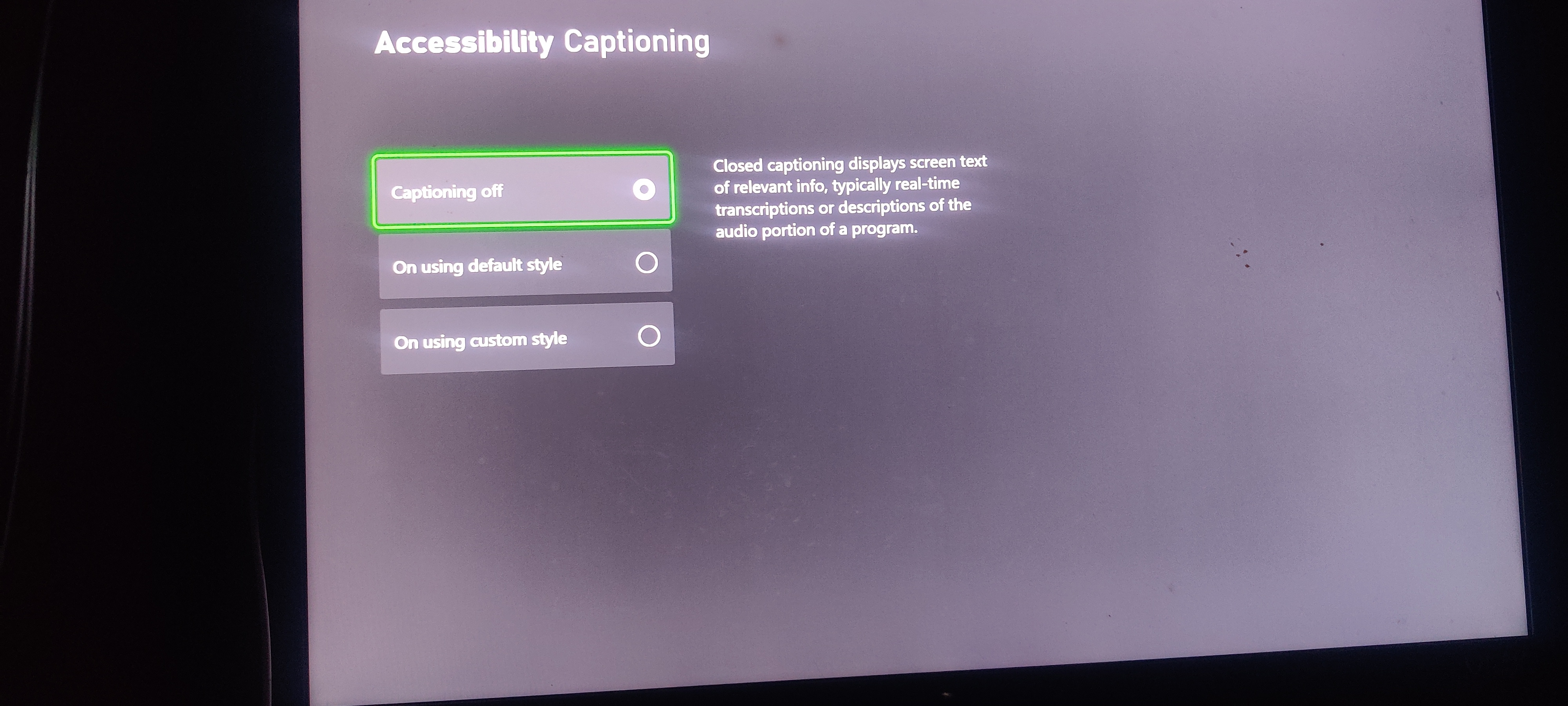
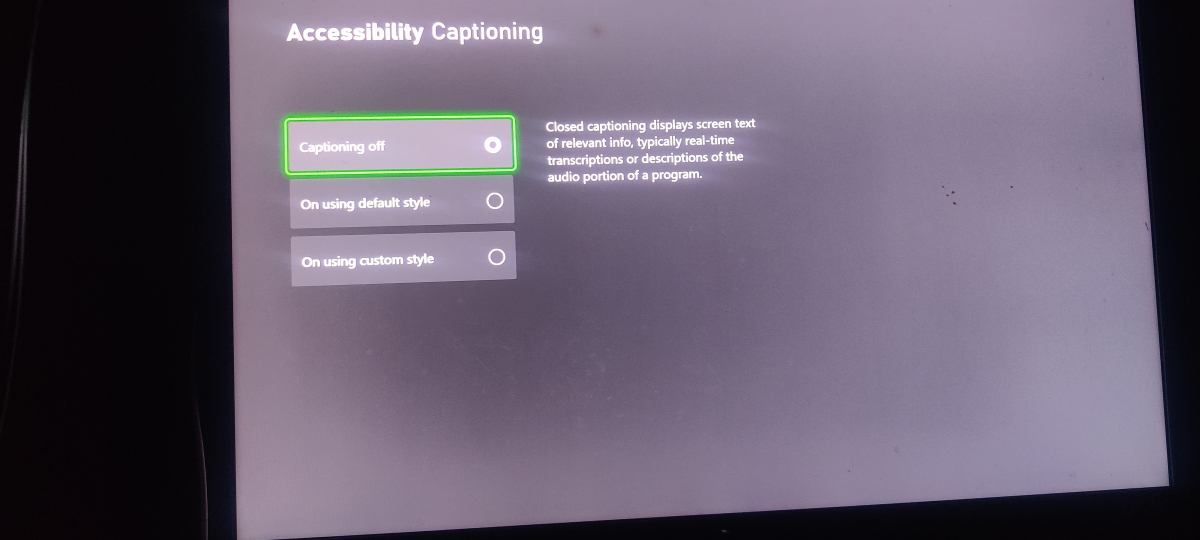
Here ya go @softworkz Great, thanks! So it appears that the Xbox handles this a bit differently. And, the settings logic is combined with automatic captioning. The good side is that it can be switched off. Now I also understand which @DimitarCChad to switch it on and off to get it working: The forced defaults that I've shown above have been rolled out as a registry change as part of a Windows update. And this has most likely hit the Xbox in the same way. It wasnt visible because the automatic captioning on/off is a different settng. But actively enabling and disabling caused the style values to be removed. This was Win10 behavior and early Win11 behavior and the Xbox does it the Win10 way.1 point
-
The Reports plugin can show you the resolution, you can sort the display by column, or you can export selected columns to Excel or CSV. You can even filter the main library display views by resolution category (4k, 1080p, 720p, SD). Paul1 point
-
Here ya go @softworkz
 1 point
 -
I use a white or black background with a color logo. Works on either background1 point
-
Xbox One Users: Please wait for the next update. Thanks. (1-2 days from our side plus unpredictable duration for store certification)1 point
-
Playback would start and then stop. I'll try to generate some new logs today. I had problems with playing music again this morning. Stand by.1 point
-
Disabling might not help, because the problem is not the presence of another firewall but rather the absence of the MS firewall. The reall problem though, is that the Emby app should not fail to start due to this. It's fixed in the next version, you don't need to uninstall your firewall for testing (of course you can try disabling).1 point
-
Yes, this put me on the right track. I created a new shared folder on my NAS, gave the emby internal system user access, and copied the content of the "video" and "music" folders to my new "Emby" folder. I could then create movie and music libraries on my Emby apps on my iPhone/iPad. As far as I can tell, the new Emby folder has the same access rights and properties as the old "video" and "music" shared folders on the NAS. The "video" and "music" folders were created by the "Video station" and "Audio station" packages when they were installed on the NAS. Possibly, these packages added restrictions that prevented other apps from accessing the "video" and "music" folders. However that may be, I can now use the Emby app to listen to music and watch videos. Many thanks!1 point
-
We don't like that either! Please note that you DO NOT NEED a Microsoft Account! I've added this to the FAQ Post with a link to a more detailed explanation: https://emby.media/community/index.php?/topic/134677-new-windows-xbox-app-faq/1 point
-
Read here:1 point
-
Try with this option under advanced in live tv.
 1 point
 -
It's wasn't H2P's idea - it was mine - he just linked to my post But yes, the concept is simple - and while it could be adopted easily into a plugin - adding the ability for multiple metadata languages/regions would be much better but as with most Feature Requests in emby, if it's only used by a small percantage of users - it highly unlikely to be implemented.1 point
-
Can we PLEASE see some kind of option to increase the number of "Latest Media" we are able to have in lineup? Most days I add 30+ new films to my server and my kids end up missing alot of them when they're looking for new stuff to watch. At their age, if it's not on the main screen, they're not going to dig into 3000+ movies to find them. Thanks!1 point
-
The 172.20.x.y is RFC1918 private address space that is not your LAN (192.168.86.x) - suggesting you have 'something else' inbetween your PC and the WAN destination. Could be a dmz, could be a reverse proxy, could be CGNAT, could be a FW, could be a WAF... - but the odd thing is the TCP packet request is getting a valid response. If you are aware of what the 172.20.10.2 is - then for the moment, you need to remove it for testing. If emby then works - then you know that is causing the issues. The SourceAddress can of course be whatever you like (if you used a VPN for example, that would be source) but something 'in the routing/config' here is causing you 'reset' issues - I do not believe this is being caused by Emby itself as a LAN probe works.1 point
-
I had the same problem where a receiver of a controller plugged into the PC would cause this weird behavior on FireFox, even when the controller was not turned on. You can fix this by going to about:config and disable the dom.gamepad.enabled setting. Hope this still helps someone!1 point
-
Nice work. I'll have to load this project and take a look. Some clients don't have the ability to accept messages. But, it sound like the clients you tested should accept them, so the code probabaly needs to be updated.1 point
-
Well I must say. I'm paying monthly and I'm strongly reconsidering. The time since the last update is truly bizarre, especially since I've seen plenty of people having issues and asking for an update. Issues I'm encountering are just waved away with "it is what it is". If this were an opensource free program I wouldn't mind since you need to manage expectations but this is a product we're paying for. And at the moment I'm not sure why. Hope @Lukecan shed some light on this situation and give some concrete information1 point
-
Hi @chef - I had a quick look on Git and believe this is just using the same Emby messaging API we used for the IntroSkip Plugin yes ? A couple of things that would make it really useful is a time on screen option (ie, no need to acknowledge) and a message 'date/time to live' function. ie if outside it's TTL - then the message is not delivered, it's just deleted. This would be useful for system maintenance etc - no point displaying it to users if it's already been completed. It may also be an idea to append the date/time the message was created on the actual message ? I may have a little play when I get some time. btw - any reason this is not in the catalogue ? As it seems a very useful thing to have ..1 point
-
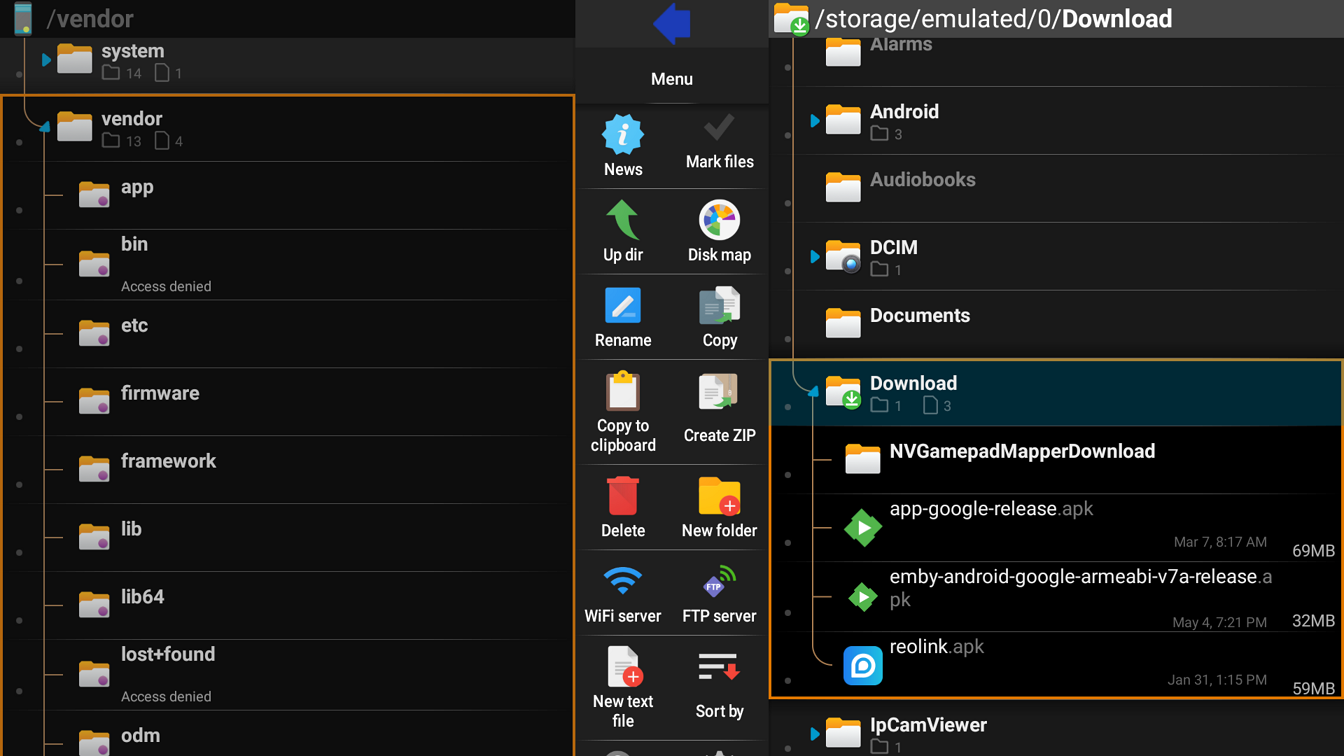
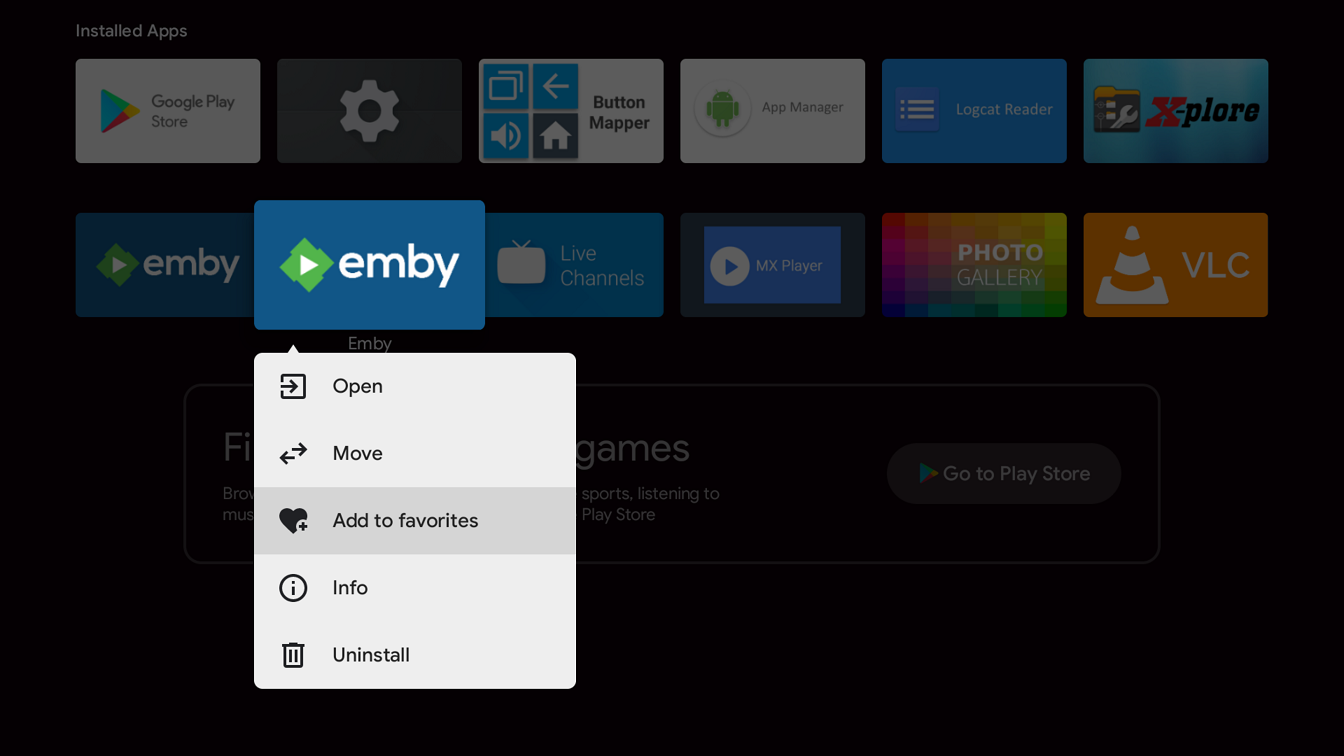
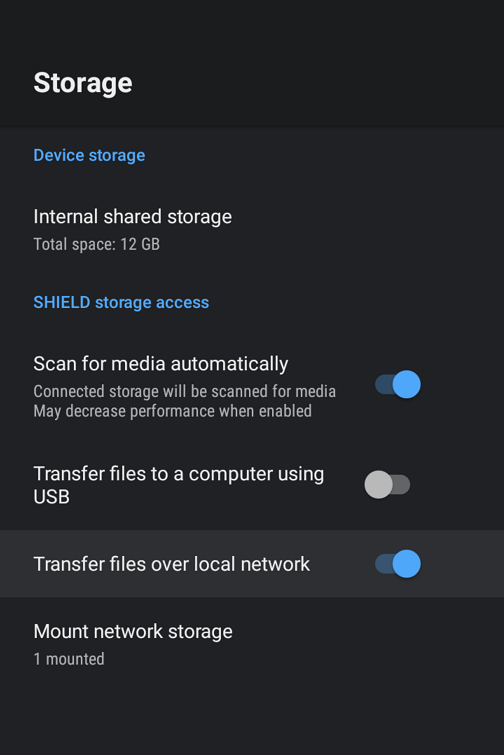
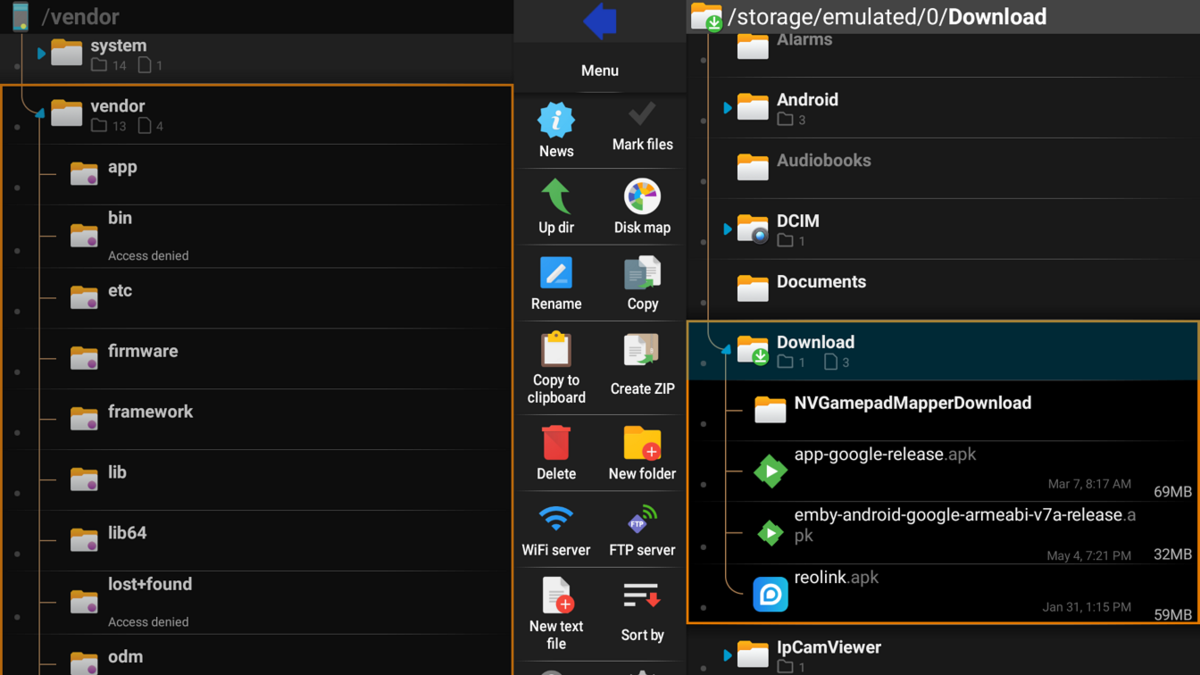
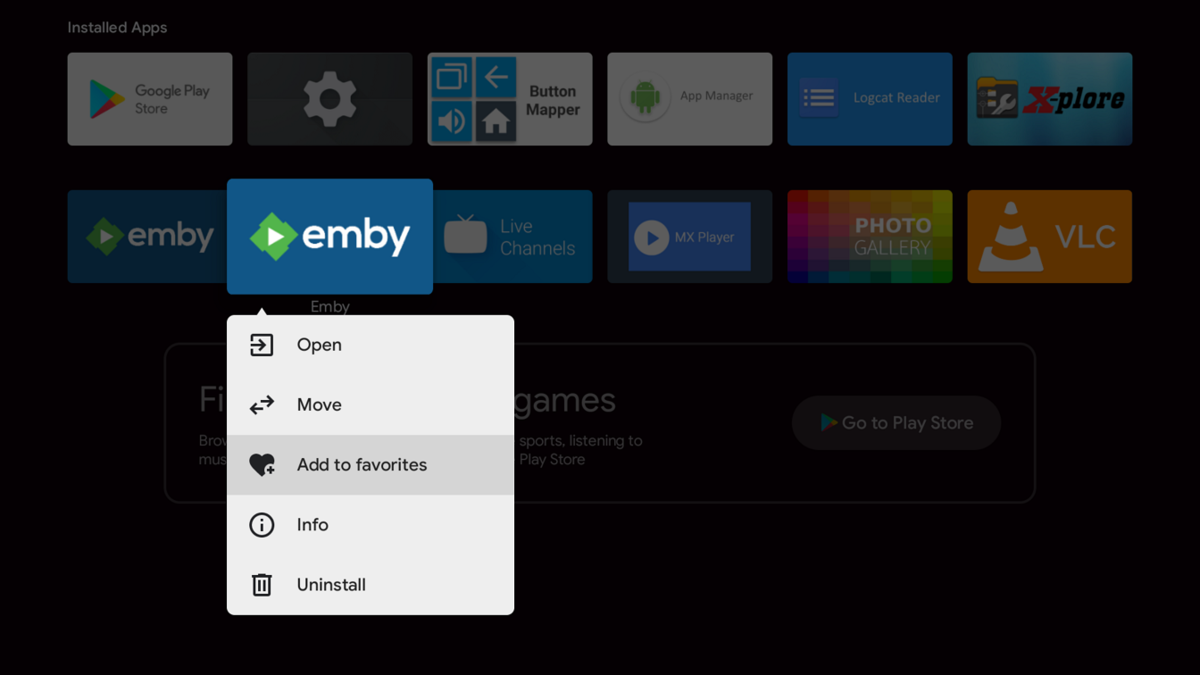
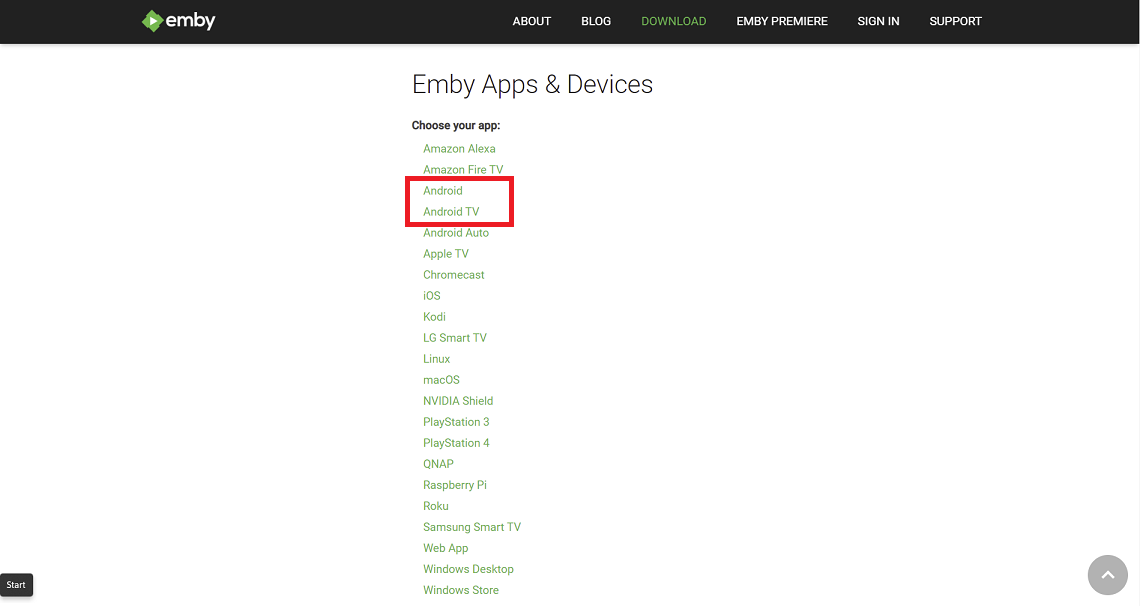
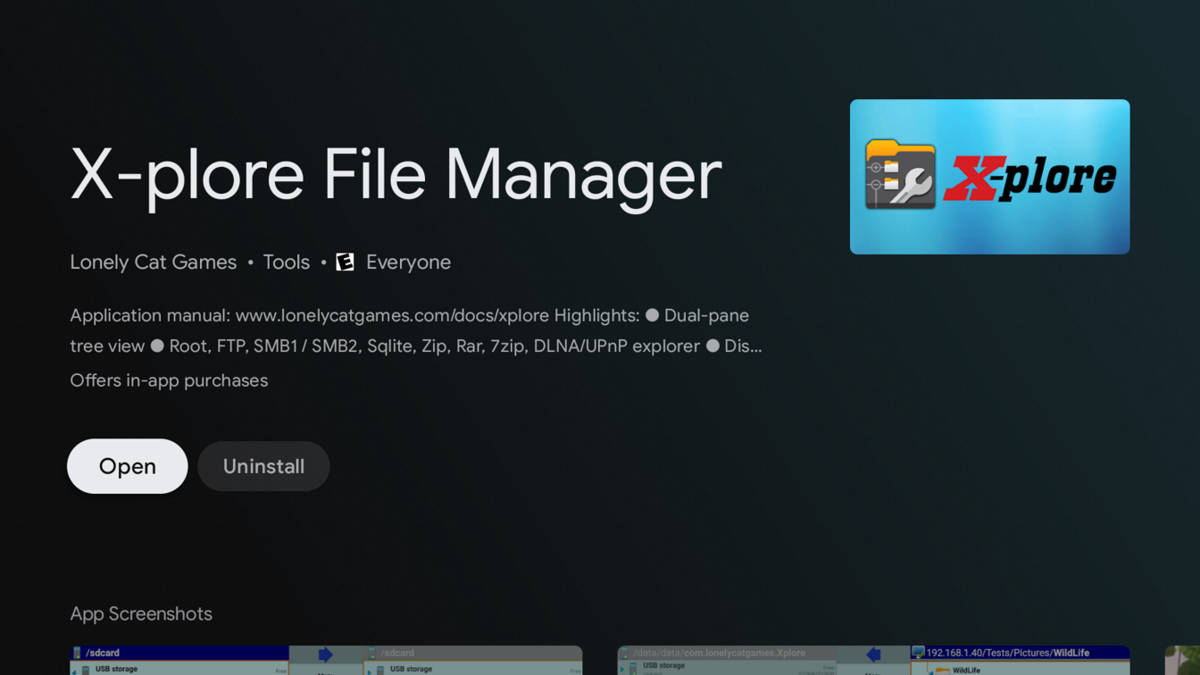
There are several methods to sideload an app on an Android TV device such as the nVidia Shield including by usb, smart phone, etc. The method described below uses smb3 from a Windows 11 client. Different Android devices and connecting clients may differ in steps The nVidia Shield uses smb3 as of SE8. If your Shield isn't upgraded to at least SE8 you should do so now. 1. Enable smb3 connections on nVidia Shield Go to Settings --- Device --- Storage Click and enable "Transfer files over local network" Note the Username and Password 2. Enable SMB3 on Windows client Windows 11 comes with smb3 already enabled. Older versions of Windows and other clients may require you to enable smb. 3. Download apk from website Both the standard Android (arm7 Shield, arm8 Shield pro) and Android TV apps work on the Shield. You can choose one or install both if you like. https://emby.media/download.html 4. Copy downloaded apk from Windows client to Shield (if you prefer to host the apk on a NAS see the second post) Start File Explorer Browse Shield by typing \\Shield (or IP address) in File Explorer (use the Username and Password from Step 1) Drag-and-drop downloaded apk from Window 11 to your folder on the Shield 5. Install X-plore File Manager on Shield start Google Play Store app search X-plore Install 6. Install Emby on Shield Start X-plore navigate to the folder where you copied the apk in Step 4 Click on the apk file Select Install and click OK 7. Add Emby to favorites on Shield Home Page (optional) navigate to Installed Apps hard press the Emby icon Select "Add to favorites"

 1 point