Leaderboard




Popular Content
Showing content with the highest reputation on 11/15/23 in all areas
-
What does that mean? Does Emby have some sort of agreement with them that does not limit access or am I getting this the wrong way?2 points
-
Please add these two filters to Movie filter view: - Decades - Country1 point
-
Pretty simple suggestion. I have multiple users for my Emby server. If I want to do continuous maintenance on the media, I have to tell everyone. some of them are harder to reach than others ( i.e. no Facebook or Skype chat etc. ) It would be great if say... on the admin panel, I could hit a check box that enables 'maintenance mode', where the server still runs does everything as normal, but instead of the login screen it displays a maintenance page saying the server is unavailable. Even better if I were able to directly put a reason in a text box that would then display on the login screen as well. Not really sure what others would think of this, but for me it would be quite helpful. mostly if I want to make sure no one is trying to access content I know won't work until I've done a full library scan again. Thanks for reading. -Kyle1 point
-
Hi guys, I wanted to move from plex to emby since a while for multiple reasons. I decided to make this guide first because I want to give back something to the amazing community behind UNRAID/REDDIT/EMBY and second because I couldn't find a step by step guide so I thought it would be nice to have a lot of useful information in a single place. If you just want to setup the hardware transcoding using intel quick sync video in emby on unraid go directly to STEP 8. I take also the opportunity to thank spaceinvaderone for the amazing videos he made about UNRAID, I learned a lot, and the linuxserver.io guys/gals for the amazing job they do supporting and maintaining the community images. Note: I am not affiliated with anybody nor I get paid to do this, this shows the steps I used to setup emby on unraid so to make it easier for you to do the same. Also english is not my native language so excuse me for any syntax/grammar error. Last premise before we start, if you want to add something or you think some steps needs additional informations to be clearer let me know in the comments. @Mods: I couldn't post it under "tutorial and guides" section. if you can please move it to the appropriate section, thank you. Let the fun begin... PREREQUISITES: -------------------- UNRAID 6.9-RC1 or newer UNRAID COMMUNITY APPLICATIONS (Refer to this post on how to install: https://forums.unraid.net/topic/38582-plug-in-community-applications/) EMBY v4.5 or newer EMBY PREMIERE SETUP: --------- STEP 1 - Setting up a dynamic DNS ----------------------------------------- Use your preferred dynamic dns provider to setup a custom dns tracking service. For example: "emby.hopto.org" where "emby" is the name you want and the rest is fixed depending on the dynamic dns provider. Ex.: "myembysrv.hopto.org" STEP 2 - CREATE A CUSTOM DOCKER NETWORK ---------------------------------------------------------- Inside the unraid web interface, open a terminal by clicking the terminal icon on the top right corner and type docker network create cdocknet where "cdocknet" is the name of our custom docker network. You can name it whatever you want. Press ENTER and then a long string of random characters (network id) should appear meaning the custom network was successfully created. If there is an error message make sure you correctly typed in the command otherwise search google for the error message and fix it before moving onto the next step. If everything is successful you can close the terminal window and proceed to the next step. STEP 3 - Install SWAG (Secure Web Application Gateway) ------------------------------------------------------------------- Inside the unraid web interface, go to apps then in the top right corner inside the search bar search for "swag" (without quotes) Click install and you will be redirected to the container settings. Change the following settings: Network type: -> Select Custom: cdocknet (or watherver name you assigned in step 2) HTTP: -> Change it to 8080 or another port that is not in use either in unraid or any docker you have HTTPS: -> Change it to 8443 or another port that is not in use either in unraid or any docker you have EMAIL: -> Your email address DOMAIN NAME: -> The Dynamic DNS domain name, so if we use the one I setup in the first step it is going to be hopto.org Yours can be different. Ex.: ddns.net, duckdns.org SUBDOMAINS: -> Delete the "www" and replance it with the custom name you chose in step 1, in our case emby. ONLY SUBDOMAINS: -> Set it to true (we tell swag to issue the cert. only for our subdomain as we don't own the top level domain be it hopto.org or whatever else you chose) You can leave the rest as default. Now before clicking "APPLY" open a new tab and go to your router setting and setup a port forward to unraid for the port 80 and 443. I cannot give a specific guidance here as every router setting is different. Try to search for port forwarding [your router model] in google and read how to do it. You should have a table/items like this. You need to setup 2 port forwarding, one for port 80 and one for port 443. NAME/APPLICATION NAME/SERVICE NAME: Swag80 IP ADDRESS: enter unraid ip address PUBLIC PORT: enter the default HTTP port, in this case 80 PRIVATE PORT: enter the custom port you setup for the docker, in our case 8080 PROTOCOL: TCP NAME/APPLICATION NAME/SERVICE NAME: Swag443 IP ADDRESS: enter unraid ip address PUBLIC PORT: enter the default HTTPS port, in this case 443 PRIVATE PORT: enter the custom port you setup for the docker, in our case 8443 PROTOCOL: TCP After you did so go back to unraid and click apply. Once swag is installed check the log setting to make sure everything is done without error thus a certificate is created and valid. Basically you shouldn't have any red/amber warning in the log and at the end you should see a "Server ready." message. If any red/amber shows then check the port are correctly forwarded (make sure the numbers are correct, the unraid server's ip address is correct) otherwise read what the error says and do a search to fix it. STEP 4 - Install Emby -------------------------- As before go under the apps tab in unraid to open the community applications and search for emby. You should see 3 or more emby containers, you can use the one you prefer. For our guide we use the official emby container. Click install and again you'll be redirected to the docker settings. Change the following settings: Network type: -> Select Custom: cdocknet (or watherver name you assigned in step 2; if you have multiple custom network make sure you use the same you setup in swag otherwise the reverse proxy won't work) Host path 2:* -> Path to your media folder share. Ex.: /mnt/user0/Media Then click apply and wait for the docker to be pulled. Once it's complete you can open emby web interface by clicking on the EmbyServer icon and select "WebUI". Emby asks you to setup a username and a password. Note this one will be the admin of the server so use a strong password. Don't worry about Emby connect, this is not required at this moment so you can leave it blank. If you have one feel free to enter it. Click next. You can already setup the library in this part or skip and do it later. For the purpose of this guide we skip it as it's not difficult and there is plenty of documentation on emby website on how to do that. So now you can click finish and you will have emby UI with all the libraries (if you setup any) and the possibility to access the server settings. STEP 5 - Configure SWAG proxy-conf --------------------------------------------- If you didn't change the default appdata config path in swag you will have all the config file under /mnt/user/appdata/swag. So from unraid webui set the appdata share to export with public access type. To do so just click on the appdatashare, then under SMB Security Settings set the following: Export: -> yes Security: -> Public Click apply then done. From your PC/MAC navigate to the appdata share and open the swag folder. In windows would be "This PC-> Network -> unraid_server_name -> appdata -> swag" Inside swag navigate to nginx and then open proxy-conf folder. Search and open a file named emby.subdomain.conf.sample with your preferred text editor be it notepad, notepad++, gedit or whatever. Inside this file you have to change: server_name emby.* to whatever name you setup in step 1 for the dynamic dns. Example if your dynamic dns is myembysrv.ddns.net in this line you would setup server_name myembysrv.* The other line we have to change is the set $upstream_app emby by replacing emby with the container name. If you used the official emby container and you didn't change it then you would set this up to set $upstream_app EmbyServer . You can find the container name in unraid. Now click save and rename the file by removing the ".sample" at the end. So the new file name will be "emby.subdomain.conf". Go back to unraid webui, click on the swag container icon and restart the container. (This reloads the configuration files in swag like the one we just modified) STEP 6 - Configure remote access on Emby --------------------------------------------------- Open emby webui by clicking on the emby docker icon in unraid, go to settings -> network. Tick the "Allow remote connections to this emby server" now some extra settings will appear. Scroll down till you find "Public HTTPS port number" and change it to "443" Right below you find the "External domain:" and set this to the dynamic dns we setup in step 1. In our case is "emby.hopto.org" Then scroll down a bit more till you find "Secure connection mode:" and change it to "Handled by reverse proxy" Then just below it untick the "Enable automatic port mapping" and then scroll at the end of the page and click save. Go back to unraid webui and restart emby docker. STEP 7 - Test the remote connection -------------------------------------------- Open a new tab and go to "https://emby.hopto.org", of course replace this with your custom dynamic dns entry. Ex.: "https://myembysrv.ddns.net" You should see a "Please sign in" page with emby logo asking you for a login and password. If you see a connection timeout then you did something wrong. Go back and re-read all the steps and make sure you did everything correctly. If you see an SSL cert error/browser warning that the connection is not secure then you messed up with the ports or skipped some steps. Again re-read and make sure you did everything properly. STEP 8 - Setting the HW (hardware) transcoding in Emby with intel QSV (Quick Sync Video) ---------------------------------------------------------------------------------------------------------- Requirements: Emby premiere Intel CPU that has Quick Sync Video (search your cpu at https://ark.intel.com/content/www/us/en/ark.html#@Processors) Compatible motherboards (sometimes iGPU has to be enabled in BIOS/UEFI, in some other cases you need a VGA/HDMI plugged-in to have it functional either by plugging in a monitor or by using a dummy VGA/HDMI adapter) If you meet the above requirements please read on... Open a terminal window in unraid (top right corner, click on the terminal icon inside the unraid webui) and type the following: ls /dev/dri and press ENTER If you see something like by-path/ card0 renderD128 this means that the QSV is already enabled in your unraid server and you can skip to the docker setting step otherwise read on. In the terminal window type: modprobe i915 then press ENTER (if there is any error stop and solve this before moving on. Make sure you meet all the requirements) Then type: ls /dev/dri and press ENTER. Now you should see something like this: by-path/ card0 renderD128 Now type chmod -R 777 /dev/dri to set the permission on the folder so we can access to it from the emby docker container. Once that's done close the terminal window, go over Emby docker container icon and click "Edit". This will bring the container settings up like the first time we installed it. Scroll down at the bottom and click on "+ Add another path, port, variable, label or device". A new window/popup will open. Change the following settings: Config Type -> Device Name -> /dev/dri Value -> /dev/dri Description -> Intel Quick Sync Video Then click "ADD" and the "APPLY" and after the container is pulled down again click on "DONE". Now open emby webui, go to "Settings -> Transcoding" and make sure you have "Enable hardware acceleration when available:" set to "Yes" or "Advanced". With advanced you can see the various preferred hardware encoders/decoders emby will use and tick/untick the ones you want. Scroll to the bottom and click on "Save". STEP 9 - Testing the hardware transcoding and make Intel QSV persistent across unraid server reboots ------------------------------------------------------------------------------------------------------------------------- To test if the hardware trascoding is working as intended just go to your library, open a movie and select a different quality. For example you can set it to 480p - 1Mbps and click play. If you go in your server dashboard inside emby webui settings you will see under Active devices the client name that is reproducing the movie and just below informations about wether it is being transcoded or not and which encoder/decoder is being used. For example if you see VAAPI (Video Acceleration Api) means the hardware transcoding is working using the intel QSV by accessing /dev/dri (Direct rendering infrastructure). Finally last step is to go back into unraid webui, open a terminal window and edit the go file to make sure Intel QSV is always on even if we reboot the server. To do so type: nano /boot/config/go and press ENTER Nano editor will open and you will see the content of the file. If you never modified it before it should be similar to: #!/bin/bash # Start the Management Utility /usr/local/sbin/emhttp & Just add the following lines to the bottom of the file modprobe i915 chmod -R 777 /dev/dri Your go file should look like this: #!/bin/bash # Start the Management Utility /usr/local/sbin/emhttp & modprobe i915 chmod -R 777 /dev/dri Save using the CTRL + O and then CTRL + X to exit Done! If you read it this far I thank you for the attention and I hope you found this guide useful. Finally you can enjoy your media on the sofa.1 point
-
Hi I am testing scale and could only find the stable version of Emby, is the beta also available? if so how do I get it? Thanks1 point
-
Hi. Isn't the series itself the playlist you are wanting to create then?1 point
-
Thanks for the help. You are always on point with help. It is appreciated more than you realize1 point
-
The original AC3/Dolby Digital track will be far higher quality than any transcoded track - it may be lower volume - but it will have better dynamic range. It's possible your audio system needs some tweaking - re getting the channel balance setup correctly.1 point
-
Thank you @SamESfor the very fast answer!1 point
-
Have a read of this article, but the short answer is that Netflix (and Emby) can play ATMOS in the lossy format (Dolby Digital+ / EAC3) but not Lossless ATMOS (TrueHD). Please let us know if you still have questions. Atmos on LG TV | Emby Documentation1 point
-
As said above, whatever you do on that header tab will (very likely negatively/undesirably) affect another tab with same index on some other page, so no. But maybe some fellow user might have some other idea. Edit: Or maybe UI changes will come sooner than that.1 point
-
Hi @DaninFuchsyes I know what you are referring to. Good news is that we are working on a new windows app that does not exhibit this behavior, so stay tuned.1 point
-
That is unrelated to Premiere subscription and is used strictly for access/session control, following to your: Yes. As for: Premiere device limit does not apply to overall number of devices but only to devices that actually use Premiere features (which features are those, you can find out here). So, hypothetically you could have 1000 devices in your server Devices list - if none of them wasn't using Premiere features, you'd still have 25 slots open. Standard Premiere subscription carriers a 25 devices limit - devices are tracked for abt. a week after which they drop-off the list automatically. That is not something that's exposed to the end user and there's basically nothing you can do to lower number of those devices/open more slots save subscribe to Extended Premiere options (45 or 75 devices limit) and/or potentially unlock certain client apps which would only enable Full playback (but not other Premiere features) on those clients/would not count against your Premiere limit for playback only. https://emby.media/support/articles/Premiere-Limits.html1 point
-
HI ,yes that makes sense. Thanks for the feedback.1 point
-
There is no way to override the automatic detection with Playback Correction within the audio player. It just hasn't been needed there until now. Stay tuned though. We will have something for this soon.1 point
-
The issue has not changed from the OP. The request was simply to display the full path of the .strm file just as it is shown for every movie file.1 point
-
@LukeYes. Some models of Roku cannot playback at the correct speed. We might be able to do better at detecting this. I can dig into the issue and have added it to our issue tracker for Roku. We can also possibly provide playback correction during audio playback which could allow users to fix this as needed. But let me see if something automatically can be done. Reference: Issue #1534: Better auto-detection for FLAC audio1 point
-
Hi, we are working on a new windows app with improved video playback so stay tuned.1 point
-
@speechlesare you able to reproduce?1 point
-
This has been my experience as well. Also I have found that usually/often the default order is permanently changed once you manually change it. That is changes to sort order seem to stick even through restarts. The fact that the default behavior sticks when changed has actually made part of my Emby watching better. I can keep my recordings (sports events mainly) in date added order which makes find and playing the one I want to watch much easier. Thank you Emby for providing a fix for a problem I did not even know I had.1 point
-
Let's hope it doesn't. If I had been home, I would have done some more troubleshooting but it was just easier to roll it back remotely. Hope it was just a fluke.1 point
-
Hey @rbjtech Thank you so much for this feedback. Yes I will be cleaning this plugin up a lot soon, such that packages will be a separate plugin altogether. Kindest regards, Anthony1 point
-
HI, did you check the date added value of the new title in the metadata editor and compare it to the date added value of wall-e?1 point
-
HI, yes we can certainly take a look at those and see what they allow. Thanks.1 point
-
Yes because we plan to release 4.8 to stable before then. If for some reason we don't, then we'll update the 4.7 version of the plugin.1 point
-
Just an FYI that Intel sold off NUC line to ASUS. ASUS will support Intel's NUCs under warranty. ASUS Takes Over Intel NUC Brand, Begins the Next Era for the Next Unit of Computing (anandtech.com)1 point
-
Thank you all for your responses. @speechlesI'll have to take more time to explore this issue as you suggest. I was not able to open the MKVToolNix application since it seems the app is not immediately well supported on MacOS. With the time I did have though - and definitely a rabbit trail of my own making - I was originally running the binhex docker for Emby. I did casually wonder if it was a docker issue and moved over to linuxserver. I am at least pleased to report that the same MKV playback issues are observed in both projects. In the meantime, I did discover the Automatic Conversions feature within Emby so in the interest of trying to resolve my issue in a timely fashion I will be solving this. For what it's worth, using Emby to convert an MKV file to an MKV file does not solve any of the observed issues with playback. Perhaps one day a solution can involve having Emby bring an MKV file back into some acceptable form for normal playback. From what I can tell going through posts in the forums and elsewhere online, this issue appears to be an evergreen issue over the years.1 point
-
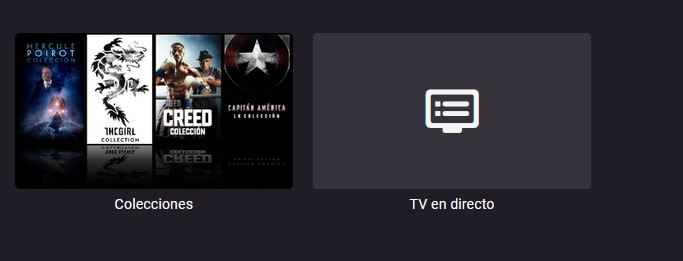
Solucionado, jamás se me hubiese ocurrido. Yo como administrador no tenia permiso de acceso a TV en vivo Que torpeza la mía. Muchísimas Gracias a los dos. Saludos.
 1 point
 -
This post is not just about recording it is also about playback as well1 point
-
OMG, what a waste of time! Please disregard the above. If I had permissions to edit posts I delete everything related to the HiFiBerry DACs above... The reason my HiFiBerry DACs seemed like they should be working but weren't -- as everything on the digital side was working both in software (alsa, aplay, pactl list, etc) and in hardware (as the green activity light was coming on) -- was that the analog section / output buffer failed! On both of my HiFiBerry DAC2 Pros that I have! I finally broke down and commandeered an Allo Boss DAC I had in a Volumio setup. And that works just fine in the Emby Theater devices, be they using HDMI or the official 7" display! Anyway, setup and operation of Emby Theater on a RPi 4 (2 Gig version no less) using the Official 7" display can't be easier and operation is smooth as butta (as long as you're using the 'vc4-kms-v3d' dtoverlay. When I disabled it scrolling, navigation, everything, was noticeably slower and choppier). If anyone cares to use the 7" display in a small turn-key device, here's my config.txt. Unlike someone who had a thread about his experience, I didn't need to use the 'vc4-fkms-v3d' dtoverlay. That's good. So, here is my config.txt (with most all commented options or defaults removed) that I used for an Emby Theater music player on a 7" display with audio-out thru a DAC HAT: # Disable HDMI, Use the 7" display disable_fw_kms_setup=1 # Thought this would force 7" display. But didn't work. Setting this did work: display_auto_detect=1 #hdmi_group=2 #hdmi_mode=87 # Automatically load overlays for detected DSI displays if = 1 display_auto_detect=1 # Uncomment some or all of these to enable the optional hardware interfaces dtparam=i2c_arm=on #dtparam=i2s=on #dtparam=spi=on # Enable audio (loads snd_bcm2835) ... notice, doesn't need to be commented # and Emby Theater still outputs to the ALLO BOSS. But you can comment if you want. dtparam=audio=on # Allo Boss DAC dtoverlay=allo-boss-dac-pcm512x-audio audio_pwm_mode=2 force_eeprom_read=0 # Enable DRM VC4 V3D driver dtoverlay=vc4-kms-v3d max_framebuffers=2 gpu_mem=128 # Disable compensation for displays with overscan disable_overscan=1 # 64 bit arm_64bit=0 [cm4] # Enable host mode on the 2711 built-in XHCI USB controller. # This line should be removed if the legacy DWC2 controller is required # (e.g. for USB device mode) or if USB support is not required. otg_mode=1 [pi4] # Run as fast as firmware / board allows arm_boost=1 dtdebug=11 point
-
Thanks - would be really great. Maybe simply the option to disable transcoding manually or when the client is in LAN. Thanks in advance RUE1 point
-
Steht hier: Habe den Beitrag auch mal als Lösung markiert.1 point
-
This has not improved with 3.3.401 point
-
@Anz30 Ein Forum lebt aber auch davon, dass man den Thread liest.1 point
-
Hi there, yes this is planned for future updates. Thanks.1 point
-
Hey this might be irrelevant to most but thought I'd bring attention to it for those that are interested (not sure of previous knowledge I suck at searching this forum) I tried using the dedicated Pi 4 Image (theatre) supplied, but the performance wasn't fantastic navigating/browsing let alone playback; not sure why or if its exclusive to me. I did however get Android TV going and its a relatively easy process to do and enables the Google Play Store version of Emby to be Installed. This work very well for me and pretty much all aspects except for 4k playback, in the past the LibreElec Emby addon 4k playback was fine though so hopefully there is future performance potential. I'm not sure of any restrictions on sending links to resources or other things on this forum https://konstakang.com/devices/rpi4/LineageOS20-ATV/ Hope this can bring progress any one having issues with getting a performant Pi Client1 point
-
@smernt Thank you! My plan is to stabilizes this release. (No more new features). Once it all looks clear, I'll submit to the Emby plug in gallery which would make it a little easier to install and more visible.1 point
-
If the Library is empty, then you can sort of hack the library to remove it. Shut down Emby "C:\Users\{username}\AppData\Roaming\Emby-Server\programdata\root\default\Collections" path will be platform dependent delete the options.xml or the entire Collection folder Restart Emby, go to Setting-Library, now the Collection library should be Mixed Content type and have the option to Delete/Remove the library. Assuming no collections exist, the library will not regenerate.1 point