Leaderboard




Popular Content
Showing content with the highest reputation on 07/07/25 in Posts
-
Hello This is a simple request but efficient in emby there’s no different names of subtitles regarding their format or location. all ( external subtitles- embedded subtitles-subtitles add through UI from opensubtitle) has the same name format for example: English (SRT) I know you can tell through “edit subtitle” button but it’s extra step not needed I wish that names be like: English (SRT) > For embedded English (SRT)(External) > for external sub English (SRT)(Opensubtitles) > For Opensubtitle Why it’s important? Because sometimes someone in my server add multiple subtitles through opensubtitle and all have same format and confusing I know I can disable this but I don’t want to, I hope you can just differentiate on the name itself rather than checking every time on edit subtitle option.2 points
-
Hello, I put this together this weekend, and I thought I'd share it if anyone else had a desire to do this as well. The script does what the title says- it reads the list of movies in Radarr. Movies that have a file and tags associated with them are compared against the specified library in Emby using the IMDB ID. If it finds a match, it takes any tags on the movie in Radarr, and applies them to the movie in Emby. Why would you want to do this? Well, if you are using Jellyseerr, and have it tagging requests added Radarr with a tag of the username, this now lets your Emby users find their requests by searching on the tag matching their name. I'm hoping for improved features around using tags in Emby in the future as well, so this will also get ahead of dynamic libraries/playlists if they ever add something like that. Notes: Probably needs Powershell 7. Read the readme, but basically, you need to configure the SyncConfig.txt then run the SyncTagsToEmby.ps1. NOTE: You are putting a password into the config file. So secure it/be careful with it. I'll eventually make that better, but it was just a slap together project this weekend. It does throw a lot of output, but I'm not logging it. I'll put something in later, but you can just use Start-Transcript if you want to capture it yourself. There are some improvements planned in the future when I get around to them, though if people end up using it, I might put more effort in. You can run it multiple times, Emby doesn't create duplicate tags or throw any errors, so it appears to be harmless in my testing, so this allows to to re-run later to keep things sync'd. You should backup your Emby database just to be safe. I'm only trying to write tags, using the Emby API, and it seems pretty safe, but you never know. RadarrTagsToEmby.zip2 points
-
The Emby music server works very well on my Synology DS220+ NAS (DSM7). However, I have my M3U playlists created for network access by uPnP players. The tracks are in the playlist as \\SNAS\Music\CDQ\trackx.mp3, where SNAS is the 'friendly' name for the NAS. This format will not work with Emby. My Emby music library is /Volume1/Music. So the only way that I avoid "playlist empty" error message is to reformat the track list in my playlists to /Volume1/Music/CDQ/trackx.mp3. Emby will not accept 'SNAS' or 'IP address' in place of 'Volume1', and will only accept forward slash. By 'accept' I mean for the playlist to work in Emby. So, is there a known solution or work-around for this issue so that I can have common playlist files between Emby and network players? Or is this a feature request? Thank you.1 point
-
keeps saying invalid user name and password1 point
-
The searching for books works good. It can be a bit challenging at time with the same book appearing as multiple different works on OpenLibrary. But that's a data quality issue on their end and has nothing to do with Emby. Right now I can see that once identified Emby scrapes the cover, title and description of the books. It would be really nice if it got the other info as well - release date and year and author would some of the items at the very top of my wish list in this regard. But publisher, rating, language and series would also be very nice meta-data to get too.1 point
-
I would think you wouldn't have to undo anything. Hopefully the patch is smart enough to only autocorrect videos which aren't rotated correctly in the first place. Just like the other video players do. Otherwise, everybody's movies will be upside down in the future.1 point
-
Thanks all. I changed the permission as indicated and scanning worked. When looking for that permission it wasn't obvious where it was located on the Synology. I took a while to find it.1 point
-
Oops, I saw that, but didn't read far enough down. Thank you!1 point
-
Please check your DM's1 point
-
Hi @Lukeit's been quite a while since I've chimed in... I am not sure if the new (to me, just saw it over the weekend) HEVC encoding feature or if it was something else that changed but things work worlds better now on my devices and my friends ROKU devices. Things load so much faster for remote users and subtitles aren't borking the videos any longer. I just tried Twisters on my Win11 work PC and the opening scenes played flawlessly when earlier this year, it would freeze. So, thank you guys!1 point
-
Real Setups. Real Users. No Fluff. Welcome to the first installment of our Emby Community Spotlight — a series where we highlight the unique and diverse ways people around the world are using Emby every day. From globe-trotting servers to enterprise-grade home labs, Emby users continue to push the boundaries of what a personal media server can be. Today we are focusing on users who use Windows or Windows servers as the base for their servers! Here are three very different and impressive setups that showcase the flexibility and reach of Emby. 1. A Portable Powerhouse That Travels the World This user lives a truly mobile life, relocating across countries every couple of years. Despite the challenges of frequent international travel, they manage to bring their Emby server (along with their entire media, gaming, and work setup) in just two suitcases and two carry-ons. OS: Windows 11 Pro Case: XTIA Proto L v2 CPU: AMD Ryzen 7 5700X3D GPU: NVIDIA RTX 3090 RAM: 32GB Storage: 80TB Clients: 2x NVIDIA Shield TVs TV/Sound: LG C2 OLED + Vizio All-In-One Soundbar Router: ASUS ROG AX11000 This setup has successfully traveled routes like Sri Lanka → Philippines → Singapore → UK → Saudi Arabia. The server doubles as a workstation and gaming rig. Truly a server built for work, play, and portability. Super impressive! 2. An Overbuilt Beast with Room to Grow Built for endurance, performance, and multi-purpose use, this next user has created a server that handles everything they can throw at it! OS: Windows Server 2022 Form Factor: 4U rackmount with 24-drive backplane CPU: AMD EPYC 7F52 Motherboard: Supermicro H11SSL-I RAM: 512GB ECC DDR4 Storage: 8x 18TB SATA HDDs (pooled via StableBit DrivePool) 2x 2TB NVMe SSDs (write cache) GPU: NVIDIA Quadro P2200 Clients: Fire TV Sticks, Samsung Smart TVs, iOS/Android devices, browser After 8 years of using Emby, this setup reflects confidence, stability, and the desire to build once and build well. Live TV via HDHomeRun was described as effortless, and streaming performance is as smooth as it gets. 3. A Well-Rounded Home Media Hub This setup strikes the perfect balance between performance and practicality. Used primarily in-home across multiple client devices, it serves a large personal media collection with plenty of horsepower under the hood. OS: Windows 11 (24H2) CPU: AMD Ryzen 7 5800X3D Motherboard: Gigabyte X570 AORUS Ultra RAM: 64GB G.Skill DDR4 @ 3600 MHz GPU: EVGA RTX 3090 FTW3 Ultra Storage: 40TB HDDs + 7TB NVMe SSDs Clients: 5 in-home devices, occasional remote access via Tailscale Library: ~2,000 movies, 800,000 photos, 30,000 personal videos, 50,000 songs This server doubles as a central storage hub and personal archive, with exceptional performance for both local and occasional remote streaming. Have a Setup Worth Sharing? We will be featuring more community builds in this ongoing series shortly! Whether you’re running Emby on a mini PC, cloud server, or something no one’s thought of yet, we want to hear from you. Join the forum conversation and submit your setup to be included in a future spotlight. View the full article1 point
-
Sorry for the late update I have been super busy. I ended up getting a new router and the problem is fixed now, I am not sure what caused it and I am open to troubleshooting but as much info as I can give is the weird subnet that I don't have anymore and I no longer use an eero as my main router, only access points.1 point
-
Great to hear I’ll report back to confirm the issue has been resolved once the release is pushed. Thanks for your work on the coming update!1 point
-
yes, thank you. I marked all helpful posts.1 point
-
Yes I did so. Good news: All of a sudden it worked. I didn't change anything but suddenly it appeated in the sidebar.1 point
-
Hi, we'll take a look at it. Thanks.1 point
-
Hi, we are looking into it. Thanks.1 point
-
You're right for the web app. But I don't use it often just testet it because of your comment. I'm running emby on NVidia Shield (emby AndroidTV), where it does not show the track names. (Or is there a setting to activate it?)1 point
-
Dont know why my screenshot came up X3, sorry bout that. It worked after i rebooted the computer itself running the server1 point
-
All good in my Emby hood now Kimosabe! Saw previous post, one Coffee coming right up!1 point
-
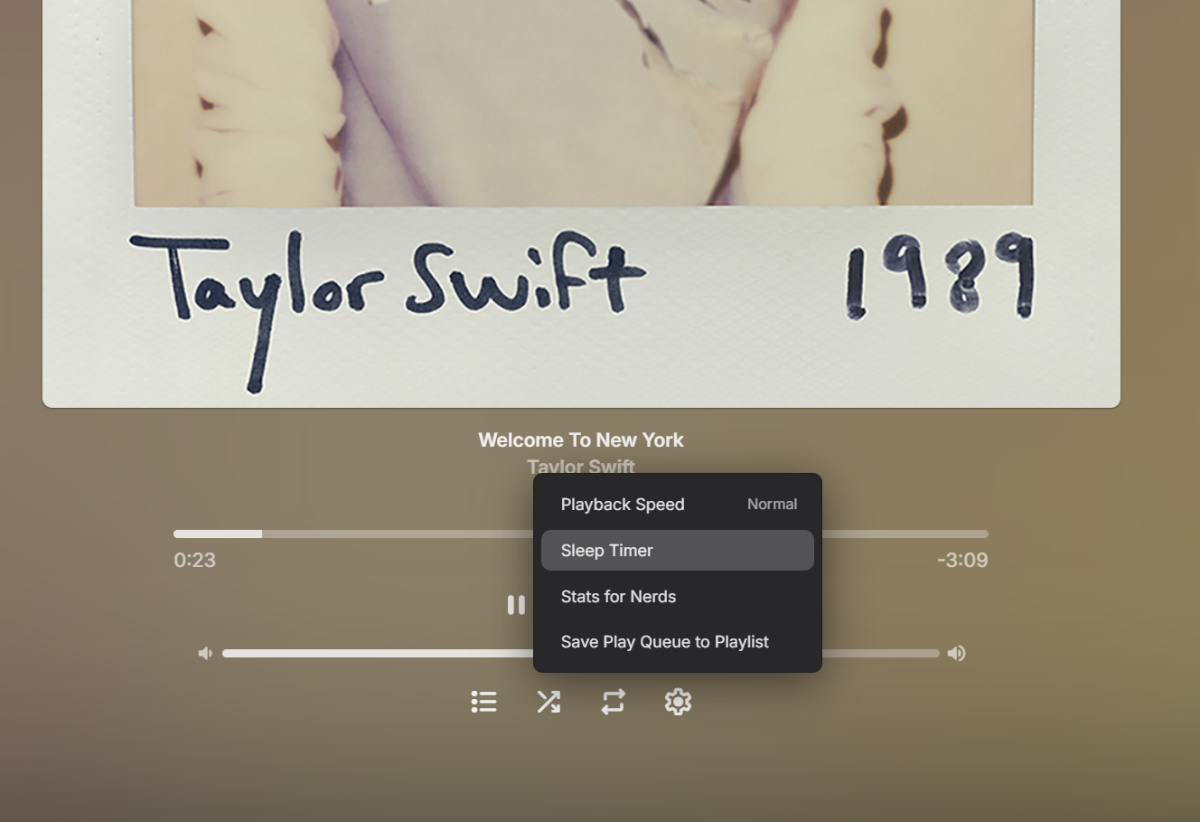
In this context, it would also be helpful to read and display the name tag of internal audio and subtitle tracks. This would also make it possible to distinguish normal subtitles from for example “commentary” subtitles. (Although there is also a separate tag for commentary tracks).1 point
-
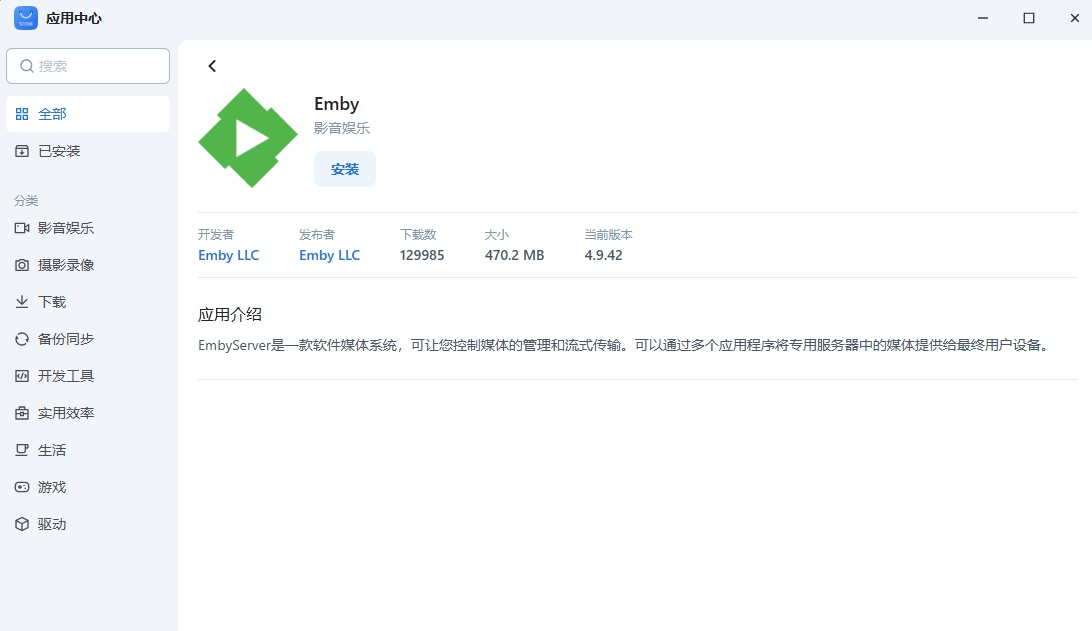
There are significant bugs in the app currently available in the app store (it fails to distinguish between discrete and integrated graphics). Manually installing the .deb package doesn't actually solve the problem (although manually installing a stable version can recognize the hardware correctly): Emby installed via the .deb package does not appear correctly in the FNos app dock. This means the built-in FNoS feature FN CONNECT (relay forwarding) cannot be utilized. Permissions cannot be set, preventing Emby from accessing directories. Currently, FNoS also has an official media app that performs well: it scrapes metadata, hardware decodes, and uses FN CONNECT to browse media even without an IPv4 address. Its only shortcomings are likely the lack of live TV and .strm file support. Therefore, I sincerely hope the official website can release an update as soon as possible and roll back the version of the app in the store. To my knowledge, older versions previously worked correctly.
 1 point
 -
Hello - just stopping by to let you know this was the final piece of the puzzle for my dream setup. I can now have the benefits of Stremio but not loose access to my well curated local library I have built over the years; easly switching the different language / quality versions regardless if its sourced through my emby library or via stremio. This is awesome and I thank you for coding this addon I believe if more people get aware of this it will be quite a thing.1 point
-
Hey, I have a Samsung QN90C 2023 Neo QLED TV. Until last week Emby app was working perfectly. Recently I started getting the following errors: "PLAYER_ERROR_CONNECTION_FAILED, player state: IDLE" and "Playback Error no compatible streams are currently available". It works on the TV's web browser, but not in the app. After some research, I found this might be a known issue with Samsung TVs and Let's Encrypt Certificate Authority. However, I noticed the web interface is using a Sectigo certificate. I also tried accessing via HTTP (port 80 is open, 8096 is not), but I get the message "Access token is invalid or expired." There are no firmware updates available, and all transcoding options are enabled. I'm out of ideas at this point. I’d really appreciate any help. Thank you!1 point
-
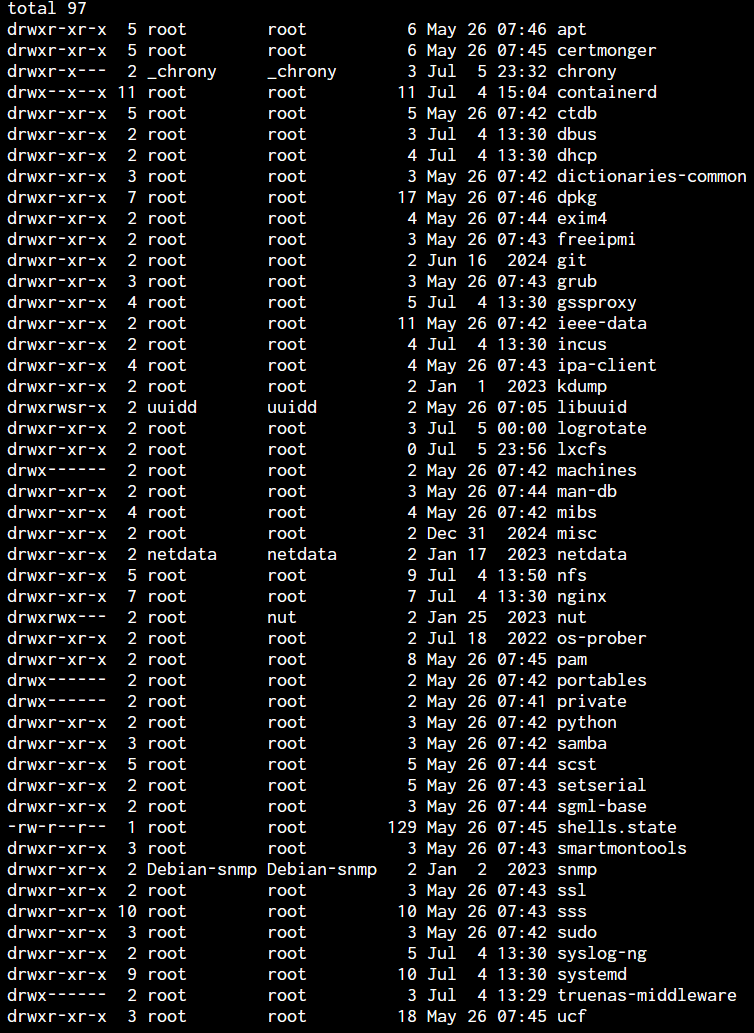
alrighty. i found the location of the system.xml file that i needed to edit. for me, the /config folder was located in the 'media' mount path. to see the path click on the 'View Mounts' under Workload: you'll see a pop up window indicating where the /confg folder is located: i used nano in shell to edit the system.xml. after editing the Public port of 9096 back to 8096, the server is now able to be deployed and in a "Running" status. hope this will help those of us who are not too familiar with many things linux.

 1 point
 -
I installed Emby for Android and it does not have the issue as it will not go back to the movie/episode page, but remain in the player after resuming from the screensaver. As for the moment I am ok with that, as the app seems to work fine on Android TV. But it would be nice for a future version if this could be addressed1 point
-
Hello Happy2Play....thanks for your advice and i'm happy to report that your suggestion worked!! Back to normal after re-installing the beta version! Kind regards,1 point
-
As far I know there is no way to get it in the correct format without a mac using subler. I am also disappointed in the Apple TV app.1 point
-
There are lots of client options for Navidrome! I have been using supersonic on Win 11 and it's pretty good, will check out Symfonium.1 point
-
To clarity to this. What PtpSteve has indicated is correct and works, however it's a combination of problem/feature request/workaround?. When using a Synology NAS with Emby, music Playlists work a bit 'uniquely'. In my case I installed the Emby 'Synology version', and care needs to be taken to ensure that the shared folder has the correct permissions in Synology. This needs to be done in the 'Control Panel', within 'Shared Folders' and then permissions. Note that within 'Permissions' that you need to look for Emby in the 'System Internal User' group and enable the read permissions. This is different if you are using a containerized install of Emby. In Emby you then need to set the Music Library folder to the shared music folder: Folder: /volume1/music (This is the Synology default) (Optional) Shared network folder: \\Snas\music\ (Where Snas is the name of the server) - I have no idea if this is necessary or even required ? At this point, music plays correctly from: Synology AudioStation Synology MediaServer Windows - Any music player Linkplay - Network DLNA music streamers from the Synology MediaServer Emby - Any client device So here's where things start going a bit awry with 'Playlists' Test 1: Absolute reference - Windows file structure If I create a M3U playlist (\\Snas\music\playlist\test.m3u) in a 'playlist' folder in the shared music folder using the following pathing: \\Snas\music\ArtistA\Album01\Track01.mp3 \\Snas\music\ArtistA\Album01\Track02.mp3 \\Snas\music\ArtistB\Album01\Track01.mp3 The playlist is recognised as a playlist and works with: Synology AudioStation Synology MediaServer Windows - Foobar2000 / Windows Media Player Legacy Linkplay - Network UPNP/DLNA music streamers from the Synology MediaServer It does not work with Emby, and although the playlist is shown on the client device, it's 'empty'. Test 2: Relative reference - Windows file structure Taking the same example above and using 'relative pathing' in the same M3U file has the following results: ..\ArtistA\Album01\Track01.mp3 ..\ArtistA\Album01\Track02.mp3 ..\ArtistB\Album01\Track01.mp3 The playlist is recognised as a playlist and works with: Synology AudioStation Synology MediaServer Windows - Foobar2000 / Windows Media Player Legacy Linkplay - Network UPNP/DLNA music streamers from the Synology MediaServer It does not work with Emby, and although the playlist is shown on the client device, it's 'empty'. Test 3: Relative reference - Unix file structure Taking the same example above and using 'relative pathing' AND Unix pathing (ie. substitute '/' for '\') in the same M3U file has the following results: ../ArtistA/Album01/Track01.mp3 ../ArtistA/Album01/Track02.mp3 ../ArtistB/Album01/Track01.mp3 The playlist is recognised as a playlist and works with: Synology AudioStation Synology MediaServer Windows - Foobar2000 / Windows Media Player Legacy Linkplay - Network UPNP/DLNA music streamers from the Synology MediaServer Does work with Emby Clients It seems that the Synology, Windows and Linkplay clients can substitute '/' for '\' during their reading of the M3U files and seem to quite capable of recognizing the server file system and it's requirements and then parsing the M3U file accordingly. It seems however that Emby is not able to provide this for it's clients, and hence is causing a fair bit of confusion. This is not really a 'fault' of Emby as it's technically correct, but rather that the norm has moved and it seems most other systems quite happily parse the M3U file. This lack of M3U Windows/Unix file parsing merely makes playlists on Emby a pain to use, as the following steps are needed: 1. Create playlist on your favorite Windows editor (This creates a \\Snas\music\ArtistA\Album01\Track01.mp3 format) in the \\Snas\music\playlist\ folder. 2. Use a text editor to substitute all '\\Snas\music' for a '..' 3. Use a text editor to substitute all '\' for a '/' It would be great if Emby could also recognize the formats in the Test 1 and Test 2 examples above, as it would make maintaining Playlists a HUGE amount easier from different client devices on different systems.1 point
-
Well I was able to make it work by using my proxy address https://emby.xxxxxxx.duckdns.org instead of http://http://192.168.50.50:80961 point
-
Hi there, let's look at an example. Please attach the information requested in how to report a media playback issue. Thanks!1 point
-
You can use this link StreamBridge or link on my github repository mentioned in original post.1 point
-
I was told to go thru Emby Connect, but unsuccessful1 point
-
I think I can second this, but for me it's happening on h265 or h264 with any video that has more than two audio channels. Anything with stereo or mono plays fine. If the file has more than one audio track, it will play sped up on a 5.1/7.1 track, but if I switch it to the stereo track the same file plays fine.1 point
-
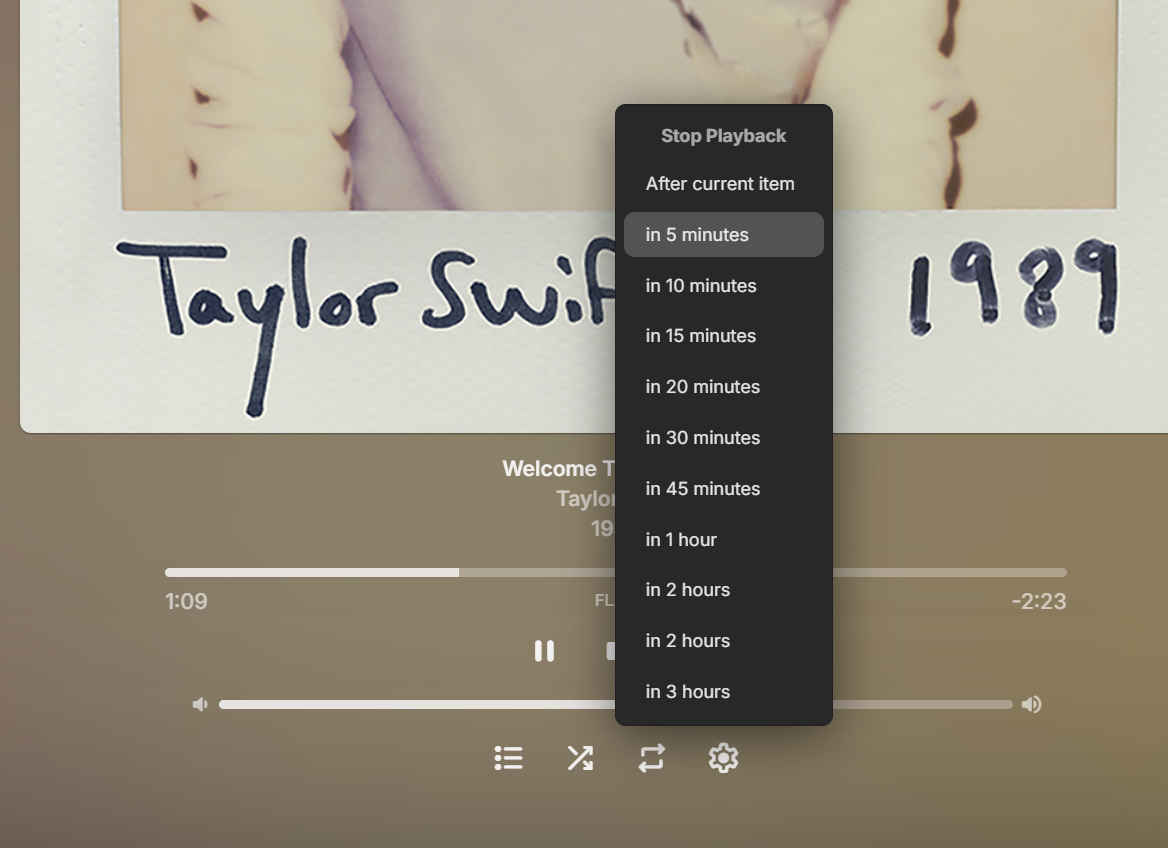
This is coming in Emby Server 4.9, and actually you'll see it in some Emby apps sooner than that without having to wait for the server release.
 1 point
 -
HI, yes this is planned for an upcoming update. Thanks for the feedback.1 point
-
It's both - HDMI 2.0 is not capble of playing of playing 4K@120fps. So even if the Shield could play L6 profiles - which it cannot - then HDMI would not allow it anyway. If you look at your mediainfo output that I asked for for originally, you will see that even 30 fps is written as an L6 profile. This is totally unnecessary and is the reason why they are failing because the Shield does not support this profile. This looks a bug to me on the GoPro firmware - it should be recording 4K 30 or 60fps as L5.0 or 5.1 - both of which the shield supports.1 point
-
At these bitrates, I suspect it's network bandwidth related. How are the server and client devices all connected ? Wifi or Wired ? Remember the bitrate on 120mbps is above what a wired 100Mbit connection can deliver - so unless you have a great wifi signal on wifi 5 (ac) and above, you are going to have trouble. Kodi and VLC will be using direct SMB connections, Emby will be using HTTP via the Emby Server - very different methods to transfer the file.1 point
-
Yes please. We are having to move to an entirely new solution. OneSky shut down.0 points
-
For users with Samsung Tizen SmartTVs (2015 - Present) who want to test the latest version of the Emby client app before it's submitted to Samsung for release in their app store. These installs should be considered beta until approved by Samsung, however they are the same ones submitted to Samsung monthly for inclusion in the Samsung store. Samsung's policy is that the only official way to distribute apps is through the Samsung store and that usb installs should be used for testing purposes only. Because of this policy Samsung has mandated that usb distributed apps must expire within 30 days of compiling. To help with testing you will be remined to update to the latest beta release as the app expires to ensure you are using the latest version when reporting issues. This install will also work for those who don't have access to the official client app in the Samsung app store. However, the same rules must be followed as indicated above. Release notes and version number For the latest release notes and version number click on this post https://emby.media/community/index.php?/topic/31461-emby-for-samsung-smarttv-release-notes-tizen-orsay/ Installation instructions Download this zip file: https://github.com/MediaBrowser/Emby.Releases/raw/master/tizen/tizen.zip Format a USB 2.0 stick using FAT16 (some larger USB 3.0 hard drives have been found to not work) (newer models may support other formats, check your users manual) Copy the tizen.zip file to the root of your USB stick Extract the contents of the tizen.zip file to the root. (This should create the folder 'userwidget' in the root of the USB stick and the folder should contain the two files needed) Turn on the TV Make sure your TV is connected to the Internet Plug the USB stick into the TV's USB port. Installation should start automatically. (There will be 3 quick messages in the upper right corner of the TV) Click 'OK' once the installation is complete. Optional, add the Emby app as a shortcut to Home Start the app from the Smart Hub or installed apps section of your TV. Troubleshooting If the installation does not start automatically, then please ensure your TV firmware is up to date and try again. If you get an installation error, try the process again with the USB stick formatted ass FAT32. We've received reports from users that installing from USB 3.0 hard-drive devices does not work, so please make sure to use a USB 2.0 thumb-drive device. Also, make sure the thumb-drive is unlocked/writable before plugging it in. The TV will need to write to your thumb-drive. Users with 2015 Samsung SmartTVs may experience an issue where the USB version of the app deletes itself upon restart of their TV. This is a security measure implemented by Samsung in which we have no control. If this is the case you may have to leave the thumb-drive in the TV and reinstall upon reboot, or install the latest release version of the client found in the Samsung app center. Updating from a previous USB install The app will notify you when an update is available. To update a previous USB install just repeat the instructions above. Notes: Certain Samsung SmartTVs have an issue where the app won't upgrade from USB drive if there is already a USB version installed. If this is the case you'll simply delete the old version before inserting the USB and then repeat the same installation process to install the new version. Also, try power cycling your TV after deleting the previous version if you have problems.0 points