Leaderboard




Popular Content
Showing content with the highest reputation on 09/26/22 in Posts
-
Emby for Android 3.2.75 Released: Mini Sidebar & New OSD Features Requires: Emby Server 4.7 or later Emby for Android Version Changes: • New brightness control in video OSD • New lock screen feature in video OSD • New mini sidebar docking option • Voice input support on search screen • Various video playback fixes New brightness control in video OSD One of the new features added to Emby for Android is the ability to adjust the brightness of the video being watched. This new feature is easy to use. Just bring up the OSD and the brightness feature is all the way to the right as highlighted in the following picture. All you need to do is touch and slide the control up or down to brighten or darken the video. New lock screen feature in video OSD Tired of accidentally touching the screen and having the video jump to a new scene or doing something you didn't intend? The new lock screen will put an end to this when-ever you choose to use it. Simple click the lock button highlighted in yellow in the picture below to activate this. Any screen touches from this point on during the video will briefly bring up the following screen but do nothing else. In order to de-active this feature you would click the lock icon shown on the picture below, then click the confirm after that. This new feature is straight forward and very easy to use. New mini sidebar docking option One of the coolest features in this new release is the mini sidebar docking option. In order to access this, click the highlighted icon shown in the picture below. Now, click the following icon one-time. You will now have the mini sidebar open as shown below. The mini sidebar is scrollable so if you have more libraries then would fit on screen you can simply scroll this menu up or down to gain access to all libraries on your system. Voice input support on search screen Another great feature added to Emby for Android is the ability to use voice search. You can use voice search anywhere you see the microphone icon shown highlighted in the picture below. All you have to do is click the microphone button and then speak your search term. Other Changes Various video playback fixes View the full article7 points
-
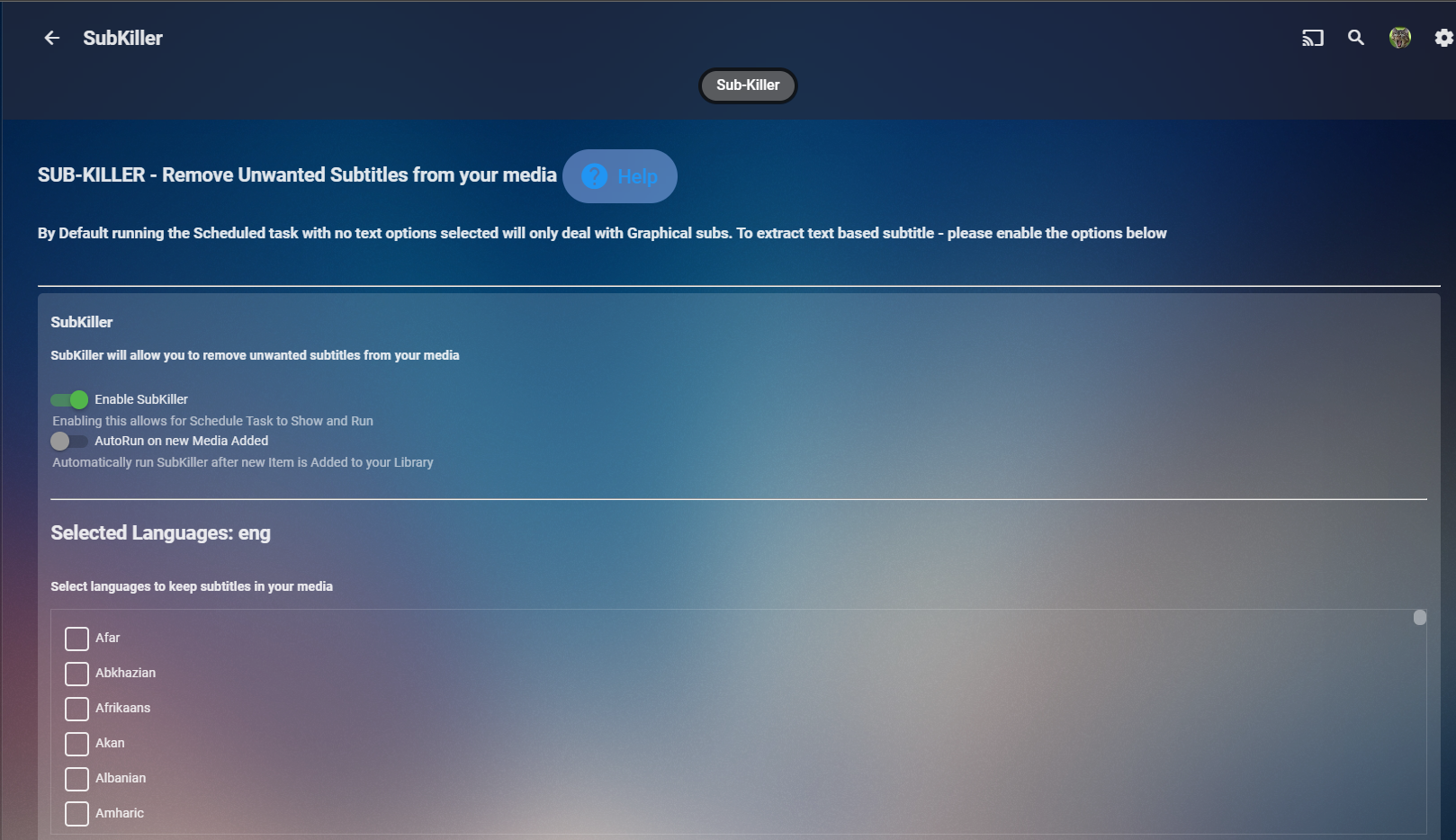
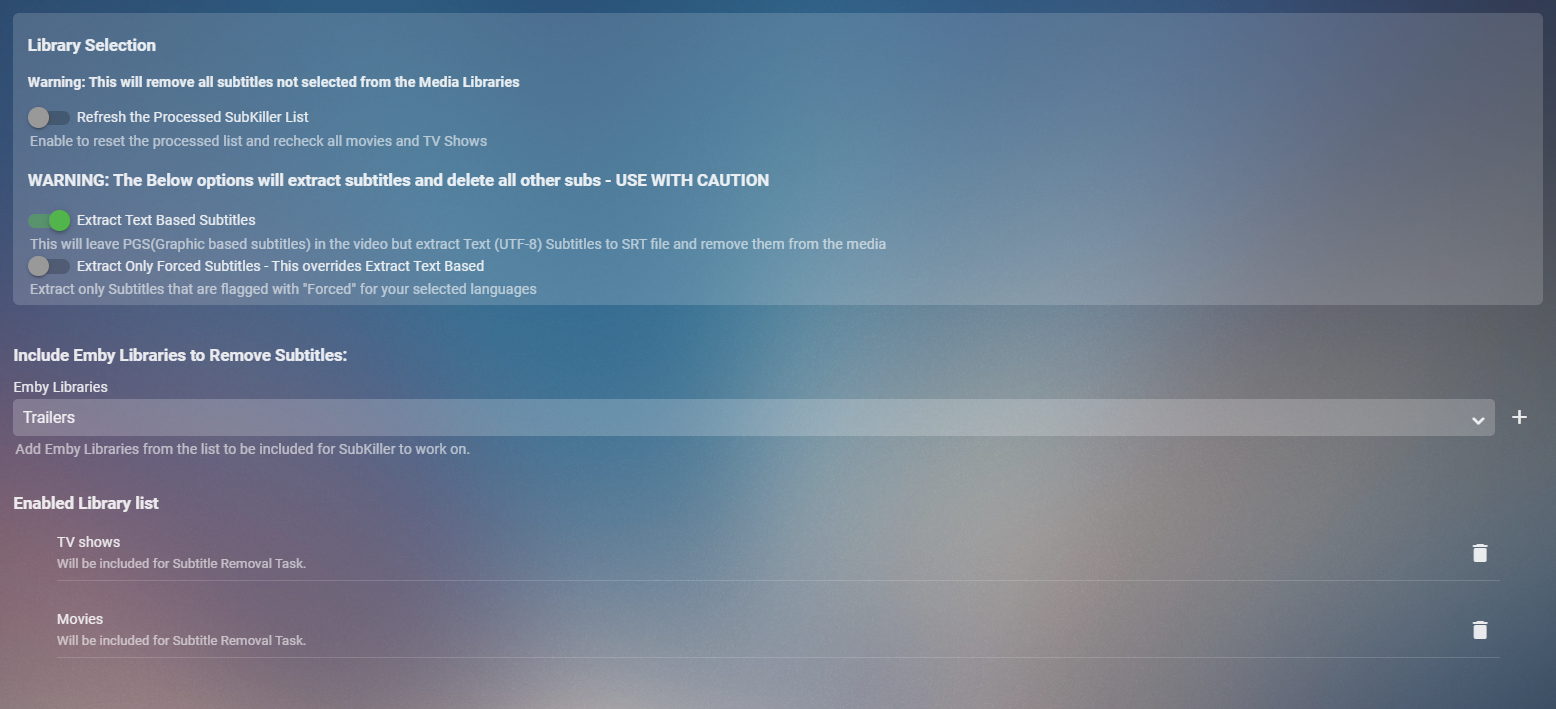
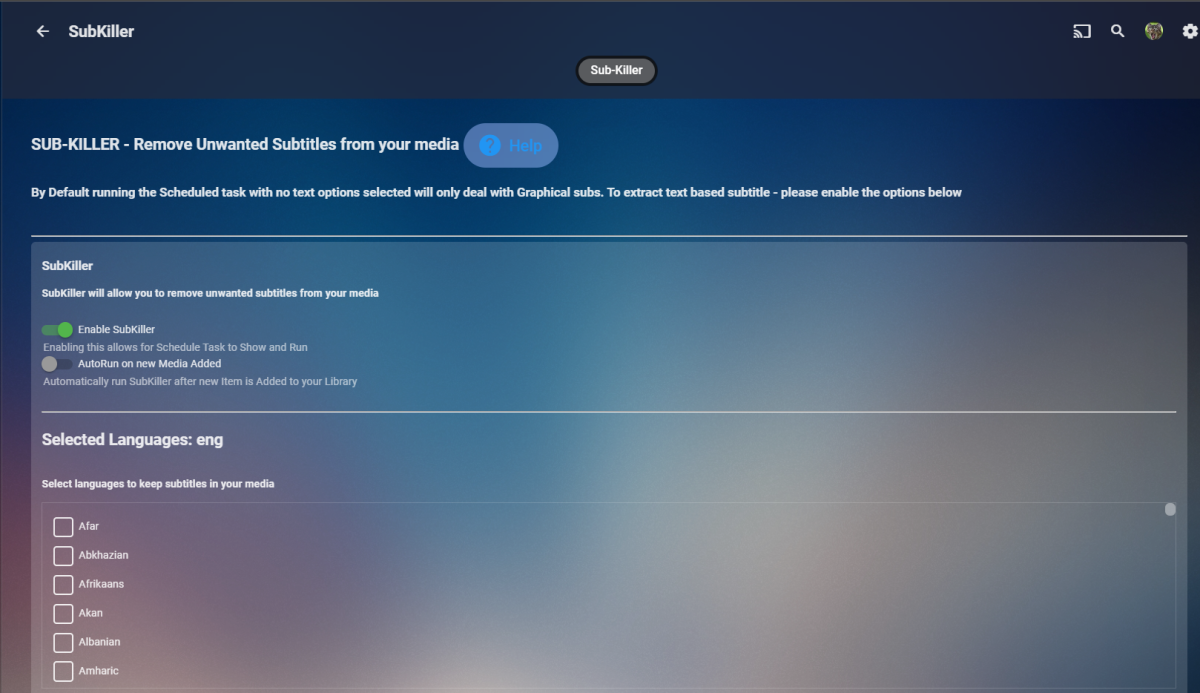
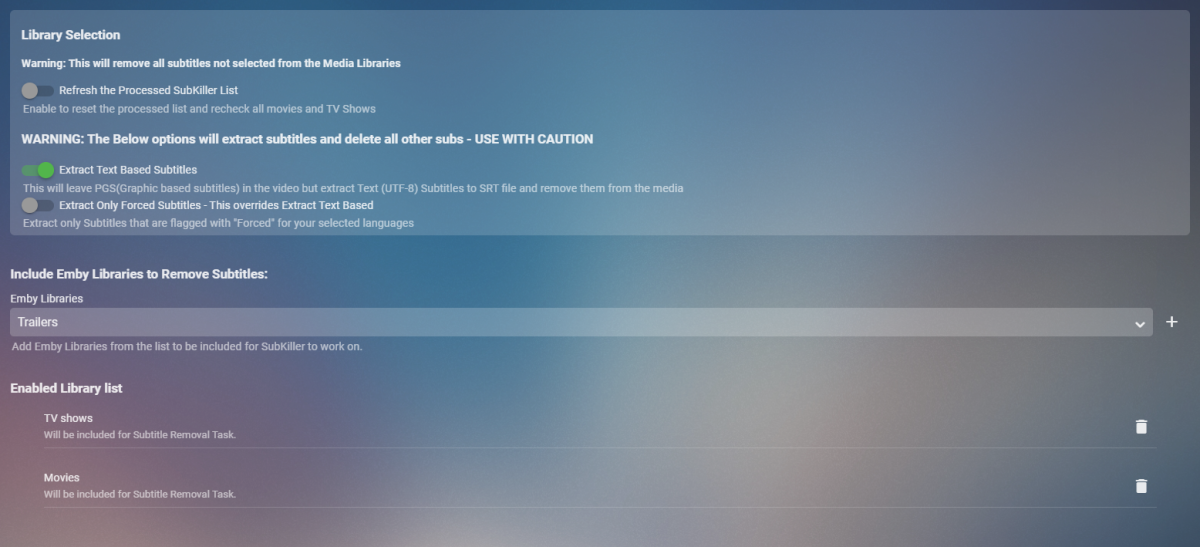
Cheesey Productions brings you SUB-KILLER for Emby Remove those unwanted subtitle languages Removes Graphical subtitles by default & can extract text based subtitles as an option Available from the plugin store A huge shout out to @rbjtech @FrostByte and @Dickydodah!for all their help with this. https://twemoji.maxcdn.com/2/72x72/1f44d.png Please read the wiki page available that will help you get set up. - currently under construction SUB-KILLER WIKI PAGE This plugin is destructive as it removes physical subtitle files from your media containers PLEASE USE A TEST LIBRARY FIRST Config Page

 3 points
 -
'e412' is the codepoint for the camera icon. The '&#x' is just a prefix for the hexadecimal format. You can search here to find the icon you want and get the codepoint by clicking on it. https://fonts.google.com/icons?icon.query=camera&icon.style=Filled&icon.set=Material+Icons For example, search for 'camera' to find the icon Emby is using for 'homevideos'. It's the first result, named 'photo_camera' with codepoint 'e412'.2 points
-
Yes, this should be fixed in the next USB release2 points
-
ComSkipper ... A Emby Plugin that skips commercials in recordings using output from comskip. This plugin will work with EDL files generated by Comskip, ShowAnalyzer or any other application capable of generating them to automagically skip past commercials when playing back recordings in Emby. A visual localized notification will be presented on the screen when this happens. UNC network mappings are fine - as long as the .EDL file is in the same filename as the media file. A PDF is included in the download that explains all of the details. But one thing should be made clear up front. And that is this plugin does NOT contain comskip, show analyzer, or any other program that detects the commercials and creates the EDL files with the skipping information. Also, the donator version of comskip is required because Emby stores its recordings in .TS format. I'm told the donator version is no longer required. User @vdrovergraciously created a PDF file on how to get this working on Ubuntu. It can be found in the Github repository in the doc folder and will be included in future releases. The PDF file also shows an easy way to configure Emby to automatically run comskip after each recording on a Windows server. Linux server users will need to figure out the best way to do this for their flavor of Linux. I am not a Linux advocate or user, however I did find this information in the NextPVR forum that is encouraging, and I encourage Linux users to help each other out with this as I will be of little to no help in this regard. https://forums.nextpvr.com/showthread.php?tid=60803 Building Comskip is really quick and easy on Ubuntu, so probably the same for any Debian based distro: $ sudo apt-get update $ sudo apt-get install ffmpeg libavcodec-dev libavformat-dev libavutil-dev autoconf automake git libargtable2-dev libtool $ git clone git://github.com/erikkaashoek/Comskip $ cd Comskip $ ./autogen.sh $ ./configure $ make $ sudo make install Once this is out long enough where I am pretty sure it is stable, I'll make its GIT repository public. Git Repo Getting it into the plugin catalog could follow after that, assuming the Emby team approves. I rarely record, my main use case is NFL football games. I record our local teams game, which when complete runs comskip on the recording which takes about 40 minutes. We then watch the game while eating dinner that evening. Skipping halftime (manually) it brings the time from 3-4 hours to 2 to 2.5 hours. Comskip does a very good, remarkable really, job on all of my recordings including the games to date. I have attached the comskip.ini that I use. It works well for me in the US. If you add this to your ini (make sure your system has the processing power to handle it), it will greatly reduce he time comskip takes to process your file (requires donator version). thread_count=2 Have fun and enjoy commercial free recordings Current Release Version 2.2.0.0 - Updated Emby library to latest. Version 2.1.1.0 - Added popular .editorConfig for consistent coding standards. Upgraded to latest Emby library. Version 2.1.0.0 - A change in Emby 4.8 caused a code update to be required in how DL files are read. If the plugin stops working in server 4.8, update to the latest plugin. Version 2.0.0.0 - Allows for chapters to identify commercial points if they exist. PlayOn and perhaps others identify commercials that way. Version 1.6.0.0 - Allows configuration of time message is displayed on the screen. Allows configuration of message displayed on the screen. Optionally displays the skipped time in minutes:seconds. Version 1.5.0.0 - Added optional commercial duration skipped to the on screen message by request. Version 1.4.0.0 - Made a couple log messages info from debug by request. Version 1.2.3.0 - Upgraded to Emby server 4.7. Version 1.2.2.1 - Added German (de) translation. Version 1.2.2.0 - Culture set so EDL file can be parsed everywhere. Version 1.2.1.0 - Real time no longer experimental. Session ID fix for LG (and maybe other) clients. Version 1.2.0.0 - Experimental feature to allow commercial skipping when watching during recording Initial open source release. Version 1.0.0.2 - Initial release. Version 1.0.1.0 - Addition of configuration switch to disable on-screen notifications. **Note** You will need to clear your browser cache due to the config UI change. comskipper.ini1 point
-
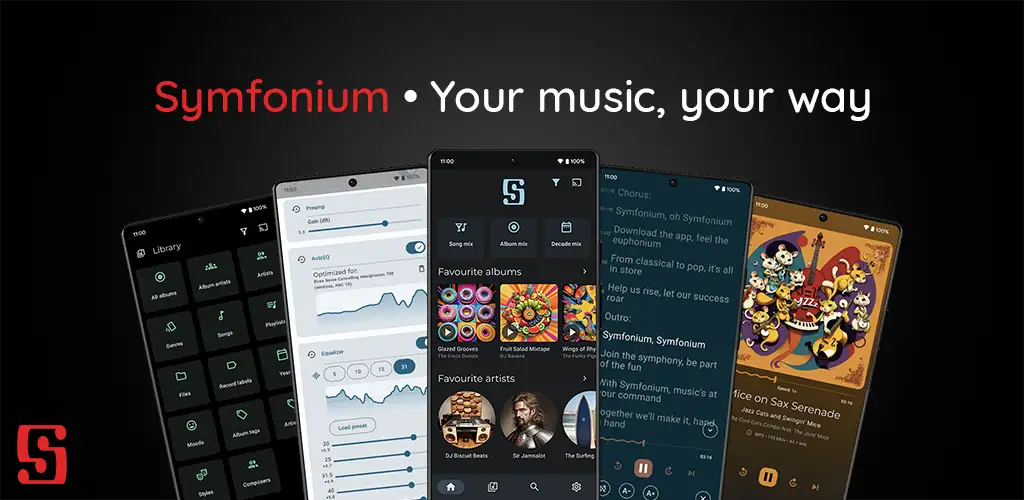
Symfonium is a simple and modern music player, with an unique vision to be your central control point for your music. Add multiple media providers (Your local device, Plex, Emby, Jellyfin, Subsonic, Kodi) then play your music on any supported player (Your local device, Chromecast, UPnP, DLNA, Kodi). Remark: This is a paid application with a free trial to ensure continuous updates without tons of bothering ads. It does not allow you to play or download media that you do not own. MAIN FUNCTIONS • Consolidate all your music from different media providers (Your android device, Plex, Emby, Jellyfin, Subsonic*, Kodi) in a fast, beautiful and intuitive interface. • Cast your music to Chromecast, UPnP/DLNA or Kodi devices. (Support UPnP gapless on compatible devices) • Cache your media for offline playback (Manual or automatic with custom rules). • Advanced Android Auto support. • Advanced custom tag parser for local device (Support more files, more tags, multiple values, separators, cue files, …). • Many functions for audio books like playback speed, skip silence, resume points, … • Smart filters and smart playlists to organize and play your media on many different criteria. • Complete playlist support with sync with most media providers. • Fully configurable interface: organize your tabs, shortcuts, home page, now playing, sorts, use lists or grids with custom sizes and much more. • Transcoding support when casting to Chromecast (And soon UPnP). • Multiple now playing media queues, easily switch between audio books and playlist or albums without loosing your configuration (Playback speed, shuffle, position, …). • Complete file mode support. • Playback cache, no more music stop during network hiccups. • Adaptive widgets. • Composer support for classical music lovers. • Support favorites and 5 star rating. • Lyrics support (Including synced lyrics. Embedded in the media files or provided by the media provider). • Advanced personal and instant "Mix" modes that evolves with your listening habits. • Fully embrace Material You and Android 12+ colored themes, while still proposing many other themes (Or create your custom ones). • Advanced local music player with gapless, volume boost, replay gain and supporting many formats like Alac, Flac, Opus, Aac, Dsd, Aif, Wma, Mpc, Ape, Tta, Wv, … • Advanced equalizer with preamp, compressor and limiter. (5, 10, 15, 31 bands or up to 256 bands in expert mode) • AutoEQ support, with more than 4200 optimized profiles tailored for your headphone model and support for custom ones. • Multiple equalization profiles, with automatic switching on headphone change. • Artist images and biography scraping for local Android media. • Sleep timer, widgets, automatic suggestions and everything for the music lovers. (Missing something? Just request it on the forum) • And much, much more, just install and try everything with the full free trial. HELP AND SUPPORT • Official website: https://symfonium.app • Forums and documentation: https://support.symfonium.app/ NOTES • Symfonium relies on the media providers to provide accurate music library data, it does not directly parse tags nor have metadata editing functions. • Symfonium development is user driven and moving fast, be sure to open feature requests on the forum to have the perfect app for your needs. • Plex pass or Emby premiere are not needed for Symfonium to provide all it’s features. DOWNLOAD • Symfonium is available on Google Play Store: https://play.google.com/store/apps/details?id=app.symfonik.music.player
 1 point
 -
So I just added a TV cartoon series from DVD. The cartoons are 12 minutes each, but on the DVD they're packaged as 30-minute episodes featuring two cartoons each. TVDB has the correct DVD order, so I ripped and named them according to those names and order. I scanned them into my library, and of course it came up as Aired order. So in metadata manager I changed the Order option to DVD, rescanned, and...nothing changed. How is this supposed to work?1 point
-
I would like to use the Alexa Skill with my Emby server, unfortunately this is still not available in German. Do you know when it can be used? https://www.amazon.com/-/de/dp/B07F8VC9F9/ref=cm_cr_arp_d_pb_opt?ie=UTF81 point
-
Has anyone found a review for the new Ryzen igpu that tests media encoding? It can encode h264 and HEVC, and decode AV1 (wish this was also encore). But I only see people testing gaming performance. Here's a list of reviews. https://videocardz.com/138525/amd-ryzen-7000-zen4-raphael-desktop-cpu-review-roundup1 point
-
oh that's interesting, and thank you muchly for the investigative work......how is that tuner interfacing with the computer? through ethernet connection? It isn't a PCI card right? Maybe USB? That would be the next phase of wondering I have....I may ultimately just need to spin up another Emby server with one of these PCI cards installed directly and do the same thing you just did, test and measure1 point
-
Okay I cleared all the tuners so Emby could take it's pick. Measured by hand, the time from selecting the channel to video is smaller than my margin of error with a stopwatch. 4.4 seconds through TVH and 4.6 direct to HDHR. My TVH and Emby are in separate Docker containers but nothing is in a VM. It's using the Docker networking, I'm not sure if that's as taxing as VM to host.1 point
-
They've managed to confuse everyone with that screen: https://community.roku.com/t5/Roku-Device-Features-Settings-Updates/Roku-Dolby-TrueHD-Now-Listed-as-a-Supported-Format/td-p/563990 But the specs haven't change: https://developer.roku.com/docs/specs/media/streaming-specifications.md And I'll preemptively mention that the Atmos support is *only* over DD+, not when packaged with TrueHD.1 point
-
Your Roku can't handle TrueHD or DTS-HD. An Nvidia Shield is the best/only? option for those Blu Ray derived audio formats.1 point
-
Windows 7 is 5 generations old at this point and no longer supported by Microsoft. Microsoft hasn't supported it in over 2.5 years as it ended support on January 14, 2020. Windows 8 (4 generations old) ended support on January 12, 2016. Windows 8.1 reaches end of support on January 10, 2023. I personally don't think it's unreasonable for Emby to only support versions of software that the actual vendor itself is still supporting. Without vendor support there is no guarantee needed files will be available or updated properly. Microsoft is still currently supporting the last three versions of Windows (Windows 8.1, Windows 10 and Windows 11).1 point
-
I'm not a dev, but I believe that's part of what Luke said he's working on. Everything of mine passes through no problem and I don't need any downmixing or other preprocessing. However, some audio equipment it appears needs the addition help on the client side which ATV has. If you do want to provide input, or just follow the development of the standard app it's in the link below. I believe #30 in the list at the beginning covers your issue, but if you see something that ATV does which you need just mention it and someone can add it.1 point
-
The additional functions that are in ATV now are slowly making it into the standard app. Luke has mentioned more passthrough options will be coming with the standard app. However, as of now the goal seems to be that eventually there will only be one Android app in the future. If you want to contribute you can run both apps and make comments in the testing thread for the standard app to make it better. Nothing is stopping you from using ATV though as ebr has been maintaining and keeping it functional with new server and Exoplayer updates. Concentration of their efforts has obviously been focused more on the standard app right now though.1 point
-
Hi. I'm not sure I understand this but it sounds like something completely different from your main request. Please only put one request in each topic so we can properly track them. Thanks.1 point
-
Hey @chef @Happy2Play thanks for the responses.. I'm wrapping my head around what you said right now. I just wanted to respond to let you both know I got it.. and on it.1 point
-
hi bro, i have the exact problems that you countered1 point
-
Me too, passthrough is so important !1 point
-
@MaaTVZ Please email billingsupport@emby.media1 point
-
1 point
-
@Happy2Play My Apologies again. I believe this is what you want.
 1 point
 -
Hi, we'll take a look at it. Thanks for reporting.1 point
-
There's some grunt work that we have to go through first because you can't really customize the apple-provided OSD, so we're currently building our own that will be able to accommodate features such as this.1 point
-
Other than Package Center then I just SSH in and type the following sudo synopkg stop EmbyServer1 point
-
Hi, yes this is something we plan to add in future updates. Thanks.1 point
-
OK... there was no Emby folder anymore, so I followed the rest of the steps and it is working again. Although, I lost hours of work in organization that I had to do over. Appreciate the quick responses here in the forum.1 point
-
I can confirm that the issue is fixed with updated LDAP version 1.0.41.0 Thanks!.1 point
-
thanks! this is even better1 point
-
ooh, it's working now , i checked clean database , restart , rescan library and i have all the content , and i find the setting to show me folders when i enter that library as well ! Thank you for your time and continue the great job !1 point
-
I did - see this in the video. Sure Here is the steps I've made in the video: Delete old app Install new app login Play a movie using 'und' (local subtitles) but see non-Hebrew subtitles Go to another TV and play using 'und' and see the Hebrew subtitles Video: https://photos.app.goo.gl/igRcV5SWwn57hqYz7 Logs attached to this comment. Happy New Jewish Year embyserver-63799660800.txt embyserver.txt1 point
-
this time it worked, would be a problem if this just works sporadic1 point
-
From a manual Identify standpoint only use what you see would work. But auto recognition would use library settings.1 point
-
I'm such a dumba$$ . All I had to do was install the newer version of Emby so that I could install the newer version of your plugin. I was running the default version of Emby from the Synology NAS Package Centre. All good now, thanks again for your help.1 point
-
That makes sense.1 point
-
Provide support for existing request.1 point
-
Hi, yes we plan to improve this in future updates. Thanks.1 point
-
I have several movies in multiple editions, ie Theatrical, Director's Cut, Extended Edition, etc. Right now I have these movies in the same root folder, such as: /Taken (2008) /Taken [Theatrical] (2008).mkv /Taken [unrated] (2008).mkv Both editions show up as a separate entry. As of right now, I've just taken to changing the name of each entry in the server so I can tell them apart. What I'd like to know is if there is a way to elegantly group them together under the same entry and choose which one to play after I select the movie from the main movie menu. I've thought about putting the non-theatrical versions in a "special" folder, but I was wondering if there was a better way to do this. Thanks, Chris1 point
-
FYI - link to Sub-Killer thread1 point
-
Its very close to being released but have decided to make it a separate plugin. We are just polishing off at the minute. i don’t know actually if it will stay or be removed as Frosty says. @rbjtech has been doing some testing and comparisons. So I’m on the fence at the minute. But it will certainly stay at least until the feature makes is to stable Core release.1 point
-
Its wonderful that we're blessed with companies like Google who take on the big companies for the common good. Oh hang on...1 point
-
Version 1.10.0 * Notes: If you know someone (or are) with the necessary skills to rework the current app icon, please contact me. It's time to fix this little thing * Added: Added new option (beta) to cache and pre cache playback queue for improved playback on low quality network (Off by default for now). Now playing media info displays bit per sample for high quality media on Android 12+. Add button to duplicate Smart playlists to easily build variations of them. Allow adding media to playlist from another playlist. Add new option to remap next/previous headset commands for devices that does not send the individual events. Add new API commands to configure wifi/mobile transcode bitrate. * Changed: Major internal refactoring to prepare future state saving. Please report any issue with now playing queue status or gapless playback. Internal Equalizer is now Android 10+ (From 9+) sorry for that, but too many crashes on Android 9. (Please contact me with device details if you used it successfully on Android 9, Play Console does not give the broken device info) Personal & instant mixes are now fixed size and no more infinite to support future state saving. (Size is configurable in settings. Those mixes are smart, if you restart them it will ensure new content!) Playlist resuming now retain how it was last started to also restore the shuffle order when started via the shuffle button. Favorite button is now always visible in notifications whatever Android version. * Fixed: Show loading status and sort playlists by name when importing from media center. Allow configuring media providers with 1 character login. Fix some playlist sync issues with some subsonic servers and add workaround for Funkwhale issues. Fix some filtering issues when using multiple providers and library filtering. Fix offline filter not applied when playing albums. Support more cases of invalid media providers certificates when playing locally. Fix replay gain support with lower case vorbis tags. Fix Plex song artist handling in compilations.1 point
-
I believe ComSkipper uses the same Remote Commands as Introskip (Plugin) does/did - this is the Client Compatibility for the Introskip Plugin which may help you. https://github.com/chefbennyj1/Emby.IntroSkip.Release/wiki/8.-Emby-Client-Compatibility-List1 point
-
If you want the best experience using Emby, use both devices, Nvidia Shield for Emby and Apple TV for the rest. In some rooms I have both devices, and in the ones I don't, I use Infuse to play media that Emby doesn't support.1 point
-
A major annoyance with the Identify mechanism is that there is no way to refine a search. After I try to identify a movie, I might get bad result, but I want to add more info or modify the info I already input to the form. There is no way to do this. So I hit the <- (that might make you think you are 'going back' to the previous screen so you can modify the search) but that just exits the search. As it is, I have to start the Identification again, and start inputting criteria from scratch.1 point
-
Emby Server 4.7.6 - Multi-Select & Right to Left Languages This is the latest point release of Emby Server containing fixes for identified issues. Support shift to multi-select Newly added to 4.7.6 is the ability to multi-select. Instead of having to select each and every media item you can now select the first media item as shown below: then holding the shift key on your keyboard, select the top-left circle with your mouse on your end media item. In two quick clicks we now have 18 items selected in this example! Right to Left languages: 4.7.6 adds support for languages that display right to left. Here's an example Nest Hub view using the Hebrew language. Other improvements and fixes include: Improve filter menu indicator Add Select None to multi-select lists Fix regressions related to image extraction Improve the use of internet metadata with recordings Improve photo loading performance Include activity log database file when vacuuming databases Mark all video versions as played when toggling played Change wording of transcoding reasons to be more user friendly Fix sort by sort title being case sensitive in some views Fixes for file names with years at beginning Improve dsd/dsf playback over Dlna Original Blog posts for the 4.7 release: Emby Server 4.7 Release: Many New Features, Improvements and Fixes Emby Server 4.7.1 - Point Release: Round 1 Fixes Emby Server 4.7.2 - Point Release: Round 2 Fixes Emby Server 4.7.4 - Point Release: Round 3 Fixes Emby Server 4.7.5 - Point Release: Round 4 Fixes Please report any issues you may have in the General/Windows section of our Community Forums: Emby Community General/Windows Forum View the full article1 point
-
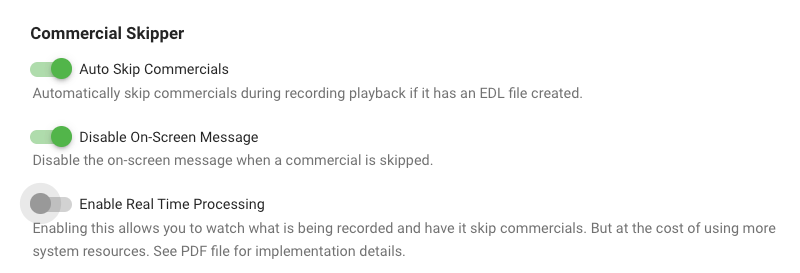
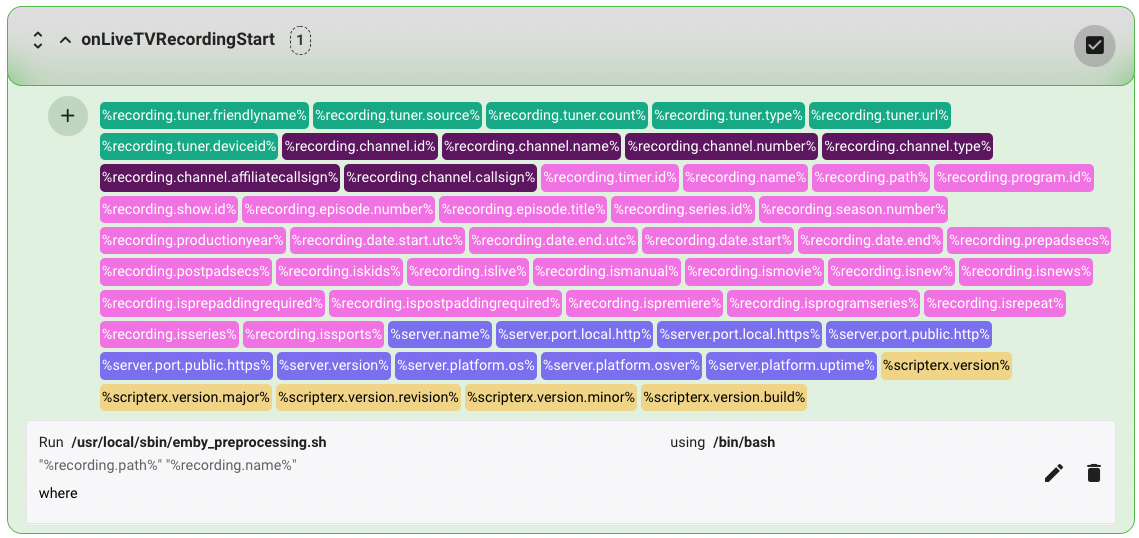
Detecting & skipping commercials on Ubuntu I wanted to contribute by sharing the details of setting up comskip on Ubuntu 20.04.3 LTS. Other flavors of linux will be similar I suspect. I'm a bit new to Emby, so this how-to is very detailed as I was learning and experimenting as i was going. I hope you find it useful! Step 1 — Preparation Before starting, you should have Live TV working in Emby and be able to record TV shows. You will also need to know the location of your emby server. Mine is installed in "/opt/emby-server". To check where your is installed, you can use this command from your terminal. $ sudo find / -type d -name "emby-server" And since you will be testing in some steps, it will be helpful to have already recorded a show and know the full path. I will use the example file path below, but you should replace it with the real path to your file: /mnt/Emby/TV Shows/Seinfeld (1981)/Season 8/Seinfeld S08E05.ts Step 2 — Install comskip In this step you will install the "donator version" comskip. I strongly recommend that you support the author my making a donation here. This step does not involve Emby in any way. The instructions were borrowed from here. From a terminal, enter the following commands. $ sudo apt-get update $ sudo apt-get install ffmpeg libavcodec-dev libavformat-dev libavutil-dev autoconf automake git libargtable2-dev libtool $ git clone git://github.com/erikkaashoek/Comskip $ cd Comskip $ ./autogen.sh $ ./configure $ make $ sudo make install Verify that comskip is working by entering the command below. The basic instructions for using comskip should be displayed. $ comskip -h Verify the path of comskip by entering the command below. If different than shown below, be sure to substitute this path when needed in Step 5. $ which comskip /usr/local/bin/comskip Step 3 — Create a comskip configuration file comskip requires the use of a configuration file to accurately detect commercials. For example, here is a basic configuration file that specifies some parameters: detect_method=107 output_edl=1 live_tv=1 edl_skip_field=3 max_commercialbreak=300 verbose=0 output_default=0 delete_logo_file=1 These parameters are stored in a file called comskip.ini. You need to create a comskip.ini file and note the full path to this file for use in Step 5. Download the attached comskip.ini file to your downloads folder. Copy the file to your /etc folder with the following command: $ sudo cp ~/Downloads/comskip.ini /etc The path of your config file will be: /etc/comskip.ini Step 4 — Test that comskip is working as expected This step does not involve Emby in any way, but it is important to help troubleshoot any issues later on when we ask Emby to trigger comskip (Step 5). We will now use the path to your recorded show from Step 1 and the path to the comskip.ini file from Step 3 to test comskip. From your terminal, enter the following command: $ comskip --ini=/etc/comskip.ini '/mnt/Emby/TV Shows/Seinfeld (1981)/Season 8/Seinfeld S08E05.ts' If comskip is working as expected, the output should be similar to that shown below with a slowly increasing progress indicator. Wait for this process to finish. "Commercials were found" should be the last line of the output. Comskip 0.82.010, made using ffmpeg Donator build The commandline used was: comskip --ini=/etc/comskip.ini "/mnt/Emby/TV Shows/Seinfeld (1981)/Season 8/Seinfeld S08E05.ts" Setting ini file to /etc/comskip.ini as per commandline Using /etc/comskip.ini for initiation values. 0:41:16 - 148470 frames in 685.90 sec(216.46 fps), 1.00 sec(248.00 fps), 99% 148549 frames decoded in 704.88 seconds (210.74 fps) Commercials were found. Using your file manager, navigate to the folder containing your recorded show. You should now see a file named "Seinfeld S08E05.edl" (note the EDL filename extension). You can view the file contents to confirm the start and end times (in seconds) for the commercials. 0.00 77.54 0 2167.10 2293.04 0 Step 5 — Launch comskip when a recording is complete. This is where we start to connect Emby and comskip. In this step we will configure the LiveTV section of Emby to launch the comskip application you installed and tested above. There are two ways to go here: (A) launch comskip when a recording completes, or (B) launch comskip when a recording begins and look for commercials in real time. CHOOSE ONE METHOD OR THE OTHER, NOT BOTH. Step 5(A) — Post-processing: running comskip when a recording is complete. From your Emby instance, navigate to the Advanced LiveTV settings as follows: Manage server > Live TV / DVR > Advanced. Scroll down. Locate the following 2 fields and enter the values shown (see Step 2 for the correct path for comskip and Step 3 for the path to comskip.ini): Post-processing application: /usr/local/bin/comskip Post-processor command line arguments: --ini=/etc/comskip.ini "{path}" Click the Save button at the bottom to save your changes. To test that this is working, record a new show. When the recording is complete, wait a few minutes and then check for the presence of a new EDL file in the folder containing the show. The EDL file should be created shortly after the recording completes. However, comskip can take a while to completely process every frame of your video. The longer the video, the longer it will take to finish. Thus, the EDL file may not be finalized for 5 to 30 minutes after the recording is complete. Step 5(B) — Live-processing: run comskip in real time during a recording. MASSIVE thanks to @reneboulard for his excellent work on live-processing in Linux. Live processing requires the installation of the Emby Scripter-X plugin. This allows you to execute scripts and commands when specific events occur such as the start of a recording. It also requires the use of a bash script (attached) called emby_preprocessing.sh. The attached bash script is very powerful. It logs activity, and allows you to use show-specific comskip.ini files on a per-show basis (see Step 8). Install the Emby Scripter-X plugin: From your Emby instance, navigate to the Plugins area as follows: Manage server > Plugins. Click the Catalog tab at the top. In the General section, locate and click Emby Scripter-X. On the plugin detail page, click the Install button. When installation is complete, reboot your Emby server. Create and test the bash file: Download the attached emby_preprocessing.sh file to your downloads folder. Copy the file to your /usr/local/sbin/ folder with the following command: $ sudo cp ~/Downloads/emby_preprocessing.sh /usr/local/sbin/ Make the bash file executable with the following command: $ sudo chmod +x /usr/local/sbin/emby_preprocessing.sh Test that the bash script is working by launching the script along with the test file above and looking for the production of EDL files. Here are sample commands: $ cd /usr/local/sbin/ $ ./emby_preprocessing.sh '/mnt/Emby/TV Shows/Seinfeld (1981)/Season 8/Seinfeld S08E05.ts' Combine the Emby Scripter-X plugin with the bash script: Ensure that the live_tv parameter in /ect/comskip.ini is enabled: live_tv=1 In the Emby Plugins area, ensure that the Real Time option is enabled. Navigate to the Emby Scripter-X settings as follows: Manage server > Scripter-X → Actions. Scroll down to locate the onLiveTVRecordingStart section. Click the section title to display the details. Click the "+" icon at the top-left of the long list of variables and then the edit/pencil icon on the right. Complete the following: Script file: /usr/local/sbin/emby_preprocessing.sh Parameters: "%recording.path%" "%recording.name%" using (dropdown): /bin/bash Click the save/check icon on the right to save the changes. Test that the the Emby Scripter-X plugin is properly launching the bash script by recording a show and looking for the production of EDL files. Since the bash script includes a 1-minute delay, wait a few minutes and be patient. Once the EDL file is created, you can observe this file during the recording. Entries should show up in real time as commercials are detected. Step 6 — Installing the Com Skipper plugin for Emby Server Now that your system is properly configured and tested, it's time to install the Com Skipper plugin and enjoy the ability to skip commercials while watching a recorded show! Note: This plugin is not (yet) in the existing plugin catalog and must be installed manually. Once installed, it will appear in the Plugins section of Emby and you can manage it from there. Download the com_skipper plugin from the first post in this thread. I recommend subscribing to this thread to get notified when updates are released. You might also consider watching this repository on Github for the same reason. Extract the ZIP file to your downloads folder. Copy the DLL file to the Emby plugins folder with the following command (update to your emby path from step 1 as needed) . $ sudo cp ~/Downloads/ComSkipper.dll /opt/emby-server/system/plugins Restart Emby from the dashboard. Review the plugin settings by navigating to Manage server > Plugins > Com Skipper > Settings. Note 1: The setup described above does not support the Real Time Processing option shown in the plugin. Note 2: For AppleTV users, you MUST enable the first 2 options for things to work as you expect. Step 7 — Test commercial skipping in your Emby client! If everything is done right, you can now watch either the show you used for testing in Step 4, or the new show you recorded as a test in Step 5. Commercials should be skipped based on the times (in seconds) noted in the EDL files created by comskip. If many of your commercials are not detected, or if the start/end time for the detected commercials is not accurate enough for you, feel free to experiment with the values in /etc/comskip.ini until the desired accuracy is achieved. Google is your friend in this pursuit. For example, this thread, and this one regarding country-specific INI files. Step 8 — Using series-specific comskip.ini files If you followed the live-processing instructions in Step 5(B), you can put a comskip.ini file in the parent folder for any series you are recording. This file can have different parameters than the default file in /etc. This is useful for problematic shows that need specific optimization. Using the Seinfeld example above, use this command to copy and then modify your default ini file: $ cp /etc/comskip.ini '/mnt/Emby/TV Shows/Seinfeld (1981)' $ nano '/mnt/Emby/TV Shows/Seinfeld (1981)/comskip.ini' comskip.ini emby_preprocessing.sh
 1 point
 -
Thanks, I'll give that a try. I appreciate the advice!1 point
-
Metadata Refresh is needed. Also, TVDB must be first meta-provider in library settings.1 point