All Activity
- Past hour
-
 MattiasJsson joined the community
 -
 acmeeker joined the community
 -
 urafa85166 joined the community
 -
 Sarvesh_11 joined the community
 -
 Nadaalsaleem joined the community
 -
 ushhy8132706 joined the community
 -
 Z8ara joined the community
 -
 ushhd8131447 joined the community
 -

Plugin: EmbyCredits, detect end credits and add auto skip.
fbourg replied to yocker's topic in Plugins
I really appreciate all your work and I can't wait to see the chromatic and black frame features merged. Would upgrading to an RTX 3060 or an RTX 4060 Ti significantly improve performance or speed up the process? Thanks in advance! -
 Celtro joined the community
 -
 upine210346 joined the community
 -
Not positive this is the right area, so forgive me if it is not. I have a tv with firetv built in. I have installed the emby app. I am running my server on windows. I am able to connect to the server remotely in a web browser or using the windows emby app just fine. However, on that same remote network using the firetv app, when I try to connect to the server (manually) I enter the server IP and default port. It seems to find it as I can "change server" and it shows it listed by name there. But if I go to enter the user id and password manually it continues to give me an invalid user id or password error. I am using the same exact credentials that I use in the browser and the emby windows app without problems. I even went so far as to create a new user on the server to use for the firetv and that also throws the same invalid user id or password error and refuses to connect. Anything known to be... funky... with the firetv app that I am missing? Thanks!
-
Hi, not yet. It’s on the todo list for the app. Thanks.
-

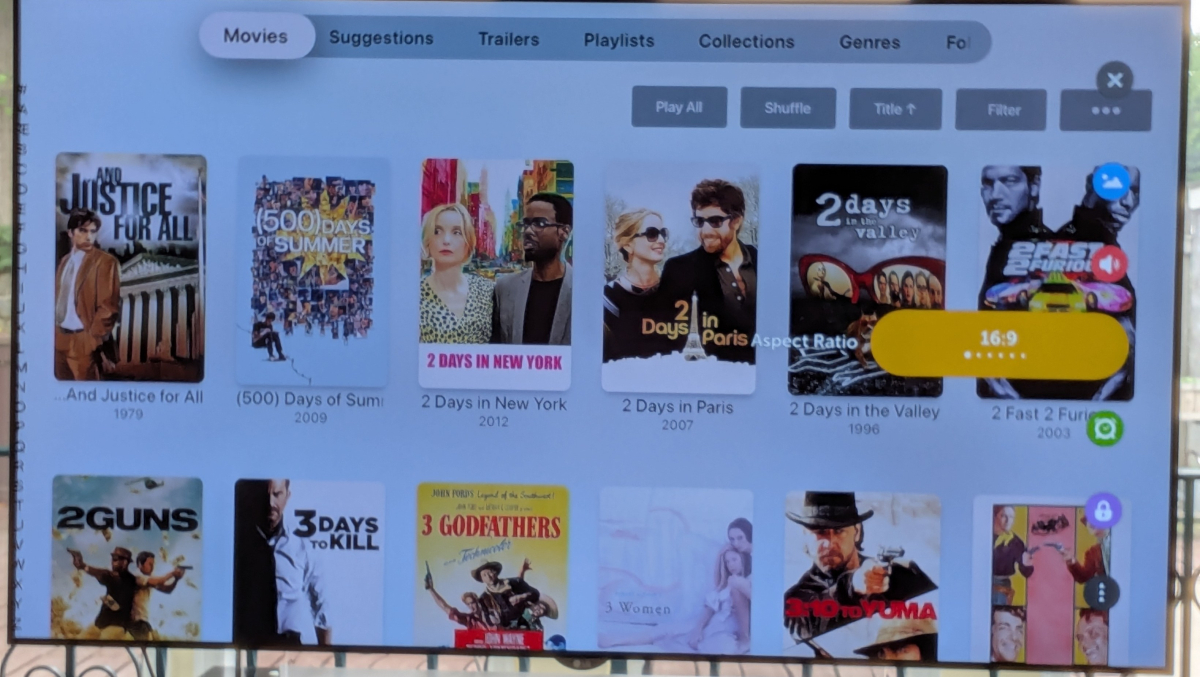
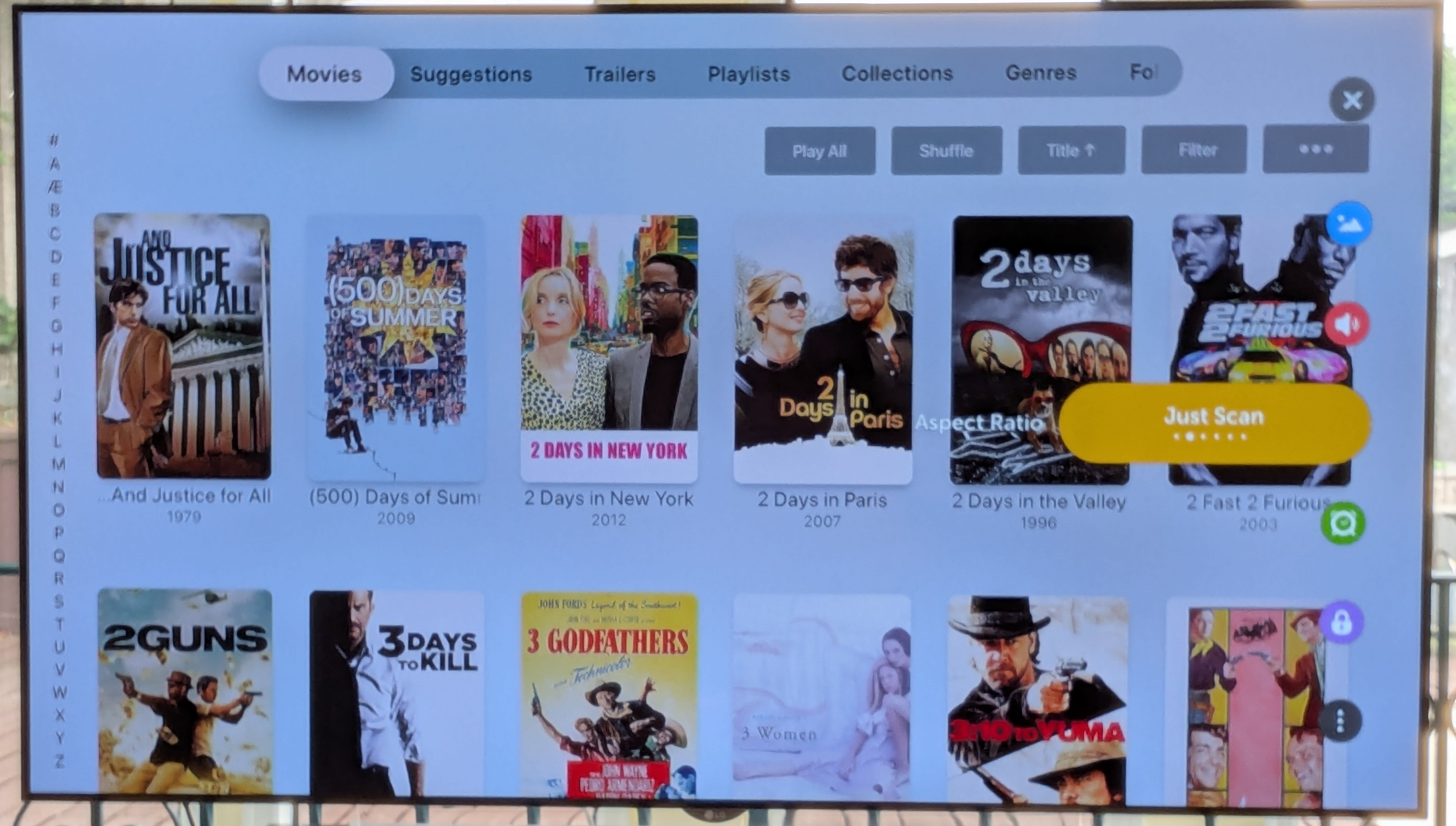
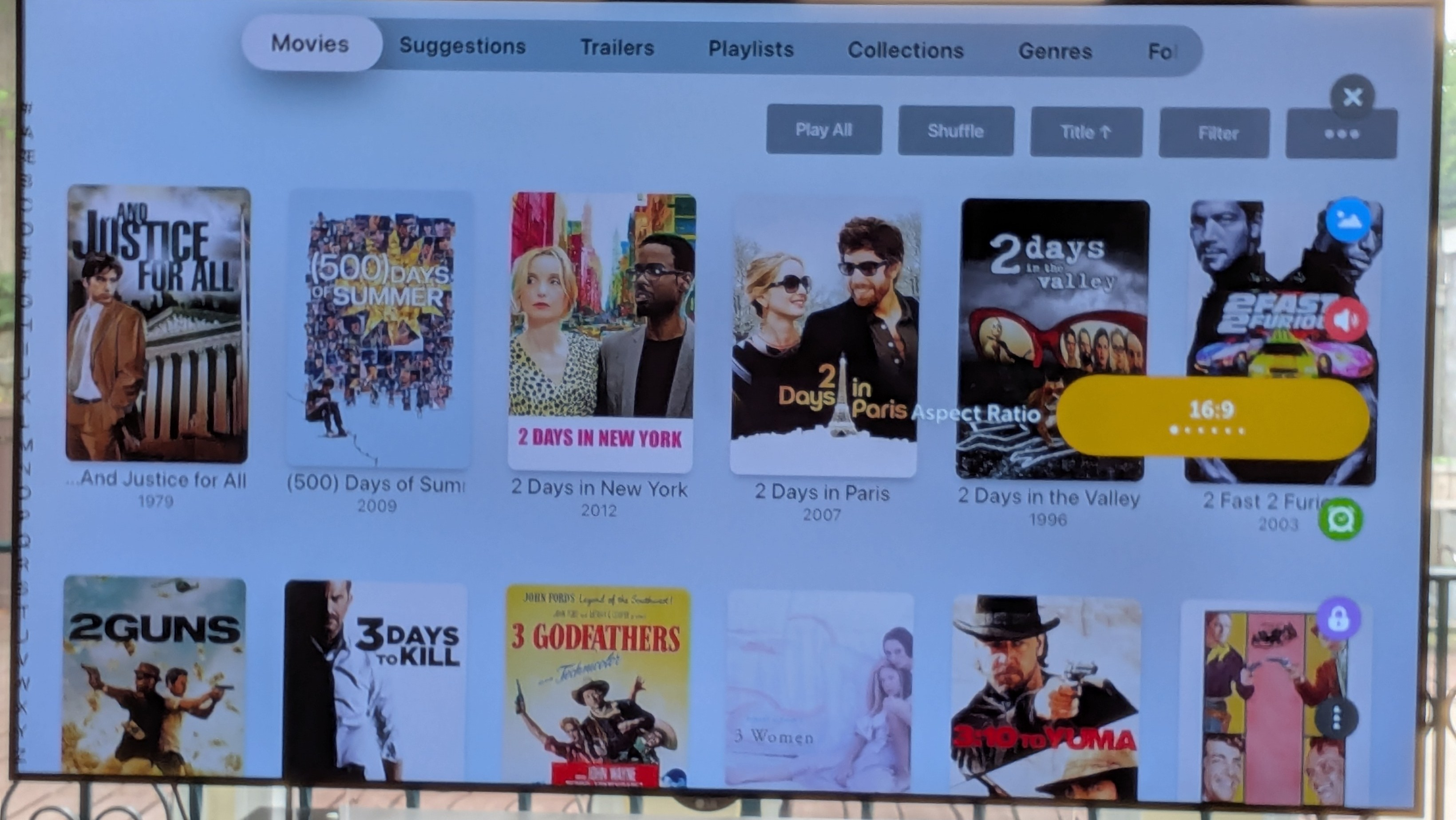
New(ish) Emby search by letter feature on AppleTV reveals an LG aspect ratio compromise...
Luke replied to Lonald's topic in General/Windows
@SamES - Today
-
Bonjour à tous, impossible de me connecter sur ma tv aujourd'hui..... rien n'a changé, c'est mon réseau local, tout fonctionne bien côté pc, mon serveur est ok, aucun accès n'a changé, que se passe-t-il ??
-

New(ish) Emby search by letter feature on AppleTV reveals an LG aspect ratio compromise...
Lonald replied to Lonald's topic in General/Windows
Here goes!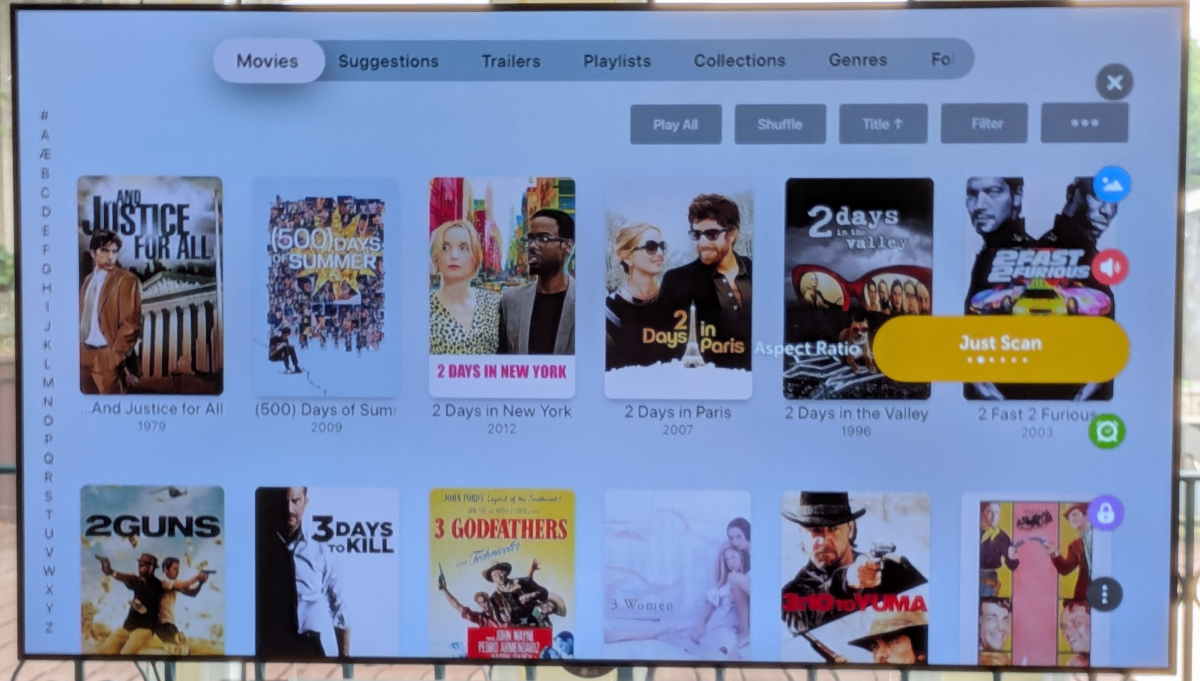
-

Multi versions of movies wont show right since the new update
Visionaire replied to Visionaire's topic in General/Windows
I tried how you said it eventhough before the update everything worked fine like i did it. Still doesn't work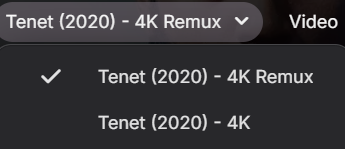
-

Asustor ADM restricts App Central installations to Volume 1
rupertbradshaw posted a topic in Asustor
Asustor ADM permanently restricts App Central installations to Volume 1: Directed at the Newer series Severs like the 5402T w/M2 SSD's. I have upgraded from an older Asustor server and have 2 HDD's full of movies, over 3.8 Terabytes. I run Emby and Plex. Have 2 512GB SSD's configured RAID1 as Volume 2. I would like to be able to run Plex and Emby from Volume 2, Volume 1 has my movie libraries. But Asustor ADM (v. 5.1.4RL21) will only allow app installs from Volume 1. Would is be possible to code in the next available ADM version to allow Volume 2 (SSD's) to be installed as an Option from Volume 1. This would well benefit the use of the SSD's verses the slower HDD's in app load and response times. I am sure this has been addressed before, but would REALLY like to have this option available as I don't want to clean wipe and put ADM on the SSD's and lose my HDD libraires. There are some Docker work around's but don't trust the configs to stick after future ADM updates. -
No it take your content across two different folders and merges them into one item within Emby, your folders and files stay in the same place.
-
i come back to 4.9.5.0 because the latest """""""stable"""""" is unusable
-
That's not mentioned in the update notes? The backdrop still doesn't go all the way to the top of the screen, there's still a translucent backdrop from the first spotlight item stuck over everything, and I still get the item details screen stuck over the home screen if I long press the info button. In TV mode, there's still an unnecessary right arrow button, and there's still no way to access the context menu. The display time for each spotlight item is still way too long.
-

TV Show Status — TMDB-powered Returning/Ended/Cancelled badges for series
Blueskies278 replied to Blueskies278's topic in Plugins
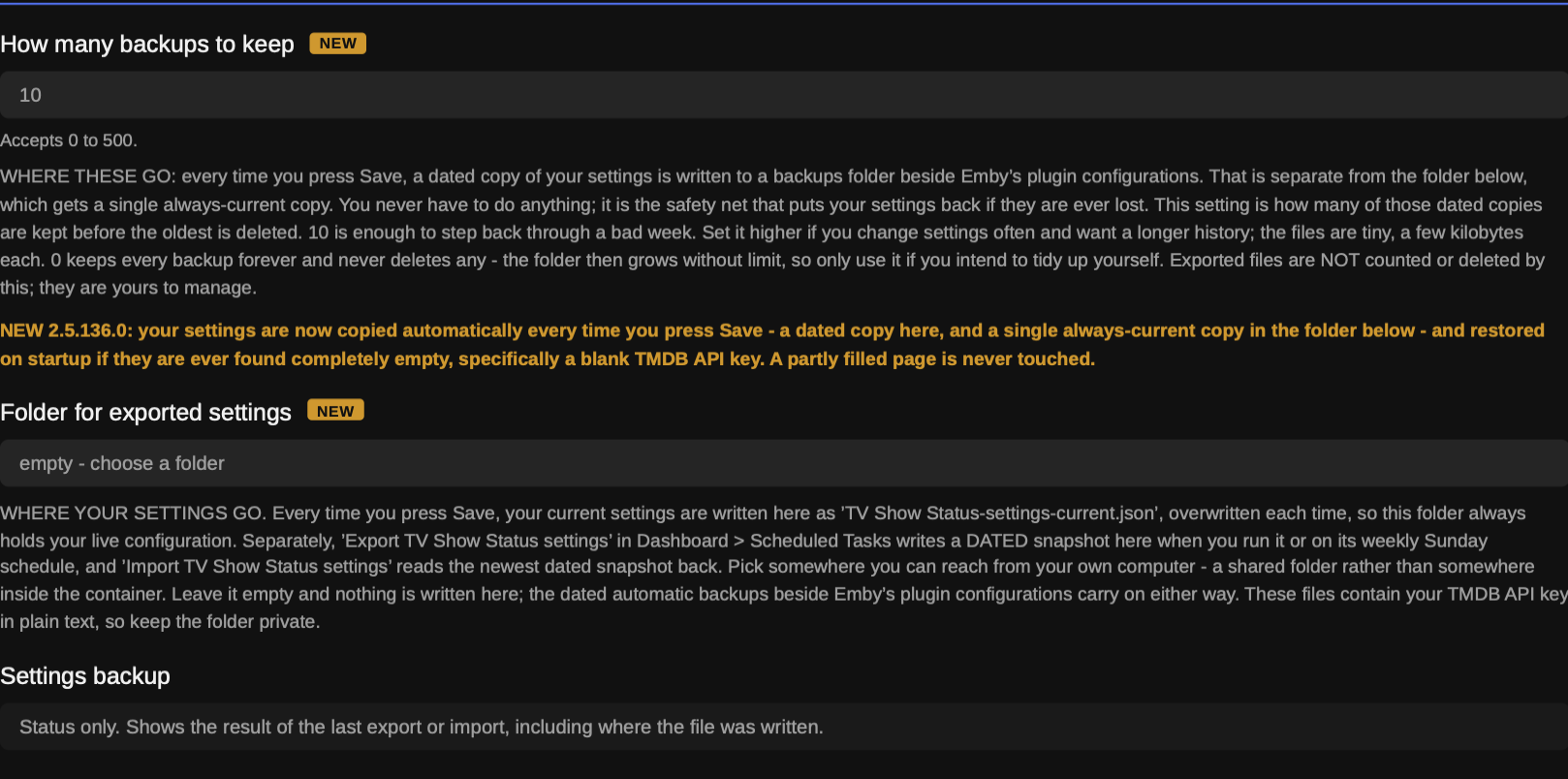
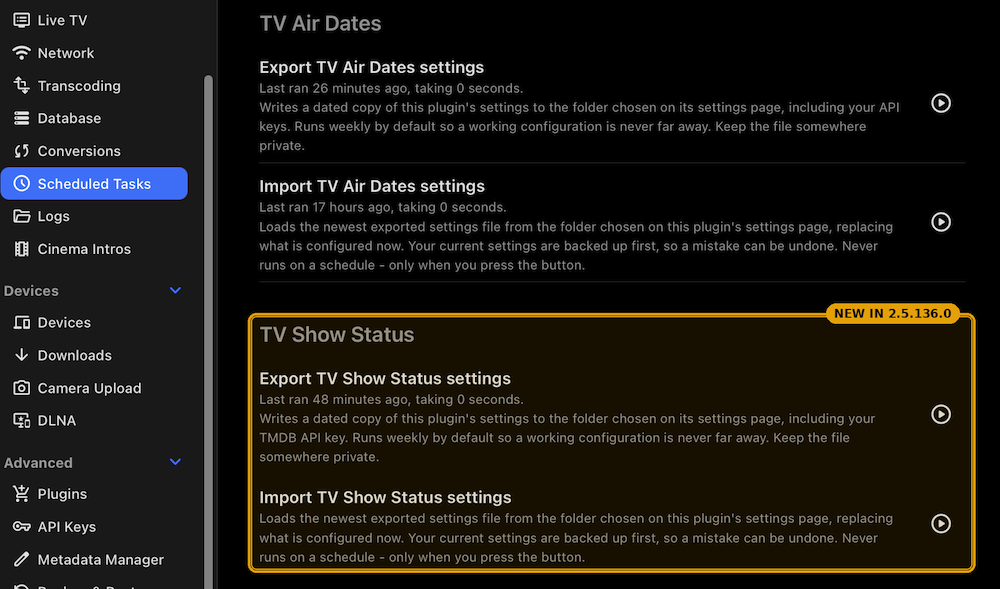
TV Show Status 2.5.136.0 Two new settings are added at the bottom of the page. Nothing you already have changes — every existing setting keeps its name and its default. New Your settings are now backed up automatically. Every time you press Save, a dated copy of your settings is written to a backups folder beside Emby's plugin configurations, and a single always-current copy goes to the folder you choose below. If the settings are ever found completely empty when the server starts, the newest copy is restored by itself and the log says so. This exists because everything on that page — the TMDB key, the preferred user, every colour, size, position and window — lives in a single file, and anything that loses that file loses all of it with no way to reconstruct the set. Server-side, so it protects every client equally and changes nothing you can see How many backups to keep — how many of those dated copies are kept before the oldest is deleted. 10 by default, which is enough to step back through a bad week. 0 keeps every backup forever and deletes nothing, so only use it if you intend to tidy the folder yourself. The files are a few kilobytes each Folder for exported settings — pick a folder you can reach from your own computer, and every time you press Save your current settings are written there as TV Show Status-settings-current.json, overwritten each time. That folder always holds your live configuration. The Settings backup box names the file it just wrote, so you can see it happen. Leave the folder empty and nothing is written there — the dated automatic backups carry on regardless Export and import, in Dashboard → Scheduled Tasks under a new "TV Show Status" category. Export TV Show Status settings writes a dated file and runs weekly on Sundays by default, so a working configuration is never more than a week from a copy; the play button runs it immediately. Import TV Show Status settingsreads the newest exported file back and never runs on a schedule — only when you press it — and it backs up what it is replacing first. Use the pair to move a working setup to another server, or to keep a copy off the machine entirely. The exported file contains your TMDB API key in plain text, so keep it somewhere private Fixed "Season Finale" was appearing on seasons that were still being published. A season showing far fewer episodes than that show normally runs was being read as finished. The finale marker is now withheld in two cases: when the episode has no real title yet, and when the season is running far shorter than that show's own completed seasons. Fixed in all four places the finale was worked out — the badge drawn into the artwork, which reaches every client; the words added to the episode name; and the two counts the browser script uses for library cards and Upcoming A season whose episode count TMDB has not caught up on no longer mis-flags its finale. Where the companion plugin supplies air dates, the season's real length is now taken from those as well, and the larger of the two counts wins. TMDB's announced count can lag reality by weeks on a running show, and a short count is exactly what made an ordinary mid-season episode look like the last one. Affects the artwork badge on every client and the browser badges alike Bad air-date corrections are now ignored rather than applied. The companion plugin's timezone correction only ever moves an episode forward by a single day, so anything larger is a mistake somewhere upstream and is now rejected with the reason written to the log. Five wrong dates were caught by this during testing. Affects every client, since it changes what the badge reports Known limitation A badge change can take a while to show up in the Emby apps. The badge is drawn into the artwork on the server, and an app keeps showing the copy it has already cached until the server redraws the image and the app fetches it again. This release changes how badges are worked out, so every badge redraws once — nothing is wrong if a card still looks the same shortly after updating. Force-closing the app makes it drop its cached artwork, and a metadata refresh on the show does the same from the server end. A browser shows the change as soon as the page is refreshed In the Emby apps, a premiere or finale badge appears on every Upcoming card of that show, not just the episode it refers to. Unaired episodes have no artwork of their own, so every card requests the same series image and the server cannot tell them apart. Only a browser can, which is why the per-episode badges are web-only To mark those episodes on TV and phone apps, the companion plugin TV Air Dates can put the words in front of the episode title instead The automatic restore only triggers on a completely empty settings file — specifically, a blank TMDB API key. A partially filled page is never touched, deliberately: silently overwriting settings you had just changed would be a worse problem than the one being solved. If you need an older configuration back, the dated files are in the backups folder and the import task will load one TV Show Status — what it is and how to use it An unofficial Emby Server plugin. Version 2.5.136.0, September 2026. The problem it solves You open your TV library and every show looks the same. Nothing tells you which ones are still running, which have finished, which were cancelled halfway through, or when the next episode of the one you're following actually lands. TV Show Status puts that on the artwork. A returning show carries its next air date, an ended show says so, a cancelled one is marked differently again, and a season that has finished airing can be flagged as ready to watch straight through. All of it comes from TMDB, and all of it is yours to configure — colour, size, position, which shows get what, and whether posters and thumbnails behave the same way. The one thing worth understanding first There are three separate ways a badge can reach you, and almost every question about this plugin turns out to be about which one is in play. They are independent, they can be used together, and they have different reach. Badges drawn into the artwork. The plugin draws the badge into the image on the server, so it appears on every client — Android TV, Fire TV, tvOS, iOS, the mobile apps and the browser — with nothing to install on the device. This is the main thing the plugin does. The trade-off is that the badge sits on the artwork itself, and because one image serves every card of a show, a per-episode badge lands on all of that show's cards rather than just the one it refers to. Badges drawn by the web script. A small script the plugin deploys into Emby's own web folder draws badges on library cards and in Upcoming. It knows which page it is on and which episode each card is, so it can be genuinely per-episode and can badge Upcoming without touching your library view. The catch, stated plainly: browser only. The Emby apps do not load it and see nothing from it. Description text. The plugin writes the status as plain text at the start of the show's description. Every client can display a description, so this reaches stock Android and tvOS too — but it is text, with no icon or colour, and it edits real library metadata. Knowing which of the three you are looking at answers most of the puzzles further down. Before you start Back up your Emby server. Two of the three routes above write to your library: the description prefix edits the show overview, and the episode-name marker edits episode titles. Both are reversible by switching the setting off, but a backup costs you nothing and is the sensible habit. If you run Emby in Docker, that means the config folder. On a NAS package, use the NAS's own backup. On Windows, macOS or Linux, stop the server and copy the Emby Server data folder somewhere safe. Step 1 — get your TMDB key You need one key, and it is free and instant. Go to themoviedb.org/settings/api Create a free account if you do not have one, and request an API key Copy the API Key (v3 auth) value — not the read access token That is the only credential the plugin uses. Everything it displays comes from TMDB. Step 2 — install the plugin The file is EmbyTVShowStatus.dll. It goes in the plugins folder directly below your Emby Server data folder. Stop Emby Server first. Emby holds plugin files open while running. Where the data folder is Platform Data folder Windows C:\Users\<you>\AppData\Roaming\Emby-Server\programdata macOS /Users/<you>/.config/emby-server (older installs: /Users/<you>/emby-server) Linux (deb/rpm) /var/lib/emby Docker whatever you mapped to /config inside the container Synology DSM 7 /volume1/@appdata/EmbyServer Synology DSM 6 /volume1/Emby QNAP /share/CACHEDEV1_DATA/.qpkg/EmbyServer/programdata UGREEN (UGOS) Docker only — whatever you mapped to /config, usually /volume1/docker/emby/config Asustor / TerraMaster /home/emby So on Windows the plugin goes in …\programdata\plugins\EmbyTVShowStatus.dll, on Linux in /var/lib/emby/plugins/EmbyTVShowStatus.dll, and so on. If you are not sure which applies, Emby will tell you: Dashboard → Help → Support → Server Paths. Platform notes Windows — copy the DLL in, start Emby. Nothing else to do. macOS — the .config folder is hidden in Finder. Press Cmd+Shift+G and paste the path, copy the DLL in, then start Emby. Linux — the DLL must be readable by the user Emby runs as, usually emby. After copying: sudo chown emby:emby /var/lib/emby/plugins/EmbyTVShowStatus.dll sudo chmod 644 /var/lib/emby/plugins/EmbyTVShowStatus.dll Docker — copy into the mapped config folder from the host, or go through the container: sudo docker cp EmbyTVShowStatus.dll <container>:/config/plugins/EmbyTVShowStatus.dll sudo docker restart <container> NAS (Synology, QNAP, UGREEN, Asustor, TerraMaster) — same as Linux, and the permissions step matters most here. Step 3 — set it up Start Emby, then Dashboard → Plugins → TV Show Status. TMDB API Key — paste it in Show badges on show posters and thumbnails — turn this on. It is off by default, and it is the setting that makes the plugin visible on every client Press Save That is the working minimum. Give Emby a few minutes to redraw artwork, then look at your library. The settings worth thinking about Poster: show status and Thumbnail: what to show are separate on purpose. Posters are the tall images in your library grid; thumbnails are the wide 16:9 images Upcoming and thumbnail views use. Setting them differently is what lets you have, say, a badged library and a clean Upcoming list. Background matters more than it sounds. The badge is drawn onto the full-size artwork and your TV app then shrinks it, so anything showing through the badge eats contrast before the shrinking even starts. Measured on a real poster at the size an Android box receives, Medium recovers about 16% more edge detail than Translucent and Solid about 32%. If badges look soft on Android TV, Fire TV or tvOS, this is the single most effective change available and it needs nothing installed on the device. Position defaults to Top left because most key art leaves that corner clear. Avoid Top right unless you want it beside Emby's own unwatched-episode count, which is drawn there. Colour: ended and Colour: cancelled are deliberately separate. An ended show told its story; a cancelled one usually stopped on a cliffhanger. If you use the badge to decide what is safe to start, that distinction is the whole point. If you would rather not make it, Show cancelled as ended collapses the two. Preferred Emby user is only used by the "ready to binge" mode and by "Hide once watched". It must be your Emby username — the name you sign in with — not your display name. They are often different, and a mismatch quietly falls back to plain status rather than reporting an error. The combination worth knowing Set Thumbnail: what to show to Nothing and turn on Show badges on library cards and Upcoming. You then get badges in your library's thumbnail view and a clean, per-episode Upcoming list — something the artwork badges cannot do alone, because both views ask the server for the same image and it has no way to tell them apart. A browser script does know which page it is on. Web browser only. Episode badges Episode: what to show badges individual episodes rather than the show. One requirement that is easy to miss: an episode only gets its own badge if Emby is using that episode's own picture. For episodes with no picture, go to Dashboard → Libraries → your TV library → Manage library → Episode Image Fetchers and tick TV Show Status, ranked below TheMovieDb and TheTVDB. It arrives unticked. Step 4 — check it worked Open the settings page again and read the status boxes. Air Dates tells you whether the companion TV Air Dates plugin is supplying real broadcast times. If it is not installed that is perfectly normal — it just means TMDB's own dates are used, which outside the US can read a day early for evening US broadcasts. Poster Overlay tells you whether the overlay is drawing and in which mode. Web Badge/Description Script tells you whether the browser script deployed successfully. It re-checks every time you open the page. If it reports a problem, the message contains the one-line fix — on some Docker setups Emby cannot write to its own web folder, which is the usual cause. Settings backup shows the result of the last export or import. Keeping your settings safe Everything on that page lives in a single file, and it includes your TMDB key. Lose it and there is no way to reconstruct thirty-odd settings from memory. The plugin protects it two ways. Automatically, every time you press Save. Two copies are written, and knowing which is which saves confusion later. A dated copy goes to plugins/configurations/tvshowstatus-settings-backups/, beside Emby's own configuration files. That is the safety net: if your settings are ever found empty at startup, the newest one is restored by itself. How many backups to keep sets how many are kept — 10 by default, 0 keeps everything. At the same time, your current settings are written to the folder you set in Folder for exported settings, as a single file named TV Show Status-settings-current.json, overwritten on each save. That folder therefore always holds your live configuration, somewhere you can actually reach it. Leave the folder empty and nothing is written there; the dated backups carry on regardless. After each save the Settings backup box names the file it just wrote, so you can see it happened rather than take it on trust. The automatic restore only fires on a completely empty settings file — a blank TMDB key. A partly filled page is never touched, because silently overwriting settings you had just changed would be worse than the problem being solved. On demand — in Dashboard → Scheduled Tasks, under "TV Show Status": Export TV Show Status settings — writes a dated snapshot to the same folder, alongside the always-current file. Runs weekly on Sundays; the play button runs it now. Use it to capture a known-good configuration before changing something, or before rebuilding a server Import TV Show Status settings — reads the newest dated snapshot back. Only runs when you press it, and backs up what it is replacing first The exported file contains your TMDB API key in plain text. Treat it like a password. If something is wrong The plugin does not appear in the list — permissions, nine times out of ten. See the note in Step 2. No badges anywhere — check Show badges on show posters and thumbnails is on, and that the TMDB key is filled in. Both are needed before anything is drawn. Badges look soft or blurry on a TV app — raise Background to Medium or Solid, and consider a larger Size. The badge is drawn at full size and shrunk by the device, so contrast is what survives that, not detail. A badge has not changed after I changed a setting — the apps cache artwork. The server has to redraw the image and the app has to fetch it again. Force-closing the app drops its cached artwork; a metadata refresh on the show does the same from the server end. A browser updates on refresh. "Season Premiere" appears on several cards of the same show — expected in the apps. Unaired episodes have no artwork of their own, so every Upcoming card of that show requests the same series image and the server cannot tell them apart. Only the browser can be per-episode. A show reads Complete while it is still mid-season — TMDB reports "nothing scheduled" both for a season that has genuinely finished and for one simply between episodes with no date published yet. Those cannot be told apart from the data. It corrects itself as soon as TMDB publishes the next date. Episode badges are not appearing — the Episode Image Fetchers step in Step 3. Without it, episodes with no picture of their own fall back to the series image and show the show's badge instead. Web badges are missing but artwork badges are fine — read the Web Badge/Description Script status box. The script has to be written into Emby's web folder and some Docker setups block that. The server log is the place to look: Dashboard → Logs. Every line from this plugin is prefixed [TVShowStatus]. Disclaimer This is an unofficial, hobby-built plugin. It is not made by, endorsed by, or affiliated with Emby or TMDB. It uses the TMDB API but is not endorsed or certified by TMDB. It is beta software and it can write to your library: with the relevant settings turned on it changes show descriptions and episode titles. Those are real edits to your metadata, reversible by switching the setting off. It also modifies cached artwork — your original image files are never touched, and turning the overlay off restores the artwork as Emby regenerates its cache. Take a backup of your Emby server before installing, and keep one. It is supplied as-is, with no warranty of any kind — you run it at your own risk, and I cannot be held responsible for anything it does to your library, your server or your data. You supply your own TMDB API key and remain bound by TMDB's terms. Exported settings files contain that key in plain text; treat them as passwords. Please report bugs along with your Emby log. Thanks EmbyTVShowStatus.dll TV-Show-Status-guide-2_5_136_0.pdf TV-Show-Status-settings-2_5_136_0.pdf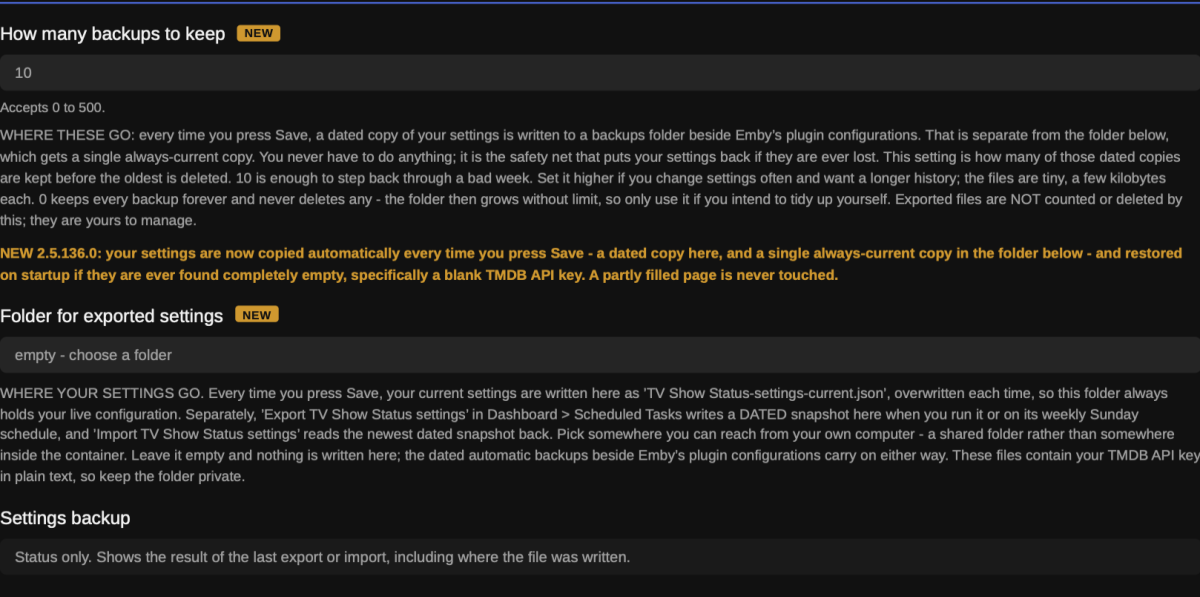
-
Sent 12:44, user TMC, playing "Just shot me"
-
Great news Eric, thanks
-
The base folder should be "Tenet (2020)". Why has Emby changed its behaviour? Probably in the course of fixing something else - cases which got away with it before now don't. Paul
-
Some significant updates have been made to this app starting with beta 2.1.57. Styling I'm updating some of the styling of components like menus and dialogs to be a bit more modern but, hopefully, still maintain the character of the app and, definitely, still maintain the exclusively large-screen presentation and navigation behavior. Usability I've added some usability enhancements that will, hopefully, be appreciated. Things like automatically focusing the last logged in user on the select user screen, remembering searched for subtitle languages and listing them first, etc. Fixes I've fixed several issues with series recordings. The app had not adjusted to changes on the server that made series recordings not really work properly. That should all be working now. New Features Starting to add some new features. One interesting one in this build that may appeal to you guys with dedicated, dark rooms and HDR screens - there is now a setting that will automatically dim the OSD and any other overlays like selection menus during playback of HDR/DV content. This should lessen the glaring effect you could get before when bringing up a menu in this context. The default dimming amount is 20% but you can set it to 35 or 50 or just turn it off if you don't like it. Only available if connected to an HDR capable display. I've extended the setting to show the logo in place of the text title from just the detail screen to also the EHS - with one additional enhancement there. The app will only use the logo on the EHS display if it is suitable to show there. Most logos run kind of like a line of text and are landscape oriented or even banner shaped. However, some logos like, "War for the Planet of the Apes" are stacked into more of a square or portrait shape and would look tiny or silly displayed in the available area for the title on the EHS. So, in those instances, the app will show the text title instead. This option (to show logo for text) has been turned on automatically with this release 1) because I think it looks good enough now to be the default and 2) to be sure and get good feedback on the feature. You can turn it off in the display settings if you wish. More to come... Please post issues and feedback in this thread. Thanks!
- 1 reply
-
- 3
-

-

-

Multi versions of movies wont show right since the new update
pwhodges replied to Visionaire's topic in General/Windows
The base folder name is "Tenet" when it should be "Tenet (2020)". Why do you have the extra folder in the middle, anyway? Paul -
@Luke I’d like to add another vote for a separate subtitle/closed-caption setting specifically for Live TV. My setup is Emby Server with an M3U tuner feeding Live TV to the latest Emby app on an NVIDIA Shield. For movies and TV shows, I do want subtitles/closed captions to follow my normal user preferences, but for Live TV I would like the option to have captions disabled by default. I recently tracked down an intermittent Live TV freezing issue and found that disabling the embedded EIA-608 closed captions appears to have resolved it. The stream itself was otherwise Direct Playing correctly — H.264 video and AAC audio — with Emby remuxing the MPEG-TS source to HLS. With captions enabled, playback would eventually freeze; with captions disabled, the same IPTV streams have been stable. Because of that, a separate Live TV subtitle mode such as “Off / Follow User Preference / Always On” would be very useful. It would allow users to keep subtitles enabled for their movie and TV libraries without risking playback issues on Live TV streams that contain problematic embedded captions.
-
Actually it loops now.
-
Hello Luke, any news here?
-
Got a new TV box coming today may speed it up, we will see. Resolution: 4K Ultra HD (3840 x 2160) at 60fps Processor (CPU): Realtek RTD1319C Graphics (GPU): Mali-G57 MC1 Memory (RAM): 4GB DDR4 @2666MHz Storage: 128GB eMMC (supports internal recording and TimeShift) Operating System: Android 12 Wireless: Tri-band Wi-Fi 6E (6th Generation AX Wireless) Ethernet: Gigabit LAN (1000M) Bluetooth: Version 5.2 Video & Audio Decoders: Dolby Vision, HDR10+, HLG, and Dolby Atmos support; AV1, H.265 (HEVC), and H.264 decoding
-
I very much do not feel that separate editions should be displayed as a separate entity in the library view. Star Wars for instance has so many separate editions that it would end up making the library look untidy and would also add a completely different nightmare adding different editions to collections (once I've watched A New Hope, I do not then want to watch 4K77). For that reason I feel that differentiation between versions and editions must exist within the same library entry. I feel that ultimately the best solution to this issue would be to have seperate "Version" and "Edition" conventions. If my understanding is correct then the existing version system was designed for the same video with different resolutions. IMHO this functionality should entirely invisible to the end user (always use the best quality version that the display can handle). Having the version functionality invisible to the end user would then allow the "version" dropdown to become an "edition" dropdown. Perhaps "Edition" names could be defined after the version with a bar character (|) as a delimiter. A simple interim improvement however would be to have the default selection when multiple versions exit, be the one that doesn't have anything after the "(year)". That would certainly make things workable for most users without any major changes. N.B If anybody has any workarounds to separate version and editions then I'd be thrilled to hear them.
-
Does merging across different folders mean moving the actual files to one folder or what ??
-
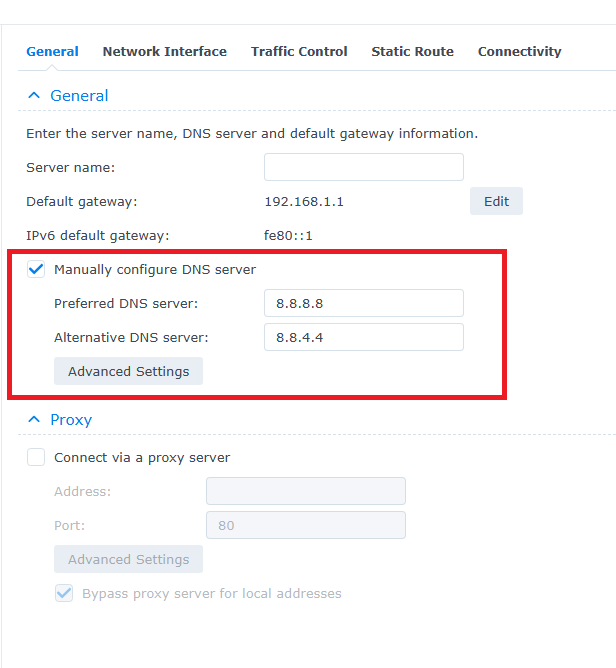
Thanks HERO for helping me, you solved the issue, the issue was from the DNS as you said (it was off), so I added google DNS and it work. Again, Thank you all,
-
Hopefully, TMC will be able to get me a new log and that will lead to whatever is happening for you too.



_svg.thumb.png.85e4ee6291ddd76347269c05175b5dda.png)