Running as Windows Service
Running Emby Server as a Windows Service
Before setting up a Windows Service, you'll need to install Emby Server from the Emby website.
To setup a Windows Service, we'll be using a program called NSSM that can turn any app into a Windows Service. To begin:
- Download NSSM. Make sure to choose the 64-bit or 32-bit version of NSSM to match the architecture of your Windows installation.
- Save nssm.exe to a folder of your choice. You'll need to keep NSSM in this folder in order for the service to function.
- Open a command prompt as admin and "cd" to the folder containing NSSM.
- Type "nssm install" to open the NSSM user interface.
Follow this guide to create your Windows Service, but incorporate the following changes:
- Application path: path to EmbyServer.exe
- Startup directory: folder containing the above executable
- Arguments: -service
- Service name: Emby Server (or other name of your choice)
Then, on the exit actions tab, make sure to configure the exit action to not automatically restart:
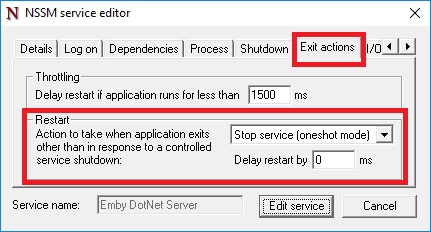
This is important because without this, using the Shutdown button inside Emby Server will cause NSSM to automatically restart Emby Server.
Warning
Emby will not auto update while running as a service. To upgrade Emby Server, download the latest version from https://emby.media/windows-server.html. Stop the service and perform the install using the version downloaded. Restart service.